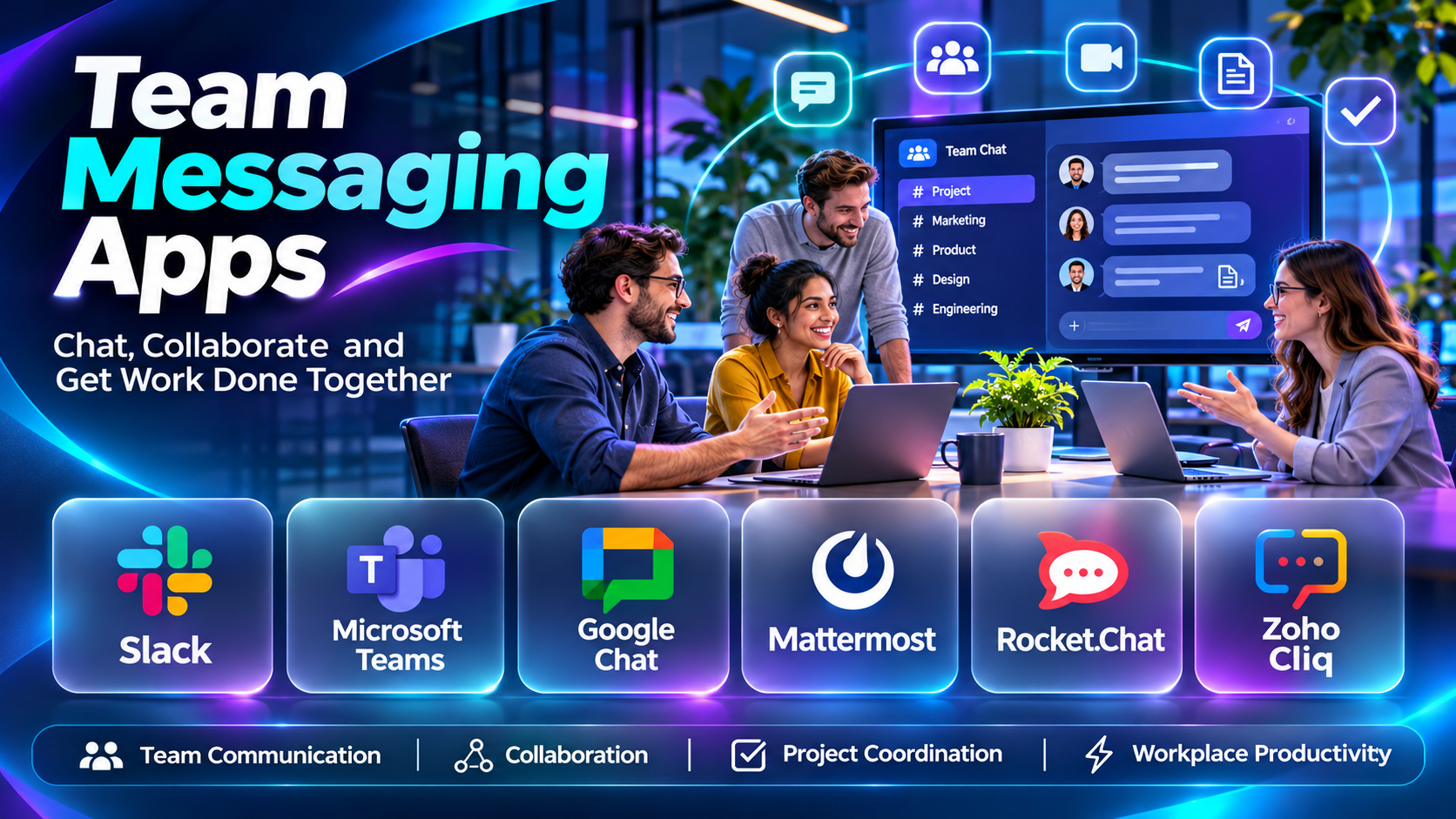
Introduction
Team communication plays an important role in business productivity. Employees need reliable ways to exchange information, coordinate projects, share files, and resolve problems without waiting for lengthy email conversations.
Traditional communication methods often create fragmented workflows. Important updates become buried in inboxes, project decisions are difficult to locate, and remote employees may struggle to remain informed about ongoing activities.
Team messaging apps address these challenges by providing shared communication environments where employees can collaborate through direct messages, group conversations, organized channels, and integrated productivity tools.
These platforms are especially valuable for distributed teams, hybrid workplaces, project-based organizations, and businesses managing several departments.
For example, a software development team may use dedicated channels to coordinate product releases, investigate technical issues, and share deployment updates. A marketing department may organize campaign discussions, creative approvals, and performance reports within the same messaging environment.
Modern team messaging platforms extend beyond simple text conversations. Many provide video meetings, file sharing, searchable histories, workflow automation, application integrations, AI-assisted summaries, and administrative controls.
However, more features do not automatically create better collaboration. Poorly organized channels, excessive notifications, unclear communication expectations, and inadequate information governance can reduce productivity.
Organizations should also distinguish team messaging from enterprise social networking, project management, and secure personal messaging. Although these categories overlap, their primary objectives differ.
Team messaging focuses on everyday operational communication and collaboration. Enterprise social networks emphasize broader organizational communities and knowledge sharing, while project management software focuses on structured tasks, milestones, and deliverables.
Selecting the right team messaging application requires evaluating communication habits, existing technology, security requirements, integrations, user experience, and total cost.
This guide compares ten leading team messaging apps, explains their capabilities and limitations, and provides practical recommendations for different organizational needs.
What Are Team Messaging Apps?
Team messaging apps are software platforms that enable employees and collaborators to exchange messages, coordinate activities, and share information through organized digital communication spaces.
They typically support direct conversations, group messaging, channels, file sharing, notifications, and searchable communication histories.
Many also integrate with business applications and provide voice or video communication.
How Team Messaging Apps Work
A typical team messaging environment includes several components.
1. Workspace creation
An organization establishes a workspace or communication environment for its employees.
2. User management
Administrators invite employees, assign permissions, and configure relevant access controls.
3. Channel organization
Teams create communication spaces for departments, projects, topics, or operational functions.
4. Direct messaging
Employees exchange private or small-group messages.
5. File collaboration
Users share documents, images, links, and other work materials.
6. Application integration
Messaging platforms connect with project management, customer support, development, and productivity applications.
7. Notifications
Users receive relevant updates based on their communication preferences.
8. Search and knowledge retrieval
Employees locate previous discussions, decisions, and shared resources.
9. Administration and governance
Organizations manage retention, access, security, and other operational requirements.
Common Applications
- Department communication.
- Remote team collaboration.
- Project coordination.
- Software development discussions.
- Customer support escalation.
- Marketing campaign collaboration.
- Internal announcements.
- Cross-functional communication.
- Incident response coordination.
- File and knowledge sharing.
Key Benefits
Team messaging apps can reduce unnecessary email exchanges, improve communication speed, support remote collaboration, and make important discussions easier to locate.
They can also connect operational notifications with the teams responsible for responding.
However, effective adoption depends on clear communication practices, appropriate channel structures, and thoughtful notification management.
Top 10 Team Messaging Apps
1. Slack
Short Description
Slack is a team messaging and collaboration platform built around organized channels, direct messaging, application integrations, and workflow coordination.
It is widely used by technology companies, startups, professional services firms, and organizations managing cross-functional projects.
Slack’s channel-based structure allows employees to separate conversations by project, department, or operational topic.
For example, a software company may maintain channels for product development, engineering incidents, customer feedback, and company announcements.
Employees can discuss issues, share documents, and receive notifications from connected applications without constantly switching between systems.
Slack also offers workflow automation and AI-assisted capabilities through relevant offerings.
Its extensive integration ecosystem is particularly useful for teams that rely on several business applications.
However, organizations must establish channel governance and notification policies to prevent excessive communication volume.
Key Features
- Channels: Organizes discussions by team, project, or topic.
- Direct Messaging: Supports individual and small-group conversations.
- Searchable History: Helps employees locate previous messages and shared information.
- Application Integrations: Connects with supported development, productivity, and business tools.
- Workflow Automation: Supports automated communication and operational processes.
- Huddles: Provides lightweight audio and video collaboration.
- File Sharing: Enables document and media exchange.
- AI-Assisted Features: Offers selected summaries and information retrieval capabilities.
- Enterprise Administration: Supports relevant identity, security, and governance controls.
Benefits
- Improves cross-functional communication.
- Reduces fragmented project discussions.
- Connects business applications.
- Supports remote collaboration.
- Makes shared information searchable.
- Enables workflow automation.
- Helps teams coordinate operational updates.
Pros
- Extensive integration ecosystem.
- Flexible channel organization.
- Strong search capabilities.
- Workflow automation.
- Cross-platform availability.
- Suitable for technical and business teams.
Cons
- High message volume can create distractions.
- Paid features increase operating costs.
- Channel organization requires governance.
- Important decisions may become buried.
- Advanced administration varies by plan.
Use Cases
Software Development: Engineering teams coordinate releases and incidents.
Marketing Collaboration: Campaign teams manage discussions and approvals.
Cross-Functional Projects: Departments exchange updates in shared channels.
Operational Notifications: Teams receive alerts from connected applications.
Best For
Startups, technology companies, distributed teams, and organizations requiring extensive application integrations.
2. Microsoft Teams
Short Description
Microsoft Teams is a collaboration platform that combines team messaging, meetings, calling, and file collaboration within the Microsoft ecosystem.
It is particularly relevant to organizations using Microsoft 365, SharePoint, OneDrive, and related productivity services.
Teams provides structured communication spaces for departments, projects, and working groups.
For example, a financial services organization may use Teams to coordinate internal projects, conduct meetings, and collaborate on documents.
Its integration with Microsoft productivity applications can reduce the need to move between separate communication and document management tools.
Teams also provides enterprise administration, identity integration, and relevant compliance capabilities through supported Microsoft offerings.
However, organizations should understand the relationship between Teams, SharePoint, OneDrive, and Microsoft 365 administration.
Effective deployment requires appropriate configuration of permissions, guest access, retention, and workspace governance.
Key Features
- Team Channels: Organizes departmental and project conversations.
- Direct Messaging: Supports individual and group communication.
- Video Meetings: Provides integrated meeting capabilities.
- Voice Calling: Supports relevant calling functionality.
- Microsoft 365 Integration: Connects with supported Office productivity applications.
- File Collaboration: Integrates with SharePoint and OneDrive.
- Application Integration: Supports relevant third-party and Microsoft applications.
- Enterprise Security: Provides applicable identity and administrative controls.
- AI-Assisted Collaboration: Offers selected Copilot capabilities through eligible products.
Benefits
- Combines messaging and meetings.
- Integrates with Microsoft 365.
- Supports document collaboration.
- Enables enterprise administration.
- Reduces disconnected communication tools.
- Supports remote and hybrid work.
- Fits established Microsoft environments.
Pros
- Strong Microsoft ecosystem integration.
- Integrated video meetings.
- Document collaboration.
- Enterprise security capabilities.
- Centralized administration.
- Suitable for large organizations.
Cons
- Interface complexity may increase with extensive use.
- Microsoft licensing requires evaluation.
- Workspace governance can be complicated.
- Some features depend on additional products.
- Organizations outside Microsoft ecosystems may prefer alternatives.
Use Cases
Enterprise Collaboration: Departments coordinate daily work.
Hybrid Meetings: Employees communicate across office and remote locations.
Document Collaboration: Teams work on shared Microsoft files.
Project Communication: Organizations maintain structured project discussions.
Best For
Microsoft 365 organizations, large enterprises, and hybrid workplaces.
3. Google Chat
Short Description
Google Chat is a business messaging application integrated with Google Workspace.
It provides direct messaging, group conversations, and collaborative spaces for teams.
Google Chat is particularly relevant to organizations already using Gmail, Google Drive, Google Meet, and Google Docs.
For example, a marketing agency may use Google Chat spaces to discuss client projects while collaborating on documents stored in Google Drive.
Its integration with Google Workspace allows employees to move between messaging, meetings, and productivity applications.
Google Chat also supports relevant automation and application integration capabilities.
Its relatively straightforward interface can make adoption easier for teams familiar with Google’s productivity environment.
However, organizations requiring extensive specialized messaging workflows should compare its integration ecosystem and administrative features with alternatives.
Key Features
- Direct Messaging: Supports individual communication.
- Spaces: Organizes project and team discussions.
- Google Workspace Integration: Connects with supported Google applications.
- File Sharing: Enables sharing of Google Drive resources.
- Google Meet Integration: Supports meeting workflows.
- Search: Helps locate relevant conversations.
- Application Integration: Supports selected bots and connected applications.
- Administrative Controls: Provides relevant Workspace management capabilities.
- Cross-Device Access: Supports web and mobile communication.
Benefits
- Integrates with Google Workspace.
- Supports straightforward team communication.
- Simplifies document sharing.
- Enables project-based discussions.
- Reduces unnecessary email exchanges.
- Supports remote collaboration.
- Fits Google-based productivity workflows.
Pros
- Google Workspace integration.
- Familiar interface.
- Organized spaces.
- Convenient file sharing.
- Cross-platform availability.
- Suitable for everyday business communication.
Cons
- Specialized integrations may be less extensive than Slack’s.
- Advanced features depend on Workspace offerings.
- Less suitable for organizations avoiding Google’s ecosystem.
- Channel organization still requires planning.
- Some enterprise workflows need additional tools.
Use Cases
Google Workspace Collaboration: Employees communicate alongside Docs and Drive.
Project Coordination: Teams organize conversations in spaces.
Small Business Messaging: Companies maintain everyday communication.
Remote Work: Distributed employees exchange updates.
Best For
Google Workspace customers, small businesses, agencies, and teams seeking integrated productivity communication.
4. Mattermost
Short Description
Mattermost is a collaboration platform focused on secure, operational, and technical team communication.
It is particularly relevant to organizations requiring greater control over deployment environments and communication infrastructure.
Mattermost supports channel-based messaging, integrations, and operational collaboration workflows.
For example, an engineering organization may use Mattermost to coordinate infrastructure incidents and software deployment activities.
Its self-hosting and enterprise deployment options can be valuable to organizations with specific infrastructure or security requirements.
Mattermost is also relevant to teams operating in controlled environments where conventional cloud collaboration services may be unsuitable.
However, self-hosting introduces responsibilities for maintenance, security updates, backups, and availability.
Organizations should evaluate the selected deployment model and commercial offering carefully.
Key Features
- Channel Messaging: Supports organized team discussions.
- Direct Messaging: Enables individual and group conversations.
- Self-Hosting Options: Supports organization-controlled deployments.
- Enterprise Deployment: Addresses selected regulated and technical environments.
- Application Integrations: Connects with supported operational tools.
- Workflow Automation: Supports relevant technical processes.
- File Sharing: Enables document exchange.
- Administrative Controls: Provides applicable organizational management.
- Operational Collaboration: Supports incident response and technical coordination.
Benefits
- Supports infrastructure control.
- Enables technical team communication.
- Fits selected regulated environments.
- Connects operational workflows.
- Supports channel-based collaboration.
- Offers deployment flexibility.
- Helps coordinate incident response.
Pros
- Self-hosting options.
- Technical collaboration focus.
- Channel-based messaging.
- Integration capabilities.
- Enterprise administration.
- Suitable for controlled environments.
Cons
- Self-hosting requires operational expertise.
- Maintenance responsibilities can be significant.
- Commercial features vary.
- User experience may differ from mainstream alternatives.
- Integrations require evaluation.
Use Cases
DevOps Communication: Engineers coordinate deployment activities.
Incident Response: Technical teams manage operational incidents.
Controlled Environments: Organizations operate messaging infrastructure internally.
Enterprise Collaboration: Teams coordinate sensitive operational work.
Best For
DevOps teams, security-conscious enterprises, and organizations requiring deployment control.
5. Rocket.Chat
Short Description
Rocket.Chat is a communication platform supporting team messaging, customer conversations, and organization-controlled deployment options.
It is relevant to businesses that want flexible communication infrastructure.
Rocket.Chat provides channels, direct messaging, file sharing, and relevant integration capabilities.
For example, an organization may use Rocket.Chat for internal employee discussions while connecting selected communication workflows with external channels.
Its deployment flexibility is attractive to organizations with specific infrastructure requirements.
However, businesses should distinguish internal team messaging capabilities from customer engagement features.
The available functionality depends on the selected product and deployment model.
Organizations should also consider the technical resources required for installation, administration, and maintenance.
Key Features
- Channel Messaging: Organizes team discussions.
- Direct Messages: Supports private communication.
- Deployment Flexibility: Offers relevant self-managed options.
- File Sharing: Supports document exchange.
- Application Integrations: Connects with supported business systems.
- Administrative Controls: Provides relevant management functionality.
- External Communication Options: Supports selected customer messaging workflows.
- Cross-Platform Access: Provides web and mobile applications.
- Security Configuration: Supports relevant organizational controls.
Benefits
- Offers deployment flexibility.
- Supports internal collaboration.
- Enables organized communication.
- Connects selected external workflows.
- Provides administrative capabilities.
- Supports file sharing.
- Fits infrastructure-conscious organizations.
Pros
- Self-managed deployment options.
- Channel-based collaboration.
- External communication applications.
- Integration capabilities.
- Cross-platform access.
- Organizational flexibility.
Cons
- Self-hosting requires maintenance.
- Product capabilities vary by edition.
- Advanced administration may require paid offerings.
- Configuration can be complex.
- Not every external communication feature is needed for internal teams.
Use Cases
Internal Messaging: Departments coordinate everyday work.
Infrastructure-Controlled Communication: Organizations manage their deployments.
Customer Communication: Businesses connect selected external channels.
Technical Collaboration: Teams share operational updates.
Best For
Organizations seeking deployment flexibility and combined internal or external communication capabilities.
6. Zoho Cliq
Short Description
Zoho Cliq is a team communication application designed to support workplace messaging and collaboration.
It is particularly relevant to businesses using Zoho’s broader suite of productivity and business applications.
Zoho Cliq provides channels, direct messages, calls, and integrations.
For example, a sales organization may use Cliq to coordinate customer follow-ups while working with Zoho CRM.
A support team may also use messaging channels to discuss service issues.
Its integration with Zoho applications can help reduce disconnected workflows.
However, organizations should evaluate integration requirements when their technology environment relies primarily on non-Zoho products.
Key Features
- Team Channels: Supports organized conversations.
- Direct Messaging: Enables individual and group communication.
- Audio and Video Communication: Provides relevant calling capabilities.
- Zoho Integration: Connects with supported Zoho applications.
- Bots and Automation: Supports selected automated workflows.
- File Sharing: Enables document exchange.
- Search: Helps locate previous conversations.
- Administrative Controls: Supports organizational management.
- Cross-Platform Access: Provides relevant desktop and mobile experiences.
Benefits
- Supports everyday team communication.
- Integrates with Zoho applications.
- Enables organized collaboration.
- Provides calling capabilities.
- Supports automation.
- Reduces fragmented business workflows.
- Fits growing organizations.
Pros
- Zoho ecosystem integration.
- Channel-based messaging.
- Calling functionality.
- Automation options.
- Accessible collaboration tools.
- Suitable for SMBs.
Cons
- Best ecosystem value depends on Zoho adoption.
- Specialized integrations require evaluation.
- Advanced features vary by plan.
- Less widespread than Slack or Teams.
- Large enterprise requirements need assessment.
Use Cases
Sales Collaboration: Teams coordinate CRM-related activities.
Customer Support: Employees discuss service issues.
Small Business Messaging: Companies organize everyday communication.
Zoho-Based Workflows: Organizations connect business applications.
Best For
Small and medium-sized businesses and organizations using Zoho applications.
7. Twist
Short Description
Twist is a team communication application designed around organized, asynchronous discussions.
Unlike platforms that emphasize continuous real-time conversation, Twist focuses on threaded communication.
This approach is particularly relevant to distributed teams working across different time zones.
For example, a remote content team may need to discuss editorial decisions without expecting immediate responses.
Twist allows employees to organize discussions by topic and return to them when their schedules permit.
Its structure can reduce the pressure to monitor constant message activity.
However, teams requiring rapid incident response or extensive real-time collaboration may prefer other tools.
Twist is most effective when organizations intentionally adopt asynchronous communication practices.
Key Features
- Threaded Discussions: Organizes conversations around specific topics.
- Channels: Groups related discussions.
- Direct Messages: Supports private communication.
- Asynchronous Collaboration: Encourages thoughtful responses.
- Searchable Conversations: Helps locate previous discussions.
- Notification Controls: Supports less disruptive communication.
- File Sharing: Enables relevant document exchange.
- Cross-Platform Access: Supports distributed employees.
- Organized Communication History: Keeps discussions structured.
Benefits
- Reduces pressure for immediate responses.
- Supports distributed teams.
- Encourages organized discussions.
- Improves communication clarity.
- Reduces notification overload.
- Makes decisions easier to revisit.
- Supports asynchronous work.
Pros
- Asynchronous-first design.
- Structured threads.
- Reduced communication noise.
- Suitable for remote teams.
- Searchable discussions.
- Straightforward interface.
Cons
- Less suited to urgent real-time coordination.
- Smaller integration ecosystem.
- Limited enterprise collaboration breadth.
- Teams must adapt communication habits.
- May require a separate meeting platform.
Use Cases
Remote Teams: Employees collaborate across time zones.
Content Production: Writers and editors discuss projects.
Distributed Project Management: Teams maintain structured conversations.
Asynchronous Work: Organizations reduce unnecessary interruptions.
Best For
Remote-first organizations, distributed teams, and businesses prioritizing asynchronous communication.
8. Flock
Short Description
Flock is a team messaging and collaboration application designed to support everyday workplace communication.
It combines channels, direct messaging, meetings, and relevant productivity features.
Flock is particularly relevant to small and medium-sized organizations seeking an integrated communication environment.
For example, a marketing agency may use Flock to coordinate campaign tasks and discuss client deliverables.
Teams can organize conversations and exchange files within shared workspaces.
Its productivity-oriented features can reduce reliance on several separate applications.
However, organizations should evaluate the current feature set, integration options, and long-term product fit.
Key Features
- Channel Messaging: Organizes team discussions.
- Direct Messages: Supports private conversations.
- Video Communication: Provides relevant meeting capabilities.
- File Sharing: Enables document exchange.
- Search: Helps retrieve previous messages.
- Productivity Features: Supports selected collaborative workflows.
- Application Integrations: Connects with supported business tools.
- Notifications: Keeps users informed about relevant activity.
- Cross-Platform Access: Supports desktop and mobile communication.
Benefits
- Supports team coordination.
- Combines messaging and collaboration.
- Reduces email dependence.
- Enables file sharing.
- Supports small business workflows.
- Provides meeting capabilities.
- Helps organize project discussions.
Pros
- Integrated messaging features.
- Channel organization.
- Productivity capabilities.
- Video communication.
- Cross-platform access.
- Suitable for smaller teams.
Cons
- Smaller ecosystem than major competitors.
- Advanced enterprise capabilities require evaluation.
- Integration coverage varies.
- Product suitability depends on organizational needs.
- Feature availability may change by plan.
Use Cases
Small Business Communication: Employees coordinate everyday activities.
Agency Collaboration: Teams discuss client projects.
Project Updates: Employees share progress and files.
Remote Work: Distributed staff maintain communication.
Best For
Small businesses, agencies, and teams seeking straightforward workplace messaging.
9. Pumble
Short Description
Pumble is a team communication platform offering channels, direct messaging, and collaboration capabilities.
It is relevant to organizations seeking a practical alternative to more established messaging applications.
Pumble supports organized team conversations and relevant communication workflows.
For example, a startup may use Pumble to coordinate product development, customer support, and internal announcements.
Its familiar channel-based structure can reduce onboarding complexity for employees accustomed to workplace messaging tools.
Pumble is particularly relevant to cost-conscious teams evaluating communication software.
However, businesses should compare its current pricing, feature limits, integrations, and administrative controls before selection.
Key Features
- Team Channels: Organizes workplace conversations.
- Direct Messaging: Supports individual communication.
- Group Discussions: Enables collaborative conversations.
- File Sharing: Supports document exchange.
- Search: Helps retrieve messages.
- Voice and Video Features: Provides relevant communication options.
- Administrative Controls: Supports workspace management.
- Cross-Platform Access: Provides desktop and mobile applications.
- Collaboration Workflows: Supports everyday team coordination.
Benefits
- Supports organized communication.
- Provides familiar messaging workflows.
- Helps reduce internal email.
- Enables file sharing.
- Supports remote collaboration.
- Fits cost-conscious teams.
- Simplifies team coordination.
Pros
- Straightforward messaging interface.
- Channel-based communication.
- Cross-platform support.
- Group discussions.
- Relevant calling features.
- Suitable for growing teams.
Cons
- Smaller integration ecosystem.
- Advanced enterprise functionality requires evaluation.
- Feature limits depend on the plan.
- Less extensive automation than some competitors.
- Large-scale governance requirements need assessment.
Use Cases
Startup Communication: Teams coordinate product and business work.
Remote Collaboration: Employees exchange updates.
Department Messaging: Organizations create functional channels.
Small Business Operations: Staff coordinate daily activities.
Best For
Startups, small businesses, and cost-conscious teams seeking workplace messaging.
10. Discord
Short Description
Discord is a community communication platform offering text channels, voice channels, video communication, and organized servers.
Although originally associated with gaming communities, it is also used by developer groups, creative teams, and online communities.
Discord’s persistent voice channels and flexible server organization can support informal team collaboration.
For example, a small game development studio may use Discord to coordinate creative discussions and maintain community-related channels.
Its communication features can be useful for teams that value informal collaboration and frequent voice interaction.
However, Discord is not designed primarily as an enterprise governance platform.
Organizations handling sensitive business information should carefully evaluate its security, compliance, administrative, and data management limitations.
Key Features
- Text Channels: Organizes conversations by topic.
- Voice Channels: Supports persistent audio collaboration.
- Video Communication: Enables relevant video interactions.
- Server Organization: Structures communities and teams.
- Roles and Permissions: Provides relevant access controls.
- Screen Sharing: Supports collaborative demonstrations.
- Bots and Integrations: Enables selected automation.
- File Sharing: Supports document and media exchange.
- Cross-Platform Access: Provides desktop, browser, and mobile applications.
Benefits
- Supports informal team communication.
- Enables persistent voice collaboration.
- Organizes discussions into channels.
- Provides community management features.
- Supports creative collaboration.
- Offers flexible roles.
- Enables screen sharing.
Pros
- Strong voice communication.
- Flexible channel organization.
- Community-oriented features.
- Bots and automation.
- Cross-platform availability.
- Useful for creative teams.
Cons
- Not primarily designed for enterprise governance.
- Business compliance requirements may be difficult to satisfy.
- Administrative controls differ from enterprise platforms.
- Sensitive information handling requires caution.
- Informal communication can become distracting.
Use Cases
Game Development: Creative teams coordinate projects.
Developer Communities: Technical groups discuss software projects.
Creative Collaboration: Designers and creators share feedback.
Community Management: Organizations communicate with online communities.
Best For
Creative teams, gaming studios, developer communities, and informal collaborative groups.
Comparison Table: Top 10 Team Messaging Apps
| Platform | Primary Strength | Best For | Main Consideration |
|---|---|---|---|
| Slack | Channels and integrations | Technology teams | Notification management |
| Microsoft Teams | Microsoft 365 collaboration | Enterprises | Ecosystem complexity |
| Google Chat | Google Workspace integration | Google-based teams | Specialized feature depth |
| Mattermost | Deployment control | DevOps and security teams | Administration |
| Rocket.Chat | Flexible deployment | Infrastructure-conscious organizations | Maintenance |
| Zoho Cliq | Zoho integration | SMBs | Ecosystem fit |
| Twist | Asynchronous discussions | Remote-first teams | Real-time coordination |
| Flock | Integrated collaboration | Small businesses | Integration coverage |
| Pumble | Straightforward messaging | Startups | Advanced features |
| Discord | Voice and community communication | Creative teams | Enterprise governance |
How to Choose the Best Team Messaging App
1. Identify Communication Requirements
Determine whether employees primarily need direct messaging, project channels, meetings, file sharing, or workflow automation.
Avoid selecting software based solely on the number of available features.
2. Evaluate Existing Productivity Tools
Organizations using Microsoft 365 may benefit from Teams.
Google Workspace customers may prefer Google Chat.
Businesses with specialized technology stacks may prioritize Slack or other integration-focused platforms.
3. Review Channel Organization
Choose a platform that supports clear structures for departments, projects, and operational topics.
4. Examine Search and Knowledge Retrieval
Employees should be able to locate previous decisions, discussions, and shared documents.
5. Assess Security and Governance
Review authentication, access controls, retention, external collaboration, and administrative capabilities.
6. Consider Remote Work Requirements
Distributed teams may need asynchronous discussions, reliable mobile access, and integrated meetings.
7. Evaluate Integrations
Identify the applications that should send notifications or connect with messaging workflows.
8. Review Notification Management
Excessive notifications can reduce productivity.
Choose tools that allow employees to control interruptions appropriately.
9. Assess Scalability
Consider expected user growth, departments, external collaborators, and administrative complexity.
10. Calculate Total Cost
Include subscriptions, administration, integrations, training, and potential migration expenses.
Best Team Messaging Apps by User Type
| User Type | Recommended Platform | Main Reason |
|---|---|---|
| Technology startup | Slack | Extensive integrations |
| Microsoft 365 enterprise | Microsoft Teams | Productivity ecosystem integration |
| Google Workspace business | Google Chat | Native Google collaboration |
| DevOps organization | Mattermost | Technical workflows and deployment control |
| Self-managed communication team | Rocket.Chat | Infrastructure flexibility |
| Zoho customer | Zoho Cliq | Business application integration |
| Asynchronous remote team | Twist | Structured discussions |
| Small agency | Flock | Integrated communication |
| Budget-conscious startup | Pumble | Straightforward messaging |
| Creative or gaming team | Discord | Voice and community collaboration |
Practical Example: Implementing Team Messaging for a Growing Company
Consider a software company with 120 employees working across engineering, marketing, sales, customer support, and operations.
The organization currently relies on email and several disconnected messaging applications.
Step 1: Review Existing Communication
Identify where employees exchange project updates, documents, and operational information.
Step 2: Define Business Requirements
Document required channels, integrations, meetings, administrative controls, and external collaboration.
Step 3: Shortlist Platforms
Compare Slack, Microsoft Teams, Google Chat, and other relevant options.
Step 4: Establish Workspace Governance
Define channel naming conventions, membership rules, and responsibilities.
Step 5: Configure Security
Implement appropriate authentication, access permissions, and retention settings.
Step 6: Create Core Channels
Establish departmental channels, project channels, and company announcement spaces.
Step 7: Integrate Business Applications
Connect relevant project management, development, and customer support tools.
Step 8: Train Employees
Explain messaging etiquette, notifications, channel usage, and sensitive information handling.
Step 9: Conduct a Pilot
Test the platform with selected departments before wider deployment.
Step 10: Monitor Adoption
Review usability, channel organization, notification volume, and employee feedback.
Common Mistakes to Avoid
1. Creating Too Many Channels
Excessive channel creation makes important information difficult to locate.
2. Allowing Constant Notifications
Uncontrolled alerts can interrupt focused work.
3. Using Messaging Instead of Project Management
Important tasks should remain in appropriate systems of record.
4. Ignoring Security Configuration
Poor access controls can expose sensitive conversations.
5. Failing to Establish Communication Rules
Employees need guidance on channels, direct messages, and announcements.
6. Storing Critical Decisions Only in Chat
Important decisions should be documented in accessible knowledge systems.
7. Overlooking External Collaboration Risks
Guest access and external integrations require appropriate oversight.
8. Ignoring Employee Training
Even intuitive platforms benefit from consistent usage guidelines.
Frequently Asked Questions
1. What is a team messaging app?
A team messaging app enables employees to communicate through direct messages, group conversations, and organized channels.
2. Why do businesses use team messaging software?
It helps coordinate work, reduce fragmented communication, and support collaboration.
3. What is the difference between team messaging and email?
Team messaging emphasizes conversational collaboration, while email is commonly used for formal and asynchronous correspondence.
4. What are team messaging channels?
Channels are shared communication spaces organized around topics, departments, or projects.
5. Is Slack suitable for small businesses?
Yes. Slack can support small teams as well as larger organizations.
6. Is Microsoft Teams included with Microsoft 365?
Availability and licensing depend on the selected Microsoft products and commercial arrangements.
7. Is Google Chat part of Google Workspace?
Google Chat is integrated with Google Workspace.
8. What is self-hosted team messaging?
It allows an organization to operate relevant messaging infrastructure within its own environment.
9. Is Mattermost suitable for DevOps teams?
Yes. Mattermost supports technical and operational collaboration workflows.
10. Can Rocket.Chat be self-hosted?
Rocket.Chat provides relevant self-managed deployment options.
11. What is asynchronous messaging?
It allows employees to respond when convenient rather than requiring immediate interaction.
12. Is Twist suitable for remote teams?
Yes. Its threaded communication model supports asynchronous collaboration.
13. Can team messaging apps replace email?
They can reduce internal email, but most organizations still need email for other communication purposes.
14. Can employees share files through messaging apps?
Most team messaging platforms support relevant file-sharing workflows.
15. Do team messaging apps support video calls?
Many provide integrated calling or meeting functionality.
16. Can team messaging apps integrate with project management tools?
Yes. Many platforms connect with supported project management applications.
17. What is a messaging bot?
A bot is an automated application that performs selected tasks or delivers information through messaging workflows.
18. Can messaging apps automate workflows?
Many platforms support automation directly or through integrations.
19. Are team messaging apps secure?
Security depends on the platform, configuration, identity management, and operational practices.
20. Is team messaging the same as secure messaging?
No. Secure messaging emphasizes communication confidentiality, while team messaging emphasizes workplace collaboration.
21. Can team messaging improve productivity?
It can improve coordination, but excessive messages and notifications may reduce focus.
22. What is enterprise messaging governance?
It involves policies and controls for access, retention, administration, and appropriate use.
23. Can external partners join team messaging platforms?
Many platforms support relevant guest or external collaboration capabilities.
24. What is the best team messaging app for Microsoft users?
Microsoft Teams is often a practical choice for organizations already using Microsoft 365.
25. What is the best team messaging app for Google users?
Google Chat is a natural option for Google Workspace organizations.
26. Is Discord suitable for business teams?
It can support informal collaboration, but organizations should evaluate enterprise governance requirements.
27. How much do team messaging apps cost?
Pricing varies by user count, features, storage, administration, and commercial plans.
28. What should organizations test before deployment?
They should test communication workflows, integrations, access controls, notifications, and mobile usability.
29. Can messaging apps support hybrid workplaces?
Yes. They can help connect employees working from offices and remote locations.
30. Which team messaging app is best?
The best platform depends on existing productivity tools, communication needs, integrations, security requirements, and budget.
Final Thoughts
Team messaging apps help organizations coordinate daily work through organized conversations, file sharing, and integrated collaboration.
Slack is particularly relevant to technology teams requiring extensive integrations, while Microsoft Teams offers strong alignment with Microsoft 365.
Google Chat is suitable for Google Workspace organizations.
Mattermost and Rocket.Chat provide deployment flexibility for organizations requiring greater infrastructure control.
Zoho Cliq supports businesses using Zoho applications, while Twist emphasizes asynchronous communication.
Flock and Pumble provide alternatives for smaller teams, and Discord is relevant to creative and community-oriented collaboration.
The best solution should match the organization’s existing technology, communication culture, governance requirements, and operational priorities.
Successful adoption requires more than software installation.
Organizations should establish clear communication rules, maintain appropriate security controls, reduce unnecessary notifications, and document important decisions outside temporary conversations.
When implemented thoughtfully, team messaging software can improve coordination, reduce communication friction, and support productive collaboration across departments and locations.
Introduction
Team communication plays an important role in business productivity. Employees need reliable ways to exchange information, coordinate projects, share files, and resolve problems without waiting for lengthy email conversations.
Traditional communication methods often create fragmented workflows. Important updates become buried in inboxes, project decisions are difficult to locate, and remote employees may struggle to remain informed about ongoing activities.
Team messaging apps address these challenges by providing shared communication environments where employees can collaborate through direct messages, group conversations, organized channels, and integrated productivity tools.
These platforms are especially valuable for distributed teams, hybrid workplaces, project-based organizations, and businesses managing several departments.
For example, a software development team may use dedicated channels to coordinate product releases, investigate technical issues, and share deployment updates. A marketing department may organize campaign discussions, creative approvals, and performance reports within the same messaging environment.
Modern team messaging platforms extend beyond simple text conversations. Many provide video meetings, file sharing, searchable histories, workflow automation, application integrations, AI-assisted summaries, and administrative controls.
However, more features do not automatically create better collaboration. Poorly organized channels, excessive notifications, unclear communication expectations, and inadequate information governance can reduce productivity.
Organizations should also distinguish team messaging from enterprise social networking, project management, and secure personal messaging. Although these categories overlap, their primary objectives differ.
Team messaging focuses on everyday operational communication and collaboration. Enterprise social networks emphasize broader organizational communities and knowledge sharing, while project management software focuses on structured tasks, milestones, and deliverables.
Selecting the right team messaging application requires evaluating communication habits, existing technology, security requirements, integrations, user experience, and total cost.
This guide compares ten leading team messaging apps, explains their capabilities and limitations, and provides practical recommendations for different organizational needs.
What Are Team Messaging Apps?
Team messaging apps are software platforms that enable employees and collaborators to exchange messages, coordinate activities, and share information through organized digital communication spaces.
They typically support direct conversations, group messaging, channels, file sharing, notifications, and searchable communication histories.
Many also integrate with business applications and provide voice or video communication.
How Team Messaging Apps Work
A typical team messaging environment includes several components.
1. Workspace creation
An organization establishes a workspace or communication environment for its employees.
2. User management
Administrators invite employees, assign permissions, and configure relevant access controls.
3. Channel organization
Teams create communication spaces for departments, projects, topics, or operational functions.
4. Direct messaging
Employees exchange private or small-group messages.
5. File collaboration
Users share documents, images, links, and other work materials.
6. Application integration
Messaging platforms connect with project management, customer support, development, and productivity applications.
7. Notifications
Users receive relevant updates based on their communication preferences.
8. Search and knowledge retrieval
Employees locate previous discussions, decisions, and shared resources.
9. Administration and governance
Organizations manage retention, access, security, and other operational requirements.
Common Applications
- Department communication.
- Remote team collaboration.
- Project coordination.
- Software development discussions.
- Customer support escalation.
- Marketing campaign collaboration.
- Internal announcements.
- Cross-functional communication.
- Incident response coordination.
- File and knowledge sharing.
Key Benefits
Team messaging apps can reduce unnecessary email exchanges, improve communication speed, support remote collaboration, and make important discussions easier to locate.
They can also connect operational notifications with the teams responsible for responding.
However, effective adoption depends on clear communication practices, appropriate channel structures, and thoughtful notification management.
Top 10 Team Messaging Apps
1. Slack
Short Description
Slack is a team messaging and collaboration platform built around organized channels, direct messaging, application integrations, and workflow coordination.
It is widely used by technology companies, startups, professional services firms, and organizations managing cross-functional projects.
Slack’s channel-based structure allows employees to separate conversations by project, department, or operational topic.
For example, a software company may maintain channels for product development, engineering incidents, customer feedback, and company announcements.
Employees can discuss issues, share documents, and receive notifications from connected applications without constantly switching between systems.
Slack also offers workflow automation and AI-assisted capabilities through relevant offerings.
Its extensive integration ecosystem is particularly useful for teams that rely on several business applications.
However, organizations must establish channel governance and notification policies to prevent excessive communication volume.
Key Features
- Channels: Organizes discussions by team, project, or topic.
- Direct Messaging: Supports individual and small-group conversations.
- Searchable History: Helps employees locate previous messages and shared information.
- Application Integrations: Connects with supported development, productivity, and business tools.
- Workflow Automation: Supports automated communication and operational processes.
- Huddles: Provides lightweight audio and video collaboration.
- File Sharing: Enables document and media exchange.
- AI-Assisted Features: Offers selected summaries and information retrieval capabilities.
- Enterprise Administration: Supports relevant identity, security, and governance controls.
Benefits
- Improves cross-functional communication.
- Reduces fragmented project discussions.
- Connects business applications.
- Supports remote collaboration.
- Makes shared information searchable.
- Enables workflow automation.
- Helps teams coordinate operational updates.
Pros
- Extensive integration ecosystem.
- Flexible channel organization.
- Strong search capabilities.
- Workflow automation.
- Cross-platform availability.
- Suitable for technical and business teams.
Cons
- High message volume can create distractions.
- Paid features increase operating costs.
- Channel organization requires governance.
- Important decisions may become buried.
- Advanced administration varies by plan.
Use Cases
Software Development: Engineering teams coordinate releases and incidents.
Marketing Collaboration: Campaign teams manage discussions and approvals.
Cross-Functional Projects: Departments exchange updates in shared channels.
Operational Notifications: Teams receive alerts from connected applications.
Best For
Startups, technology companies, distributed teams, and organizations requiring extensive application integrations.
2. Microsoft Teams
Short Description
Microsoft Teams is a collaboration platform that combines team messaging, meetings, calling, and file collaboration within the Microsoft ecosystem.
It is particularly relevant to organizations using Microsoft 365, SharePoint, OneDrive, and related productivity services.
Teams provides structured communication spaces for departments, projects, and working groups.
For example, a financial services organization may use Teams to coordinate internal projects, conduct meetings, and collaborate on documents.
Its integration with Microsoft productivity applications can reduce the need to move between separate communication and document management tools.
Teams also provides enterprise administration, identity integration, and relevant compliance capabilities through supported Microsoft offerings.
However, organizations should understand the relationship between Teams, SharePoint, OneDrive, and Microsoft 365 administration.
Effective deployment requires appropriate configuration of permissions, guest access, retention, and workspace governance.
Key Features
- Team Channels: Organizes departmental and project conversations.
- Direct Messaging: Supports individual and group communication.
- Video Meetings: Provides integrated meeting capabilities.
- Voice Calling: Supports relevant calling functionality.
- Microsoft 365 Integration: Connects with supported Office productivity applications.
- File Collaboration: Integrates with SharePoint and OneDrive.
- Application Integration: Supports relevant third-party and Microsoft applications.
- Enterprise Security: Provides applicable identity and administrative controls.
- AI-Assisted Collaboration: Offers selected Copilot capabilities through eligible products.
Benefits
- Combines messaging and meetings.
- Integrates with Microsoft 365.
- Supports document collaboration.
- Enables enterprise administration.
- Reduces disconnected communication tools.
- Supports remote and hybrid work.
- Fits established Microsoft environments.
Pros
- Strong Microsoft ecosystem integration.
- Integrated video meetings.
- Document collaboration.
- Enterprise security capabilities.
- Centralized administration.
- Suitable for large organizations.
Cons
- Interface complexity may increase with extensive use.
- Microsoft licensing requires evaluation.
- Workspace governance can be complicated.
- Some features depend on additional products.
- Organizations outside Microsoft ecosystems may prefer alternatives.
Use Cases
Enterprise Collaboration: Departments coordinate daily work.
Hybrid Meetings: Employees communicate across office and remote locations.
Document Collaboration: Teams work on shared Microsoft files.
Project Communication: Organizations maintain structured project discussions.
Best For
Microsoft 365 organizations, large enterprises, and hybrid workplaces.
3. Google Chat
Short Description
Google Chat is a business messaging application integrated with Google Workspace.
It provides direct messaging, group conversations, and collaborative spaces for teams.
Google Chat is particularly relevant to organizations already using Gmail, Google Drive, Google Meet, and Google Docs.
For example, a marketing agency may use Google Chat spaces to discuss client projects while collaborating on documents stored in Google Drive.
Its integration with Google Workspace allows employees to move between messaging, meetings, and productivity applications.
Google Chat also supports relevant automation and application integration capabilities.
Its relatively straightforward interface can make adoption easier for teams familiar with Google’s productivity environment.
However, organizations requiring extensive specialized messaging workflows should compare its integration ecosystem and administrative features with alternatives.
Key Features
- Direct Messaging: Supports individual communication.
- Spaces: Organizes project and team discussions.
- Google Workspace Integration: Connects with supported Google applications.
- File Sharing: Enables sharing of Google Drive resources.
- Google Meet Integration: Supports meeting workflows.
- Search: Helps locate relevant conversations.
- Application Integration: Supports selected bots and connected applications.
- Administrative Controls: Provides relevant Workspace management capabilities.
- Cross-Device Access: Supports web and mobile communication.
Benefits
- Integrates with Google Workspace.
- Supports straightforward team communication.
- Simplifies document sharing.
- Enables project-based discussions.
- Reduces unnecessary email exchanges.
- Supports remote collaboration.
- Fits Google-based productivity workflows.
Pros
- Google Workspace integration.
- Familiar interface.
- Organized spaces.
- Convenient file sharing.
- Cross-platform availability.
- Suitable for everyday business communication.
Cons
- Specialized integrations may be less extensive than Slack’s.
- Advanced features depend on Workspace offerings.
- Less suitable for organizations avoiding Google’s ecosystem.
- Channel organization still requires planning.
- Some enterprise workflows need additional tools.
Use Cases
Google Workspace Collaboration: Employees communicate alongside Docs and Drive.
Project Coordination: Teams organize conversations in spaces.
Small Business Messaging: Companies maintain everyday communication.
Remote Work: Distributed employees exchange updates.
Best For
Google Workspace customers, small businesses, agencies, and teams seeking integrated productivity communication.
4. Mattermost
Short Description
Mattermost is a collaboration platform focused on secure, operational, and technical team communication.
It is particularly relevant to organizations requiring greater control over deployment environments and communication infrastructure.
Mattermost supports channel-based messaging, integrations, and operational collaboration workflows.
For example, an engineering organization may use Mattermost to coordinate infrastructure incidents and software deployment activities.
Its self-hosting and enterprise deployment options can be valuable to organizations with specific infrastructure or security requirements.
Mattermost is also relevant to teams operating in controlled environments where conventional cloud collaboration services may be unsuitable.
However, self-hosting introduces responsibilities for maintenance, security updates, backups, and availability.
Organizations should evaluate the selected deployment model and commercial offering carefully.
Key Features
- Channel Messaging: Supports organized team discussions.
- Direct Messaging: Enables individual and group conversations.
- Self-Hosting Options: Supports organization-controlled deployments.
- Enterprise Deployment: Addresses selected regulated and technical environments.
- Application Integrations: Connects with supported operational tools.
- Workflow Automation: Supports relevant technical processes.
- File Sharing: Enables document exchange.
- Administrative Controls: Provides applicable organizational management.
- Operational Collaboration: Supports incident response and technical coordination.
Benefits
- Supports infrastructure control.
- Enables technical team communication.
- Fits selected regulated environments.
- Connects operational workflows.
- Supports channel-based collaboration.
- Offers deployment flexibility.
- Helps coordinate incident response.
Pros
- Self-hosting options.
- Technical collaboration focus.
- Channel-based messaging.
- Integration capabilities.
- Enterprise administration.
- Suitable for controlled environments.
Cons
- Self-hosting requires operational expertise.
- Maintenance responsibilities can be significant.
- Commercial features vary.
- User experience may differ from mainstream alternatives.
- Integrations require evaluation.
Use Cases
DevOps Communication: Engineers coordinate deployment activities.
Incident Response: Technical teams manage operational incidents.
Controlled Environments: Organizations operate messaging infrastructure internally.
Enterprise Collaboration: Teams coordinate sensitive operational work.
Best For
DevOps teams, security-conscious enterprises, and organizations requiring deployment control.
5. Rocket.Chat
Short Description
Rocket.Chat is a communication platform supporting team messaging, customer conversations, and organization-controlled deployment options.
It is relevant to businesses that want flexible communication infrastructure.
Rocket.Chat provides channels, direct messaging, file sharing, and relevant integration capabilities.
For example, an organization may use Rocket.Chat for internal employee discussions while connecting selected communication workflows with external channels.
Its deployment flexibility is attractive to organizations with specific infrastructure requirements.
However, businesses should distinguish internal team messaging capabilities from customer engagement features.
The available functionality depends on the selected product and deployment model.
Organizations should also consider the technical resources required for installation, administration, and maintenance.
Key Features
- Channel Messaging: Organizes team discussions.
- Direct Messages: Supports private communication.
- Deployment Flexibility: Offers relevant self-managed options.
- File Sharing: Supports document exchange.
- Application Integrations: Connects with supported business systems.
- Administrative Controls: Provides relevant management functionality.
- External Communication Options: Supports selected customer messaging workflows.
- Cross-Platform Access: Provides web and mobile applications.
- Security Configuration: Supports relevant organizational controls.
Benefits
- Offers deployment flexibility.
- Supports internal collaboration.
- Enables organized communication.
- Connects selected external workflows.
- Provides administrative capabilities.
- Supports file sharing.
- Fits infrastructure-conscious organizations.
Pros
- Self-managed deployment options.
- Channel-based collaboration.
- External communication applications.
- Integration capabilities.
- Cross-platform access.
- Organizational flexibility.
Cons
- Self-hosting requires maintenance.
- Product capabilities vary by edition.
- Advanced administration may require paid offerings.
- Configuration can be complex.
- Not every external communication feature is needed for internal teams.
Use Cases
Internal Messaging: Departments coordinate everyday work.
Infrastructure-Controlled Communication: Organizations manage their deployments.
Customer Communication: Businesses connect selected external channels.
Technical Collaboration: Teams share operational updates.
Best For
Organizations seeking deployment flexibility and combined internal or external communication capabilities.
6. Zoho Cliq
Short Description
Zoho Cliq is a team communication application designed to support workplace messaging and collaboration.
It is particularly relevant to businesses using Zoho’s broader suite of productivity and business applications.
Zoho Cliq provides channels, direct messages, calls, and integrations.
For example, a sales organization may use Cliq to coordinate customer follow-ups while working with Zoho CRM.
A support team may also use messaging channels to discuss service issues.
Its integration with Zoho applications can help reduce disconnected workflows.
However, organizations should evaluate integration requirements when their technology environment relies primarily on non-Zoho products.
Key Features
- Team Channels: Supports organized conversations.
- Direct Messaging: Enables individual and group communication.
- Audio and Video Communication: Provides relevant calling capabilities.
- Zoho Integration: Connects with supported Zoho applications.
- Bots and Automation: Supports selected automated workflows.
- File Sharing: Enables document exchange.
- Search: Helps locate previous conversations.
- Administrative Controls: Supports organizational management.
- Cross-Platform Access: Provides relevant desktop and mobile experiences.
Benefits
- Supports everyday team communication.
- Integrates with Zoho applications.
- Enables organized collaboration.
- Provides calling capabilities.
- Supports automation.
- Reduces fragmented business workflows.
- Fits growing organizations.
Pros
- Zoho ecosystem integration.
- Channel-based messaging.
- Calling functionality.
- Automation options.
- Accessible collaboration tools.
- Suitable for SMBs.
Cons
- Best ecosystem value depends on Zoho adoption.
- Specialized integrations require evaluation.
- Advanced features vary by plan.
- Less widespread than Slack or Teams.
- Large enterprise requirements need assessment.
Use Cases
Sales Collaboration: Teams coordinate CRM-related activities.
Customer Support: Employees discuss service issues.
Small Business Messaging: Companies organize everyday communication.
Zoho-Based Workflows: Organizations connect business applications.
Best For
Small and medium-sized businesses and organizations using Zoho applications.
7. Twist
Short Description
Twist is a team communication application designed around organized, asynchronous discussions.
Unlike platforms that emphasize continuous real-time conversation, Twist focuses on threaded communication.
This approach is particularly relevant to distributed teams working across different time zones.
For example, a remote content team may need to discuss editorial decisions without expecting immediate responses.
Twist allows employees to organize discussions by topic and return to them when their schedules permit.
Its structure can reduce the pressure to monitor constant message activity.
However, teams requiring rapid incident response or extensive real-time collaboration may prefer other tools.
Twist is most effective when organizations intentionally adopt asynchronous communication practices.
Key Features
- Threaded Discussions: Organizes conversations around specific topics.
- Channels: Groups related discussions.
- Direct Messages: Supports private communication.
- Asynchronous Collaboration: Encourages thoughtful responses.
- Searchable Conversations: Helps locate previous discussions.
- Notification Controls: Supports less disruptive communication.
- File Sharing: Enables relevant document exchange.
- Cross-Platform Access: Supports distributed employees.
- Organized Communication History: Keeps discussions structured.
Benefits
- Reduces pressure for immediate responses.
- Supports distributed teams.
- Encourages organized discussions.
- Improves communication clarity.
- Reduces notification overload.
- Makes decisions easier to revisit.
- Supports asynchronous work.
Pros
- Asynchronous-first design.
- Structured threads.
- Reduced communication noise.
- Suitable for remote teams.
- Searchable discussions.
- Straightforward interface.
Cons
- Less suited to urgent real-time coordination.
- Smaller integration ecosystem.
- Limited enterprise collaboration breadth.
- Teams must adapt communication habits.
- May require a separate meeting platform.
Use Cases
Remote Teams: Employees collaborate across time zones.
Content Production: Writers and editors discuss projects.
Distributed Project Management: Teams maintain structured conversations.
Asynchronous Work: Organizations reduce unnecessary interruptions.
Best For
Remote-first organizations, distributed teams, and businesses prioritizing asynchronous communication.
8. Flock
Short Description
Flock is a team messaging and collaboration application designed to support everyday workplace communication.
It combines channels, direct messaging, meetings, and relevant productivity features.
Flock is particularly relevant to small and medium-sized organizations seeking an integrated communication environment.
For example, a marketing agency may use Flock to coordinate campaign tasks and discuss client deliverables.
Teams can organize conversations and exchange files within shared workspaces.
Its productivity-oriented features can reduce reliance on several separate applications.
However, organizations should evaluate the current feature set, integration options, and long-term product fit.
Key Features
- Channel Messaging: Organizes team discussions.
- Direct Messages: Supports private conversations.
- Video Communication: Provides relevant meeting capabilities.
- File Sharing: Enables document exchange.
- Search: Helps retrieve previous messages.
- Productivity Features: Supports selected collaborative workflows.
- Application Integrations: Connects with supported business tools.
- Notifications: Keeps users informed about relevant activity.
- Cross-Platform Access: Supports desktop and mobile communication.
Benefits
- Supports team coordination.
- Combines messaging and collaboration.
- Reduces email dependence.
- Enables file sharing.
- Supports small business workflows.
- Provides meeting capabilities.
- Helps organize project discussions.
Pros
- Integrated messaging features.
- Channel organization.
- Productivity capabilities.
- Video communication.
- Cross-platform access.
- Suitable for smaller teams.
Cons
- Smaller ecosystem than major competitors.
- Advanced enterprise capabilities require evaluation.
- Integration coverage varies.
- Product suitability depends on organizational needs.
- Feature availability may change by plan.
Use Cases
Small Business Communication: Employees coordinate everyday activities.
Agency Collaboration: Teams discuss client projects.
Project Updates: Employees share progress and files.
Remote Work: Distributed staff maintain communication.
Best For
Small businesses, agencies, and teams seeking straightforward workplace messaging.
9. Pumble
Short Description
Pumble is a team communication platform offering channels, direct messaging, and collaboration capabilities.
It is relevant to organizations seeking a practical alternative to more established messaging applications.
Pumble supports organized team conversations and relevant communication workflows.
For example, a startup may use Pumble to coordinate product development, customer support, and internal announcements.
Its familiar channel-based structure can reduce onboarding complexity for employees accustomed to workplace messaging tools.
Pumble is particularly relevant to cost-conscious teams evaluating communication software.
However, businesses should compare its current pricing, feature limits, integrations, and administrative controls before selection.
Key Features
- Team Channels: Organizes workplace conversations.
- Direct Messaging: Supports individual communication.
- Group Discussions: Enables collaborative conversations.
- File Sharing: Supports document exchange.
- Search: Helps retrieve messages.
- Voice and Video Features: Provides relevant communication options.
- Administrative Controls: Supports workspace management.
- Cross-Platform Access: Provides desktop and mobile applications.
- Collaboration Workflows: Supports everyday team coordination.
Benefits
- Supports organized communication.
- Provides familiar messaging workflows.
- Helps reduce internal email.
- Enables file sharing.
- Supports remote collaboration.
- Fits cost-conscious teams.
- Simplifies team coordination.
Pros
- Straightforward messaging interface.
- Channel-based communication.
- Cross-platform support.
- Group discussions.
- Relevant calling features.
- Suitable for growing teams.
Cons
- Smaller integration ecosystem.
- Advanced enterprise functionality requires evaluation.
- Feature limits depend on the plan.
- Less extensive automation than some competitors.
- Large-scale governance requirements need assessment.
Use Cases
Startup Communication: Teams coordinate product and business work.
Remote Collaboration: Employees exchange updates.
Department Messaging: Organizations create functional channels.
Small Business Operations: Staff coordinate daily activities.
Best For
Startups, small businesses, and cost-conscious teams seeking workplace messaging.
10. Discord
Short Description
Discord is a community communication platform offering text channels, voice channels, video communication, and organized servers.
Although originally associated with gaming communities, it is also used by developer groups, creative teams, and online communities.
Discord’s persistent voice channels and flexible server organization can support informal team collaboration.
For example, a small game development studio may use Discord to coordinate creative discussions and maintain community-related channels.
Its communication features can be useful for teams that value informal collaboration and frequent voice interaction.
However, Discord is not designed primarily as an enterprise governance platform.
Organizations handling sensitive business information should carefully evaluate its security, compliance, administrative, and data management limitations.
Key Features
- Text Channels: Organizes conversations by topic.
- Voice Channels: Supports persistent audio collaboration.
- Video Communication: Enables relevant video interactions.
- Server Organization: Structures communities and teams.
- Roles and Permissions: Provides relevant access controls.
- Screen Sharing: Supports collaborative demonstrations.
- Bots and Integrations: Enables selected automation.
- File Sharing: Supports document and media exchange.
- Cross-Platform Access: Provides desktop, browser, and mobile applications.
Benefits
- Supports informal team communication.
- Enables persistent voice collaboration.
- Organizes discussions into channels.
- Provides community management features.
- Supports creative collaboration.
- Offers flexible roles.
- Enables screen sharing.
Pros
- Strong voice communication.
- Flexible channel organization.
- Community-oriented features.
- Bots and automation.
- Cross-platform availability.
- Useful for creative teams.
Cons
- Not primarily designed for enterprise governance.
- Business compliance requirements may be difficult to satisfy.
- Administrative controls differ from enterprise platforms.
- Sensitive information handling requires caution.
- Informal communication can become distracting.
Use Cases
Game Development: Creative teams coordinate projects.
Developer Communities: Technical groups discuss software projects.
Creative Collaboration: Designers and creators share feedback.
Community Management: Organizations communicate with online communities.
Best For
Creative teams, gaming studios, developer communities, and informal collaborative groups.
Comparison Table: Top 10 Team Messaging Apps
| Platform | Primary Strength | Best For | Main Consideration |
|---|---|---|---|
| Slack | Channels and integrations | Technology teams | Notification management |
| Microsoft Teams | Microsoft 365 collaboration | Enterprises | Ecosystem complexity |
| Google Chat | Google Workspace integration | Google-based teams | Specialized feature depth |
| Mattermost | Deployment control | DevOps and security teams | Administration |
| Rocket.Chat | Flexible deployment | Infrastructure-conscious organizations | Maintenance |
| Zoho Cliq | Zoho integration | SMBs | Ecosystem fit |
| Twist | Asynchronous discussions | Remote-first teams | Real-time coordination |
| Flock | Integrated collaboration | Small businesses | Integration coverage |
| Pumble | Straightforward messaging | Startups | Advanced features |
| Discord | Voice and community communication | Creative teams | Enterprise governance |
How to Choose the Best Team Messaging App
1. Identify Communication Requirements
Determine whether employees primarily need direct messaging, project channels, meetings, file sharing, or workflow automation.
Avoid selecting software based solely on the number of available features.
2. Evaluate Existing Productivity Tools
Organizations using Microsoft 365 may benefit from Teams.
Google Workspace customers may prefer Google Chat.
Businesses with specialized technology stacks may prioritize Slack or other integration-focused platforms.
3. Review Channel Organization
Choose a platform that supports clear structures for departments, projects, and operational topics.
4. Examine Search and Knowledge Retrieval
Employees should be able to locate previous decisions, discussions, and shared documents.
5. Assess Security and Governance
Review authentication, access controls, retention, external collaboration, and administrative capabilities.
6. Consider Remote Work Requirements
Distributed teams may need asynchronous discussions, reliable mobile access, and integrated meetings.
7. Evaluate Integrations
Identify the applications that should send notifications or connect with messaging workflows.
8. Review Notification Management
Excessive notifications can reduce productivity.
Choose tools that allow employees to control interruptions appropriately.
9. Assess Scalability
Consider expected user growth, departments, external collaborators, and administrative complexity.
10. Calculate Total Cost
Include subscriptions, administration, integrations, training, and potential migration expenses.
Best Team Messaging Apps by User Type
| User Type | Recommended Platform | Main Reason |
|---|---|---|
| Technology startup | Slack | Extensive integrations |
| Microsoft 365 enterprise | Microsoft Teams | Productivity ecosystem integration |
| Google Workspace business | Google Chat | Native Google collaboration |
| DevOps organization | Mattermost | Technical workflows and deployment control |
| Self-managed communication team | Rocket.Chat | Infrastructure flexibility |
| Zoho customer | Zoho Cliq | Business application integration |
| Asynchronous remote team | Twist | Structured discussions |
| Small agency | Flock | Integrated communication |
| Budget-conscious startup | Pumble | Straightforward messaging |
| Creative or gaming team | Discord | Voice and community collaboration |
Practical Example: Implementing Team Messaging for a Growing Company
Consider a software company with 120 employees working across engineering, marketing, sales, customer support, and operations.
The organization currently relies on email and several disconnected messaging applications.
Step 1: Review Existing Communication
Identify where employees exchange project updates, documents, and operational information.
Step 2: Define Business Requirements
Document required channels, integrations, meetings, administrative controls, and external
