Introduction
Printing remains an important part of daily operations for many organizations. Businesses, schools, hospitals, government agencies, and professional services firms continue to rely on printed documents for communication, administration, recordkeeping, and specialized workflows.
However, managing printers across an organization can become complicated. Employees may use different devices, departments may operate separate printing systems, and IT teams may struggle to monitor costs, troubleshoot errors, and maintain security.
Traditional printing environments often depend on locally installed drivers, individual printer configurations, and limited usage reporting. These approaches can create administrative overhead and make it difficult to understand how printing resources are being used.
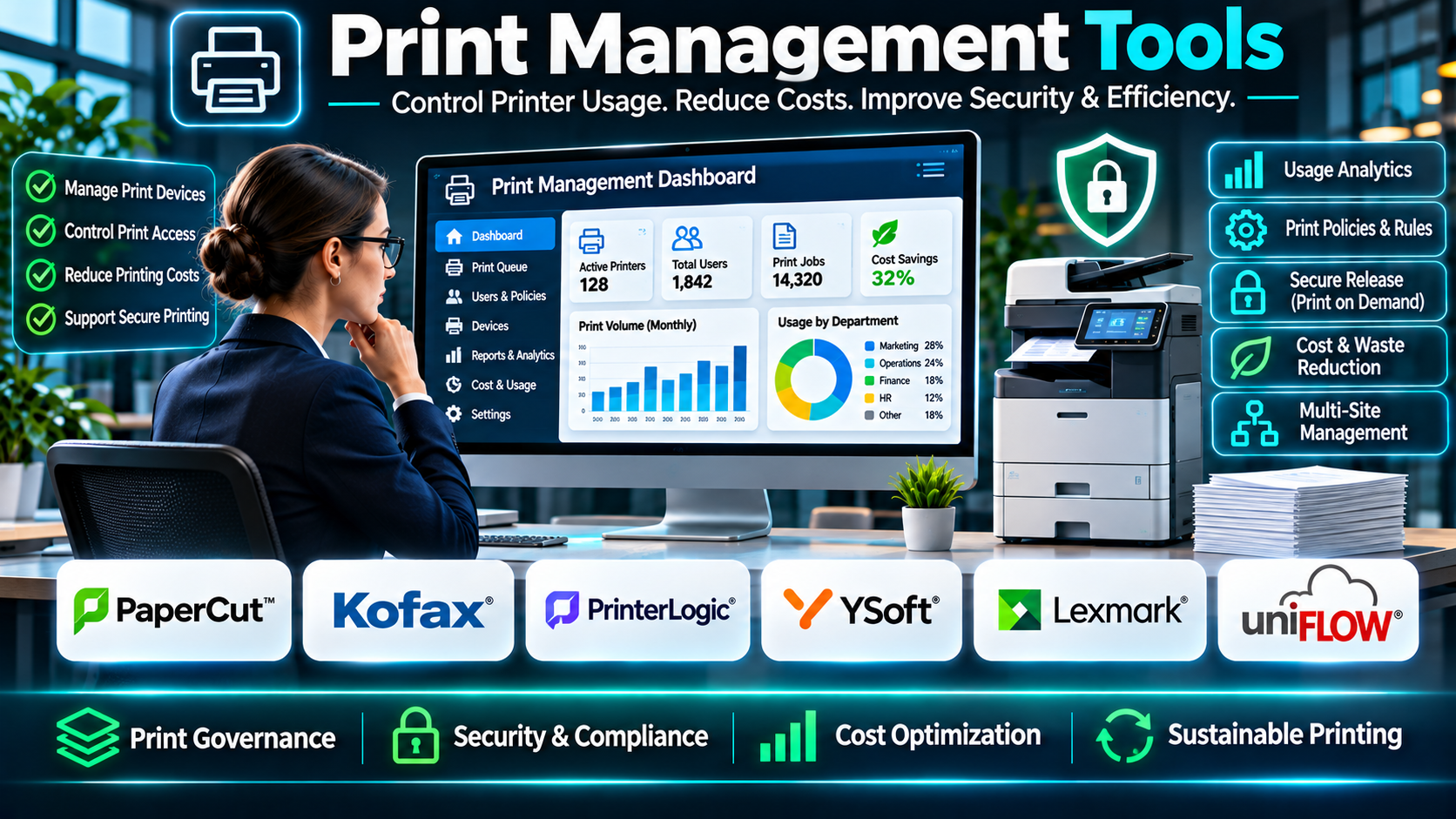
Print management tools help organizations centralize printing operations, monitor usage, enforce policies, and improve document security. They can also simplify printer deployment, reduce unnecessary printing, and support employees working across different locations.
For example, a university may operate hundreds of printers across classrooms, libraries, administrative offices, and student facilities. A print management platform can help track usage, assign printing allowances, and require authentication before releasing sensitive documents.
A healthcare organization may need to prevent confidential records from remaining unattended in printer output trays. Secure print release can help ensure that documents are collected by authorized users.
Modern print management platforms may include print queues, user authentication, mobile printing, cloud print infrastructure, cost allocation, reporting, and automated printer deployment. Some solutions also provide scanning workflows and document capture capabilities.
The best software depends on an organization’s printing environment. A small business with a handful of printers has different requirements from an enterprise operating thousands of devices across multiple countries.
This guide examines ten print management tools, their capabilities, benefits, advantages, limitations, and practical applications. It also explains how organizations can compare solutions and implement an effective print management strategy.
What Are Print Management Tools?
Print management tools are software platforms that help organizations administer, monitor, secure, and optimize printing operations.
They provide centralized controls for printers, print jobs, users, permissions, and related workflows.
Depending on the solution, print management software can operate through traditional print servers, cloud infrastructure, local agents, or hybrid deployment models.
Some products focus on tracking and controlling printing costs. Others specialize in secure print release, cloud printing, printer deployment, or enterprise print infrastructure.
How Print Management Software Works
A typical print management workflow involves several stages.
1. User Authentication: The system identifies the employee or authorized user submitting a print job.
2. Print Job Submission: The user sends a document to an available printer or shared print queue.
3. Policy Evaluation: The software checks applicable printing permissions, quotas, and restrictions.
4. Job Processing: The platform routes the print job according to configured rules.
5. Secure Release: Where enabled, the job remains in a protected queue until the user authenticates at a compatible printer.
6. Usage Tracking: The system records relevant printing activity, such as page counts, color usage, and device information.
7. Cost Allocation: Printing expenses may be assigned to users, departments, projects, or cost centers.
8. Reporting: Administrators review printing patterns, operational costs, and policy compliance.
Common Applications
- Enterprise printer administration.
- Secure document printing.
- Cloud print management.
- Print server modernization.
- University printing services.
- Healthcare printing security.
- Government document workflows.
- Employee printing quotas.
- Departmental cost allocation.
- Mobile and remote printing.
- Multi-location printer deployment.
- Print usage analytics.
- Printer access management.
- Follow-me printing.
- Managed print services.
- Print infrastructure optimization.
Top 10 Print Management Tools
1. PaperCut MF
Short Description
PaperCut MF is a print management platform designed to help organizations monitor printing activity, enforce printing policies, and secure document output.
It is widely relevant to educational institutions, businesses, healthcare organizations, and government facilities.
The platform supports print tracking, cost allocation, user authentication, and secure print release across compatible devices.
For example, a university may use PaperCut MF to manage printing allowances for students and staff. Users can submit print jobs and release them at supported multifunction printers.
Administrators can monitor printing activity, apply rules, and identify opportunities to reduce unnecessary printing.
PaperCut MF also provides scanning-related capabilities and integrations with supported multifunction devices.
Its broad feature set makes it relevant to organizations seeking comprehensive print governance.
However, deployment requirements vary according to printer models, operating systems, authentication infrastructure, and the selected licensing arrangement.
Key Features
- Print Tracking: Records printing activity by user, department, or device.
- Secure Print Release: Holds documents until authorized users release them.
- User Authentication: Supports compatible authentication methods.
- Print Quotas: Allows administrators to assign printing limits.
- Cost Allocation: Attributes printing expenses to relevant users or groups.
- Print Policies: Supports rules intended to reduce waste and improve control.
- Scanning Workflows: Provides relevant document capture capabilities.
- Reporting and Analytics: Helps administrators analyze printing activity.
- Device Integration: Supports compatible printers and multifunction devices.
Benefits
- Improves printing accountability.
- Helps reduce unnecessary printing.
- Protects sensitive documents.
- Supports departmental cost tracking.
- Simplifies print administration.
- Provides detailed usage visibility.
- Supports educational and enterprise environments.
Pros
- Comprehensive print management capabilities.
- Secure print release.
- Detailed reporting.
- Print quotas and rules.
- Broad organizational applicability.
- Multifunction printer integrations.
Cons
- Deployment can require technical planning.
- Licensing depends on configuration and devices.
- Advanced features may require compatible hardware.
- Authentication integration can add complexity.
- Smaller offices may not need the full platform.
Use Cases
Universities: Manage student printing allowances.
Healthcare: Protect sensitive printed documents.
Corporate Offices: Track departmental printing costs.
Government Agencies: Enforce printing policies.
Large Enterprises: Standardize print administration.
Best For
Organizations requiring comprehensive print tracking, security, quotas, and administrative controls.
2. PaperCut Hive
Short Description
PaperCut Hive is a cloud-oriented print management solution designed to simplify printing infrastructure and reduce dependence on traditional print servers.
It provides secure printing capabilities through a distributed architecture.
The platform is relevant to organizations seeking modern print management without maintaining extensive centralized print server infrastructure.
For example, a growing business may have several offices with employees moving between locations.
PaperCut Hive can help provide a consistent printing experience across compatible devices.
Users can submit print jobs and release them through supported authentication workflows.
The platform also provides relevant administrative visibility and policy management capabilities.
Its cloud-oriented approach may reduce some infrastructure responsibilities, but organizations must still evaluate local connectivity, device compatibility, identity integration, and print job handling.
Key Features
- Cloud-Oriented Administration: Supports centralized print management.
- Secure Print Release: Helps protect documents before collection.
- Distributed Print Processing: Reduces dependence on conventional centralized print servers.
- User Authentication: Supports applicable identity workflows.
- Printer Discovery: Helps users identify available printers.
- Print Policies: Supports relevant printing controls.
- Usage Reporting: Provides administrative visibility.
- Mobile Printing: Supports applicable mobile workflows.
- Multi-location Printing: Helps coordinate distributed offices.
Benefits
- Reduces traditional print server dependence.
- Simplifies selected administration tasks.
- Supports secure printing.
- Improves distributed office printing.
- Provides centralized visibility.
- Supports flexible employee workflows.
- Helps modernize printing infrastructure.
Pros
- Cloud-oriented architecture.
- Secure print release.
- Distributed printing.
- Centralized administration.
- Multi-office relevance.
- Reduced print server reliance.
Cons
- Device compatibility requires verification.
- Network requirements must be evaluated.
- Some environments need additional configuration.
- Subscription costs apply.
- Complex legacy workflows may require alternative solutions.
Use Cases
Distributed Offices: Coordinate printing across locations.
Growing Businesses: Modernize printing infrastructure.
Hybrid Workplaces: Support flexible employee printing.
IT Teams: Reduce traditional print server administration.
Best For
Organizations seeking cloud-oriented print management with secure release capabilities.
3. PrinterLogic
Short Description
PrinterLogic provides enterprise print management and printer deployment capabilities designed to reduce reliance on traditional print servers.
The platform is particularly relevant to organizations managing large printer fleets across multiple locations.
PrinterLogic supports centralized printer administration and helps IT teams deploy printers to employees.
For example, a company operating fifty branch offices may need to maintain consistent printer access without managing separate print servers at every location.
PrinterLogic can help administrators control printer assignments and manage printing infrastructure centrally.
The platform also provides relevant secure printing and reporting capabilities, depending on the selected solution.
Its infrastructure-focused approach distinguishes it from products primarily designed around print quotas.
However, organizations should evaluate compatibility with their operating systems, identity environment, network architecture, and existing printer fleet.
Key Features
- Printer Deployment: Supports centralized printer installation and assignment.
- Serverless Printing: Reduces dependence on traditional print servers.
- Printer Administration: Provides centralized management controls.
- Driver Management: Supports relevant printer driver workflows.
- Secure Printing: Provides applicable document protection capabilities.
- Print Reporting: Offers relevant usage information.
- Identity Integration: Connects with supported directory services.
- Multi-location Management: Supports distributed printer environments.
- Printer Self-Service: Helps users access approved printers.
Benefits
- Reduces print server maintenance.
- Simplifies printer deployment.
- Supports distributed offices.
- Improves IT administration.
- Helps standardize printer access.
- Provides centralized control.
- Reduces repetitive support tasks.
Pros
- Strong printer deployment focus.
- Serverless architecture.
- Centralized administration.
- Driver management.
- Multi-location suitability.
- Enterprise infrastructure relevance.
Cons
- Implementation requires planning.
- Licensing depends on organizational requirements.
- Existing infrastructure compatibility must be checked.
- Advanced security functions vary by offering.
- Small organizations may not require its full capabilities.
Use Cases
Large Enterprises: Manage distributed printer fleets.
Branch Offices: Simplify printer deployment.
IT Departments: Reduce print server maintenance.
Hybrid Organizations: Support consistent printer access.
Best For
Enterprises seeking centralized printer deployment and print server modernization.
4. Printix
Short Description
Printix is a cloud print management platform designed to simplify printer administration and support modern workplace printing.
It is relevant to organizations using cloud-based identity and productivity environments.
The platform can help administrators manage printers and provide users with access to appropriate printing resources.
For example, a company using Microsoft 365 may seek a printing solution that aligns with its cloud-oriented IT strategy.
Printix can support centralized printer management and relevant authentication workflows.
Its cloud management approach can reduce the need for some traditional print infrastructure.
However, organizations should carefully evaluate supported operating systems, printer models, network requirements, and integration capabilities.
Key Features
- Cloud Print Management: Provides centralized administration.
- Printer Deployment: Helps distribute printer access.
- Print Queue Management: Supports relevant printing workflows.
- User Authentication: Connects with supported identity environments.
- Secure Printing: Supports applicable document protection.
- Multi-location Administration: Coordinates distributed offices.
- Print Reporting: Provides selected usage information.
- Cloud Integrations: Supports relevant workplace services.
- Driver Management: Helps administer compatible printer configurations.
Benefits
- Simplifies printer administration.
- Supports cloud-oriented workplaces.
- Reduces selected infrastructure requirements.
- Helps manage multiple offices.
- Improves printer access.
- Supports centralized configuration.
- Reduces repetitive IT tasks.
Pros
- Cloud-focused architecture.
- Centralized printer management.
- Multi-office relevance.
- Identity integration options.
- Printer deployment capabilities.
- Suitable for modern IT environments.
Cons
- Compatibility requires verification.
- Some workflows depend on local agents or network configuration.
- Subscription costs must be evaluated.
- Advanced print accounting may require other solutions.
- Legacy environments can complicate migration.
Use Cases
Cloud-First Businesses: Modernize printer management.
Microsoft 365 Environments: Coordinate printing with supported identity services.
Distributed Offices: Manage printers centrally.
IT Teams: Reduce manual printer administration.
Best For
Organizations seeking cloud-based printer administration and deployment.
5. uniFLOW Online
Short Description
uniFLOW Online is a cloud-based print and scan management solution associated with Canon’s document technology ecosystem.
It provides capabilities for secure printing, user authentication, reporting, and related document workflows.
The platform is relevant to organizations seeking cloud-oriented print management, particularly those using compatible Canon devices.
For example, a financial services company may need employees to authenticate before collecting confidential reports.
uniFLOW Online can support secure print release through compatible configurations.
Administrators can also monitor printing activity and manage relevant policies.
Its combination of printing and scanning capabilities may help organizations coordinate document workflows.
However, organizations should verify printer compatibility, supported integrations, licensing, and the specific functionality available with their device fleet.
Key Features
- Secure Print Release: Protects documents until authorized collection.
- Cloud Administration: Supports centralized management.
- User Authentication: Provides relevant identity controls.
- Print Tracking: Records applicable printing activity.
- Cost Reporting: Supports usage and expense visibility.
- Scanning Workflows: Provides relevant document capture features.
- Device Integration: Works with supported multifunction printers.
- Print Policies: Supports applicable administrative rules.
- Mobile Printing: Provides relevant mobile workflows.
Benefits
- Improves document security.
- Supports centralized administration.
- Provides printing visibility.
- Connects print and scan workflows.
- Reduces unattended sensitive documents.
- Supports cost management.
- Helps standardize device access.
Pros
- Secure printing.
- Cloud-based administration.
- Print and scan capabilities.
- User authentication.
- Reporting.
- Strong relevance to compatible Canon environments.
Cons
- Device compatibility must be confirmed.
- Some functions depend on hardware support.
- Licensing varies by configuration.
- Mixed printer fleets require careful evaluation.
- Implementation may require specialized expertise.
Use Cases
Financial Services: Protect confidential reports.
Corporate Offices: Manage print and scan workflows.
Healthcare: Support secure document collection.
Canon Device Environments: Coordinate compatible multifunction printers.
Best For
Organizations seeking cloud-based secure print and scan management.
6. YSoft SAFEQ
Short Description
YSoft SAFEQ is an enterprise print management platform that supports secure printing, document workflows, and printing cost control.
It is designed for organizations managing substantial printing infrastructure.
The platform provides capabilities for authentication, print release, reporting, and relevant scanning workflows.
For example, a multinational organization may use YSoft SAFEQ to establish consistent print policies across regional offices.
Employees can submit documents and release them through supported authentication methods.
Administrators can review usage and apply relevant controls.
YSoft SAFEQ is particularly relevant to enterprises seeking detailed print governance.
However, its capabilities and deployment requirements vary by product edition and infrastructure configuration.
Key Features
- Secure Print Release: Supports authenticated document collection.
- Print Tracking: Records relevant usage.
- Cost Allocation: Helps attribute printing expenses.
- User Authentication: Supports compatible identity methods.
- Print Policies: Enforces applicable printing controls.
- Scanning Workflows: Supports relevant document capture.
- Enterprise Administration: Provides centralized controls.
- Reporting: Supports print usage analysis.
- Device Integration: Connects with compatible multifunction printers.
Benefits
- Improves print governance.
- Protects confidential documents.
- Supports cost accountability.
- Standardizes printing policies.
- Provides enterprise reporting.
- Connects print and scan workflows.
- Supports large printer environments.
Pros
- Enterprise print management.
- Secure release.
- Cost tracking.
- Authentication options.
- Scanning capabilities.
- Multi-location relevance.
Cons
- Deployment complexity.
- Licensing requirements.
- Hardware compatibility considerations.
- Administrative training.
- May be excessive for small offices.
Use Cases
Enterprises: Standardize print policies.
Government Agencies: Manage secure printing.
Healthcare Organizations: Protect printed information.
Corporate IT: Centralize printer administration.
Best For
Large organizations requiring secure enterprise print management and governance.
7. MyQ
Short Description
MyQ provides print and document management solutions designed to simplify printing, improve security, and support document workflows.
The platform includes capabilities for print accounting, secure release, and scanning.
MyQ is relevant to organizations seeking a balance between user convenience and administrative control.
For example, an educational institution may use MyQ to track printing by department while allowing users to release documents at compatible printers.
A business may use it to improve document security and manage printing costs.
The platform also supports relevant workflow automation and administrative capabilities.
However, organizations should evaluate the differences between MyQ product offerings and verify compatibility with their printer fleet.
Key Features
- Print Accounting: Tracks printing activity and relevant costs.
- Secure Print Release: Protects documents before collection.
- User Authentication: Supports compatible access methods.
- Print Policies: Helps control printing behavior.
- Scanning Workflows: Supports document capture.
- Reporting: Provides usage information.
- Device Integration: Connects with supported printers.
- Centralized Administration: Supports print environment management.
- Workflow Automation: Provides relevant document processing capabilities.
Benefits
- Improves printing accountability.
- Reduces unnecessary printing.
- Supports secure document handling.
- Provides cost visibility.
- Simplifies administration.
- Supports scanning workflows.
- Improves user convenience.
Pros
- Print accounting.
- Secure release.
- Scanning capabilities.
- Reporting.
- Centralized administration.
- Relevant to different organization sizes.
Cons
- Product editions differ.
- Device compatibility requires verification.
- Advanced features may increase costs.
- Implementation requires configuration.
- Complex workflows may need additional planning.
Use Cases
Schools: Manage printing allowances.
Businesses: Track printing expenses.
Healthcare: Secure document release.
Administrative Departments: Automate scanning workflows.
Best For
Organizations seeking print accounting, secure release, and document workflow management.
8. Pharos
Short Description
Pharos provides print management solutions focused on printing security, cost control, and enterprise administration.
Its portfolio includes solutions relevant to cloud printing and traditional print environments.
Pharos is particularly relevant to organizations that want to understand printing costs and reduce unnecessary output.
For example, a university may use Pharos to manage student printing and monitor usage across campus facilities.
A corporate organization may use it to enforce printing policies and improve document security.
The platform can support relevant print release and reporting workflows.
However, organizations should evaluate the specific Pharos solution rather than assuming every capability is available in every product.
Key Features
- Print Tracking: Records relevant printing activity.
- Cost Management: Helps analyze printing expenses.
- Secure Print Release: Supports protected document collection.
- User Authentication: Provides applicable access controls.
- Print Policies: Helps manage printing behavior.
- Cloud Print Options: Supports relevant cloud-oriented workflows.
- Reporting: Provides usage and cost insights.
- Enterprise Administration: Supports organizational management.
- Printer Integration: Works with compatible environments.
Benefits
- Improves cost visibility.
- Supports secure printing.
- Reduces unnecessary output.
- Provides printing accountability.
- Supports centralized management.
- Helps organizations evaluate printing patterns.
- Supports enterprise and educational use cases.
Pros
- Cost management focus.
- Print reporting.
- Secure release capabilities.
- Cloud printing options.
- Enterprise relevance.
- Educational use cases.
Cons
- Product capabilities vary.
- Integration requirements need review.
- Licensing depends on the solution.
- Deployment can require planning.
- Some environments need additional hardware support.
Use Cases
Universities: Manage student printing.
Corporate Offices: Track printing expenses.
Enterprises: Enforce printing policies.
IT Departments: Analyze printer usage.
Best For
Organizations prioritizing print cost control, reporting, and security.
9. ezeep Blue
Short Description
ezeep Blue is a cloud printing platform designed to simplify printing across distributed and flexible workplace environments.
It is relevant to organizations with remote employees, coworking spaces, and cloud-oriented IT infrastructure.
The platform helps users access compatible printers through supported cloud printing workflows.
For example, a coworking provider may need to offer printing services to members using different devices.
ezeep Blue can support centralized printer access and administration.
Its cloud-first approach can reduce some traditional print infrastructure requirements.
However, organizations should evaluate printer compatibility, network requirements, authentication options, and usage management capabilities.
Key Features
- Cloud Printing: Supports print workflows through cloud infrastructure.
- Printer Administration: Provides centralized configuration.
- Mobile Printing: Supports compatible mobile devices.
- Remote Printing: Enables relevant distributed printing workflows.
- User Access Management: Controls applicable printer access.
- Printer Integration: Connects with supported devices.
- Workplace Printing: Supports flexible office environments.
- Administrative Visibility: Provides relevant management information.
- Cloud Integration: Connects with supported workplace systems.
Benefits
- Simplifies distributed printing.
- Supports flexible workplaces.
- Reduces selected infrastructure requirements.
- Improves printer accessibility.
- Supports mobile printing.
- Helps centralize administration.
- Reduces repetitive configuration tasks.
Pros
- Cloud-first printing.
- Remote and mobile workflows.
- Coworking relevance.
- Centralized administration.
- Flexible deployment.
- Suitable for distributed users.
Cons
- Printer compatibility varies.
- Network connectivity is important.
- Advanced print accounting may be limited.
- Subscription requirements apply.
- Some enterprise security needs require additional evaluation.
Use Cases
Coworking Spaces: Provide member printing.
Remote Teams: Access approved printers.
Flexible Offices: Support shared devices.
Small Businesses: Simplify cloud printing.
Best For
Organizations seeking cloud printing for flexible and distributed workplaces.
10. Microsoft Universal Print
Short Description
Microsoft Universal Print is a cloud-based print service designed to simplify printer administration within supported Microsoft environments.
It is particularly relevant to organizations using Microsoft 365 and Microsoft Entra ID.
The service helps administrators manage printers through cloud-based workflows.
For example, a business may want to reduce its dependence on traditional Windows print servers.
Universal Print can support centralized printer registration and access management.
Employees can print to supported devices through compatible configurations.
Its integration with Microsoft’s identity and administration ecosystem can be valuable for organizations standardizing on Microsoft cloud services.
However, Universal Print should not automatically be considered a complete replacement for specialized print accounting, quotas, or advanced secure release platforms.
Organizations should verify printer compatibility, licensing allowances, and required connectors.
Key Features
- Cloud Print Service: Provides cloud-based print infrastructure.
- Printer Registration: Supports compatible printer enrollment.
- Microsoft Entra Integration: Uses supported identity controls.
- Centralized Administration: Manages printers through relevant Microsoft tools.
- Printer Sharing: Supports access assignment.
- Print Job Management: Provides relevant printing workflows.
- Connector Support: Connects selected existing printers.
- Microsoft 365 Integration: Aligns with supported cloud environments.
- Reduced Print Server Dependence: Helps modernize traditional printing infrastructure.
Benefits
- Simplifies cloud printer administration.
- Integrates with Microsoft identity.
- Reduces selected print server requirements.
- Supports centralized access control.
- Helps standardize printer deployment.
- Supports modern workplace infrastructure.
- Reduces repetitive administrative work.
Pros
- Microsoft cloud integration.
- Centralized printer management.
- Identity-based access.
- Reduced print server reliance.
- Suitable for Microsoft environments.
- Cloud infrastructure approach.
Cons
- Licensing and print job allowances require review.
- Printer compatibility varies.
- Some devices need connectors.
- Advanced accounting may require complementary tools.
- Not every specialized print workflow is supported.
Use Cases
Microsoft 365 Organizations: Centralize printing.
Corporate IT: Modernize print infrastructure.
Distributed Offices: Manage compatible printers.
Cloud-First Businesses: Reduce traditional print servers.
Best For
Organizations seeking cloud printing integrated with Microsoft 365 and Microsoft Entra ID.
Comparison Table: Top 10 Print Management Tools
| Tool | Primary Strength | Best For | Main Consideration |
|---|---|---|---|
| PaperCut MF | Comprehensive print governance | Schools and enterprises | Deployment requirements |
| PaperCut Hive | Cloud-oriented secure printing | Distributed organizations | Device compatibility |
| PrinterLogic | Printer deployment and serverless printing | Large enterprises | Infrastructure planning |
| Printix | Cloud printer administration | Cloud-first workplaces | Integration requirements |
| uniFLOW Online | Secure print and scan workflows | Canon-oriented environments | Hardware compatibility |
| YSoft SAFEQ | Enterprise print governance | Large organizations | Implementation complexity |
| MyQ | Print accounting and document workflows | Businesses and institutions | Product edition |
| Pharos | Print cost control and reporting | Enterprises and universities | Product selection |
| ezeep Blue | Flexible cloud printing | Coworking and distributed teams | Advanced accounting needs |
| Microsoft Universal Print | Microsoft cloud printing | Microsoft 365 organizations | Licensing and device support |
How to Choose the Best Print Management Tool
1. Identify the Primary Printing Problem
Start by defining what the organization needs to improve.
Common problems include excessive printing costs, insecure documents, difficult printer deployment, unreliable drivers, and fragmented administration.
A clear objective helps narrow the software selection.
2. Assess the Existing Printer Fleet
Document printer brands, models, locations, operating systems, and network configurations.
Compatibility should be verified before selecting a platform.
3. Evaluate Security Requirements
Organizations handling confidential documents may require secure print release, user authentication, and appropriate audit records.
Review whether the solution supports the organization’s existing identity infrastructure.
4. Determine the Deployment Model
Compare traditional server-based, cloud-based, serverless, and hybrid approaches.
Consider connectivity, resilience, administrative responsibilities, and organizational policies.
5. Review Printer Deployment
Large organizations may benefit from automated printer installation and driver management.
6. Evaluate Cost Tracking
Determine whether the platform can attribute printing expenses to departments, users, or projects.
7. Assess Printing Policies
Look for controls such as duplex defaults, color restrictions, quotas, and relevant approval workflows.
8. Review Mobile and Remote Printing
Hybrid organizations should test supported mobile devices and remote printing workflows.
9. Examine Reporting
Administrators should be able to identify usage patterns and investigate operational issues.
10. Evaluate Scanning Requirements
Some organizations need integrated scanning, document routing, and capture workflows.
11. Calculate Total Cost
Include licensing, hardware, implementation, support, maintenance, and infrastructure changes.
12. Conduct a Pilot
Test the software with representative printers, users, departments, and document types.
Best Print Management Tools by User Type
Educational Institutions
PaperCut MF is relevant to schools and universities requiring printing quotas, cost allocation, and secure release.
Its policy controls can help manage shared printing environments.
Distributed Businesses
PaperCut Hive supports cloud-oriented print management and secure printing.
It may be suitable for organizations seeking to reduce traditional print server dependence.
Large IT Departments
PrinterLogic is relevant to enterprises seeking centralized printer deployment.
Its infrastructure approach can reduce repetitive printer administration.
Cloud-First Organizations
Printix supports cloud printer management and relevant identity integrations.
Canon-Oriented Environments
uniFLOW Online provides secure printing and scanning workflows through compatible configurations.
Large Enterprises
YSoft SAFEQ supports enterprise print governance and document workflows.
Organizations Seeking Print Accounting
MyQ provides print accounting and secure document release capabilities.
Cost-Conscious Enterprises
Pharos is relevant to organizations prioritizing printing cost visibility.
Coworking Providers
ezeep Blue supports flexible cloud printing for shared workplaces.
Microsoft 365 Organizations
Microsoft Universal Print provides cloud printing aligned with Microsoft identity and administration.
| User Type | Recommended Tool | Primary Reason |
|---|---|---|
| University | PaperCut MF | Quotas and accounting |
| Distributed organization | PaperCut Hive | Cloud-oriented secure printing |
| Enterprise IT | PrinterLogic | Printer deployment |
| Cloud-first workplace | Printix | Centralized cloud administration |
| Canon environment | uniFLOW Online | Secure print and scan |
| Large enterprise | YSoft SAFEQ | Print governance |
| Print accounting | MyQ | Usage and cost tracking |
| Cost optimization | Pharos | Reporting and policy control |
| Coworking space | ezeep Blue | Flexible cloud printing |
| Microsoft 365 organization | Universal Print | Microsoft integration |
Practical Example: Implementing Print Management Software
Consider a healthcare organization with 1,200 employees and 90 printers across several facilities.
The organization experiences high printing costs, inconsistent printer access, and concerns about confidential documents remaining in output trays.
The IT department decides to implement a centralized print management solution.
Step 1: Define the Objectives
The organization establishes three priorities:
- Improve document security.
- Reduce unnecessary printing.
- Simplify printer administration.
Step 2: Audit the Printer Environment
IT records printer models, locations, usage patterns, and current print server configurations.
Step 3: Review Security Policies
The security team identifies departments requiring authenticated print release.
Step 4: Compare Suitable Platforms
The organization evaluates PaperCut MF, YSoft SAFEQ, MyQ, and uniFLOW Online.
Step 5: Test Device Compatibility
IT verifies supported printer models and authentication methods.
Step 6: Configure User Groups
The system is connected to the appropriate identity infrastructure.
Step 7: Establish Print Policies
The organization configures relevant rules for color printing, duplex printing, and secure release.
Step 8: Configure Reporting
Administrators establish departmental usage reports.
Step 9: Launch a Pilot
Two departments test the solution with selected printers.
Step 10: Train Employees
Users learn how to submit documents and release print jobs securely.
Step 11: Evaluate Results
IT reviews printing activity, support requests, and user feedback.
Step 12: Expand Deployment
The organization gradually introduces the platform across additional facilities.
Common Mistakes to Avoid
1. Ignoring Printer Compatibility
Not every platform supports every printer model or advanced device function.
2. Choosing Software Based Only on Price
Low subscription costs may be offset by integration, support, or hardware expenses.
3. Overlooking Print Security
Sensitive documents may require authentication and secure release.
4. Failing to Review Identity Integration
User authentication should align with organizational access policies.
5. Assuming Cloud Printing Requires No Local Infrastructure
Some cloud solutions still depend on local agents, connectors, or compatible devices.
6. Ignoring Employee Training
Users need to understand new printing and document collection procedures.
7. Enforcing Restrictive Policies Without Testing
Poorly designed restrictions can disrupt legitimate business workflows.
8. Failing to Monitor Printing Activity
Usage reporting helps identify problems and evaluate policy effectiveness.
9. Overlooking Mobile Printing
Employees may need to print from different devices and locations.
10. Skipping a Pilot
Testing helps identify compatibility and usability problems before full deployment.
Frequently Asked Questions
1. What are print management tools?
Print management tools help organizations administer, secure, monitor, and optimize printing operations.
2. How does print management software work?
It manages print jobs, users, devices, policies, and relevant usage records.
3. What is PaperCut MF used for?
PaperCut MF supports print tracking, quotas, secure release, and print governance.
4. What is PaperCut Hive?
PaperCut Hive is a cloud-oriented print management platform with secure printing capabilities.
5. What is PrinterLogic used for?
PrinterLogic supports centralized printer deployment and serverless print management.
6. What is Printix used for?
Printix provides cloud-based printer administration and relevant printing workflows.
7. What is uniFLOW Online?
uniFLOW Online is a cloud-based print and scan management solution.
8. What is YSoft SAFEQ?
YSoft SAFEQ is an enterprise print management platform with security and document workflow capabilities.
9. What is MyQ used for?
MyQ provides print accounting, secure release, and document management workflows.
10. What is Pharos used for?
Pharos provides print management solutions focused on cost control, security, and administration.
11. What is ezeep Blue?
ezeep Blue is a cloud printing platform for flexible workplace environments.
12. What is Microsoft Universal Print?
Universal Print is Microsoft’s cloud-based printing service for supported environments.
13. What is secure print release?
Secure print release holds documents until an authorized user releases them at a compatible printer.
14. Can print management software reduce costs?
Yes. Tracking, quotas, and printing policies can help reduce unnecessary printing.
15. Can print management software improve security?
Yes. Authentication, access controls, and secure release can help protect sensitive documents.
16. What is cloud print management?
Cloud print management uses cloud infrastructure to administer supported printing workflows.
17. What is serverless printing?
Serverless printing reduces dependence on traditional centralized print servers.
18. Can print management tools support mobile devices?
Many platforms provide relevant mobile printing capabilities.
19. Can print management software track printing by department?
Some solutions support departmental reporting and cost allocation.
20. Can printing quotas be configured?
Many print management platforms allow administrators to establish quotas or allowances.
21. Can print management software integrate with Microsoft 365?
Several solutions provide integrations with supported Microsoft environments.
22. Can print management tools work with different printer brands?
Many platforms support mixed printer fleets, although compatibility varies.
23. What is follow-me printing?
Follow-me printing allows users to submit jobs and release them at compatible printers.
24. Can print management tools support scanning?
Some platforms provide integrated scanning and document capture workflows.
25. Are print management tools suitable for schools?
Yes. Schools and universities commonly use them to manage shared printing.
26. Are print management tools suitable for healthcare?
Yes. Secure printing can help healthcare organizations protect sensitive documents.
27. How much does print management software cost?
Costs depend on licensing, devices, users, integrations, and deployment requirements.
28. Can print management tools replace print servers?
Some platforms can reduce or eliminate traditional print server requirements in supported environments.
29. What should organizations test before deployment?
They should test device compatibility, authentication, print release, reporting, and operational reliability.
30. Which print management tool is best?
The best solution depends on security requirements, printer infrastructure, organizational size, and budget.
Final Thoughts
Print management tools help organizations control printing costs, improve document security, and simplify printer administration.
PaperCut MF and YSoft SAFEQ provide comprehensive print governance capabilities.
PaperCut Hive, Printix, and ezeep Blue support cloud-oriented printing environments.
PrinterLogic focuses on printer deployment and print server modernization.
uniFLOW Online and MyQ combine print management with relevant document workflows.
Pharos emphasizes printing cost control and reporting, while Microsoft Universal Print provides cloud printing integrated with Microsoft’s ecosystem.
Organizations should evaluate their printer fleet, identity infrastructure, security requirements, reporting needs, and deployment preferences before selecting software.
A carefully implemented print management platform can reduce administrative work, improve printing accountability, and create a more secure and efficient document environment.
