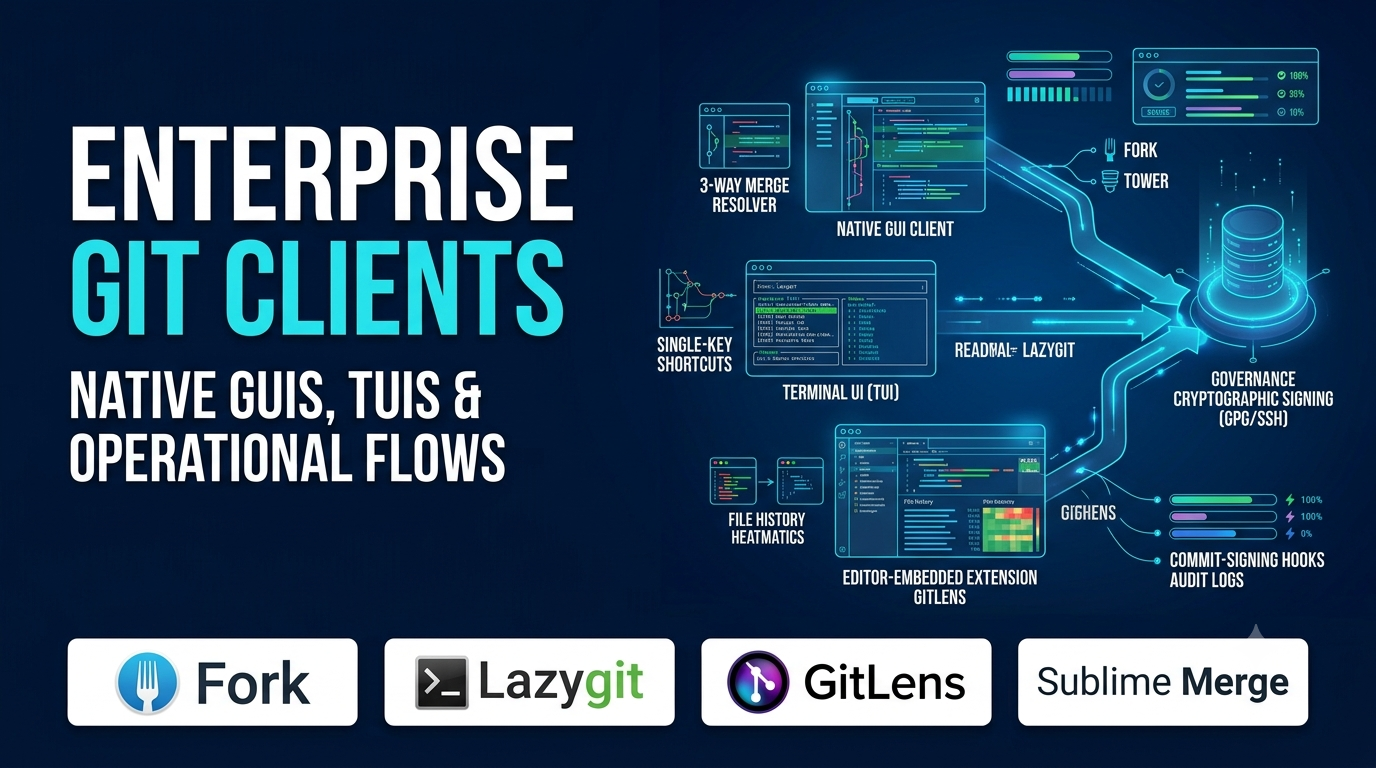
Typing git status, git add -p, and git rebase -i in a shell works seamlessly for routine commits. Yet when untangling a three-way merge conflict across twenty files, inspecting an unfamiliar branch graph, or bisecting a regression buried hundreds of commits deep, raw terminal diffs quickly turn into cognitive overhead.
Visual and terminal-based Git clients exist to make complex repository state legible and surgical operations safer. Still, developers frequently pick a client based solely on visual polish, only to abandon it months later when an Electron wrapper lags on a large monorepo, lacks native GPG/SSH commit signing support, or obscures standard Git semantics behind proprietary abstractions. Evaluating Git clients requires matching their rendering engine, interface model, and hosting integrations to how you actually work with repositories.
Three Distinct Interface Paradigms for Working with Git
Git clients generally fall into three architectural categories, each optimizing for different speed, visibility, and workflow trade-offs.
1. Native Desktop GUI Clients
Standalone desktop applications (such as Fork, Tower, Sourcetree, and Sublime Merge) render full commit graphs, multi-pane diff viewers, and drag-and-drop interactive rebase tools outside your editor.
- Core advantage: Dedicated screen real estate for complex branch topologies, side-by-side conflict resolution, and repository-wide history exploration.
- Primary trade-off: Introduces context switching away from your code editor and varies significantly in memory footprint depending on whether the client is built with native OS toolkits or cross-platform web frameworks.
2. Terminal User Interfaces (TUIs)
Keyboard-driven terminal clients—led by Lazygit and Tig—run directly inside your shell or tmux session, presenting interactive panels for staging hunks, managing stashes, and rewriting history via single-key shortcuts.
- Core advantage: Zero mouse dependency, near-instant startup over SSH or local terminals, and seamless coexistence with terminal editors like Neovim or Helix.
- Primary trade-off: Less suited for wide side-by-side image diffs or visual inspection of sprawling multi-branch graphs on smaller terminal windows.
3. Editor-Embedded Git Extensions
Tools like GitLens inside Visual Studio Code or JetBrains’ built-in Version Control tool window integrate blame annotations, commit history, and pull request reviews directly alongside source code.
- Core advantage: Keeps code authoring and version history in a single window, allowing developers to inspect line-by-line authorship without switching applications.
- Primary trade-off: Can clutter editor interfaces and consume background CPU/memory when indexing large repositories.
Notable Git Clients Across Platforms and Workflows
Fork — Fast, Native Desktop Client for macOS and Windows
Fork is a commercial, native desktop Git client built in Swift/Objective-C on macOS and C#/.NET on Windows, avoiding cross-platform Electron overhead. Its focus on native UI responsiveness makes repository switching, commit graph scrolling, and diff rendering notably fast even on repositories with deep histories.
Fork excels at precision staging—allowing developers to stage or discard individual lines and hunks cleanly—alongside a visual interactive rebase editor, built-in merge-conflict resolver, and Git LFS/Submodule management. It offers an unlimited evaluation period with a one-time license fee for commercial use. Its main limitation is platform coverage: Linux users are excluded, and it prioritizes core Git operations over bundled project-management boards.
Sublime Merge — High-Performance History Search and Diff Engine
Built by the creators of Sublime Text, Sublime Merge uses a custom C++ UI toolkit and high-speed indexing engine designed to handle massive repositories without UI stalls. Its standout capability is instantaneous incremental search across commit messages, authors, file paths, and specific code diffs.
Sublime Merge also preserves full transparency over underlying Git commands—showing the exact CLI command executed behind every UI action—and ships with a three-way merge tool that displays base, local, and remote changes together. While its dark-first, keyboard-friendly interface appeals strongly to performance-focused engineers, teams looking for built-in Jira ticket panels or visual drag-and-drop pull-request workflows may find its feature set intentionally minimalist.
GitKraken Desktop — Cross-Platform Visual Collaboration and Forge Integration
GitKraken Desktop is an Electron-based cross-platform client (Windows, macOS, and Linux) designed around visual commit graphs and deep integration with remote hosting platforms—including GitHub, GitLab, Bitbucket, and Azure DevOps—as well as issue trackers like Jira and Trello.
Developers can create, review, and merge pull requests, manage Git worktrees visually, and share repository workspace configurations across teams without leaving the client. Because it runs on Electron and packs extensive cloud integrations, GitKraken consumes more RAM than native C++ or Swift clients, and full access to private repository features and organizational governance requires an ongoing subscription.
Tower — Structured Workflows and Guardrails for macOS and Windows
Tower is a long-standing commercial Git client for macOS and Windows engineered to reduce destructive Git mistakes through clear visual feedback and undo support (Cmd+Z / Ctrl+Z for actions like accidental commits, branch deletions, or resets).
It features strong support for Git-flow, interactive rebase, submodules, reflog recovery, and service integrations for GitHub, GitLab, Bitbucket, and Azure DevOps. Tower is particularly effective for mixed-experience engineering teams where designers, product engineers, and senior developers collaborate on the same repositories and benefit from clear visual guardrails. Like Fork, it does not offer a Linux version and operates on an annual subscription model.
Sourcetree — Free Visual Client for Bitbucket and Standard Git Workflows
Maintained by Atlassian, Sourcetree is a free desktop Git and Mercurial client available for macOS and Windows. It provides a traditional multi-pane interface covering branch trees, hunk staging, interactive rebase, and straightforward authentication with Bitbucket, GitHub, and GitLab.
Sourcetree remains a dependable zero-cost option for developers who want a visual commit graph and Git-flow support without licensing fees. However, community feedback frequently notes slower feature evolution and occasional performance lag on very large repositories compared to lighter native alternatives like Fork or Sublime Merge.
GitHub Desktop — Streamlined Essentials for GitHub-Centric Workflows
GitHub Desktop is a free, open-source client tailored specifically to core Git and GitHub workflows. It strips away complex menus in favor of a clean diff viewer, branch switcher, pull-request checkout, co-author attribution, and basic conflict resolution.
For developers contributing primarily to GitHub repositories—or teams onboarding junior developers who find full-featured clients overwhelming—GitHub Desktop offers the lowest learning curve. Its deliberate simplicity becomes a constraint once you need advanced interactive rebasing, complex cherry-picking, or multi-remote enterprise governance.
Lazygit — Keyboard-Driven Terminal Client for Shell-Native Developers
Lazygit is an open-source, Go-based terminal UI that brings visual staging, branch switching, interactive rebasing, cherry-picking, and stash management directly into the command line. Organized into navigable panes for status, files, branches, commits, and stashes, it lets developers stage individual lines or squash commits using single-key commands.
Because it runs inside any standard terminal across Linux, macOS, and Windows, Lazygit works identically on a local laptop and over an SSH session on a remote cloud VM. Its only barrier is initial muscle memory for keyboard shortcuts, though an always-visible keybinding footer makes discovery straightforward.
GitLens (for Visual Studio Code) — Inline History and Authorship Intelligence
While technically an IDE extension rather than a standalone client, GitLens has become the primary Git interface for millions of VS Code users. It surfaces inline Git blame annotations, file history heatmaps, commit graph views, and side-by-side branch comparisons directly inside the editor workspace.
GitLens eliminates window switching when investigating why a line of code exists or comparing pull-request branches. Teams must balance its rich visibility against editor resource consumption, as enabling all background annotations and commit-graph views on huge monorepos can noticeably increase VS Code extension host memory usage.
Comparison of Leading Git Clients
| Client | Interface Type | Supported Platforms | Licensing Model | Key Technical Strength | Primary Limitation |
| Fork | Native Desktop GUI | macOS, Windows | Paid one-time license (free evaluation) | Fast native UI responsiveness and surgical line/hunk staging | No Linux support |
| Sublime Merge | Native Desktop GUI | Windows, macOS, Linux | Paid license (free evaluation) | High-speed C++ indexing, instant diff search, and transparent Git CLI parity | Minimalist UI with fewer built-in issue-tracker integrations |
| GitKraken Desktop | Cross-Platform GUI | Windows, macOS, Linux | Freemium / Subscription | Visual commit graph, Git worktree UI, and deep PR/issue-tracker integration | Higher memory footprint (Electron) and subscription gating for private repos |
| Tower | Native Desktop GUI | macOS, Windows | Subscription | Strong undo/reflog safety net, Git-flow support, and polished UX | No Linux support; recurring subscription cost |
| Sourcetree | Desktop GUI | macOS, Windows | Free | Zero-cost visual branching, Git-flow, and Bitbucket/GitHub integration | No official Linux build; slower updates and heavier feel on large repos |
| GitHub Desktop | Desktop GUI | Windows, macOS (community Linux) | Free / Open Source | Clean, low-friction interface for commits, diffs, and GitHub pull requests | Lacks advanced interactive rebase and power-user Git features |
| Lazygit | Terminal UI (TUI) | Linux, macOS, Windows | Free / Open Source | Instant shell-native speed, keyboard-only staging/rebasing, and SSH compatibility | Requires learning terminal keybindings; less suited for visual image diffs |
| GitLens | VS Code Extension | Cross-platform (within VS Code) | Freemium / Subscription | Deep inline blame, code authorship insights, and in-editor commit graph | Tied to VS Code; heavy configurations can impact extension host memory |
Five Technical Checks Before Standardizing on a Git Client
1. Repository Scale and Monorepo Responsiveness
A Git client that feels snappy on a 50-megabyte microservice repository can freeze for seconds on every status refresh in a multi-gigabyte monorepo with hundreds of thousands of commits. Before committing to a client, test it on your largest local repository—paying attention to commit-graph rendering speed, background git fetch locking, and compatibility with Git features like fsmonitor and sparse-checkout.
2. Cryptographic Commit Signing (GPG and SSH)
Enterprise security policies increasingly mandate signed commits and tags using GPG keys, SSH keys, or hardware security tokens (such as YubiKey). Verify that your chosen GUI or TUI handles passphrase prompts via your system’s ssh-agent or gpg-agent cleanly rather than failing silently when commit.gpgsign = true is configured globally in ~/.gitconfig.
3. Respect for Standard Git Configuration and Hooks
A reliable Git client acts as a clean layer over standard Git rather than maintaining isolated configuration states. Confirm that the client uses your system Git binary (or lets you point to one), respects custom .gitconfig aliases, executes client-side pre-commit and commit-msg hooks (such as Husky or pre-commit) reliably, and displays hook failure output clearly.
4. Built-In Three-Way Merge Conflict Resolution
Resolving complex merge conflicts is one of the strongest justifications for using a visual Git client. Evaluate whether the client includes a true three-way merge editor (showing Local, Base, and Remote panes alongside the merged output) or simply launches an external diff tool.
5. Git Worktrees and Submodule Ergonomics
If your workflow relies on git worktree to work on multiple branches simultaneously without stashing, or uses nested Git submodules, test how clearly the client surfaces active worktrees and submodule pointer changes. Poor submodule visibility is a frequent cause of accidental pointer regressions.
Matching the Client to Your Daily Workflow
- Choose Fork or Sublime Merge if you want a fast, native desktop GUI with precision hunk staging, reliable three-way conflict resolution, and minimal memory overhead—picking Sublime Merge if Linux support or instant repository-wide diff search is essential.
- Choose Lazygit if you live in the terminal, work frequently over SSH, or want keyboard-first interactive rebasing without leaving your shell.
- Choose GitKraken Desktop if your team works across Windows, macOS, and Linux and values visual pull-request reviews, issue-tracker integration, and Git worktree management in one cross-platform interface.
- Choose Tower if you work on macOS or Windows and prioritize clear visual guardrails, undoable Git actions, and structured branch workflows.
- Choose GitHub Desktop or Sourcetree when you need a dependable, zero-cost visual client for everyday branching, commits, and pull requests without paid licensing.
Because nearly every Git client operates directly on your existing local .git directory without modifying repository history, you can test two or three candidates side-by-side on the same working copy—running a real interactive rebase, resolving a multi-file conflict, and verifying your commit-signing hooks—before deciding which interface earns a permanent spot in your daily workflow.
