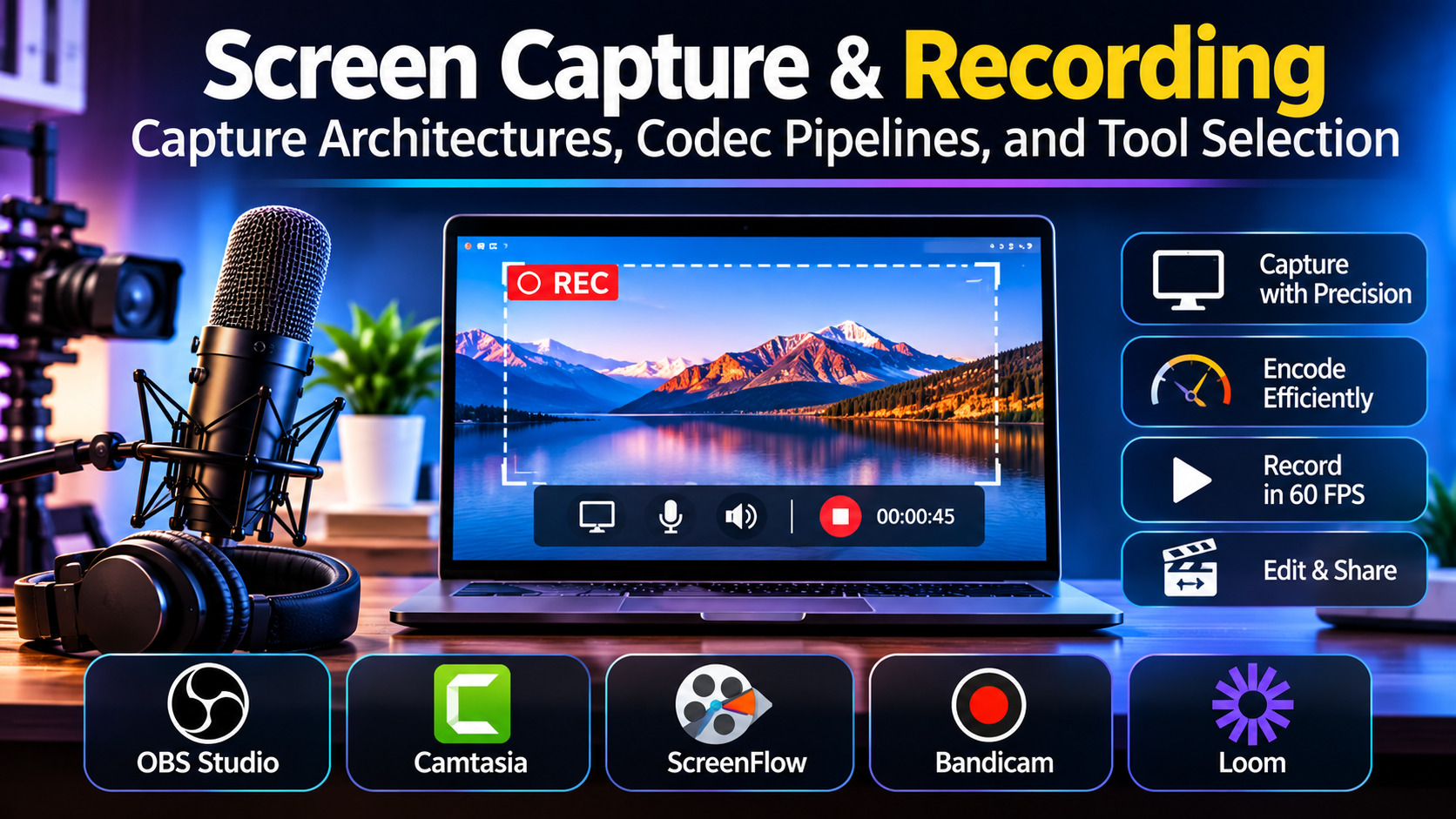
Capturing digital display output is a foundational requirement across software engineering, technical documentation, remote education, asynchronous corporate communication, and game streaming. Yet, treating screen recording software as a simple utility application often results in severe technical friction: corrupted frame rates, audio-video desynchronization, massive uncompressed file sizes, and dropped frames during high-motion 3D rendering.
A persistent operational mistake in tool selection is relying on operating-system-native utilities for complex production tasks. While built-in screen capture shortcuts are adequate for casual troubleshooting clips, professional production workflows demand granular control over display scaling, multi-track audio routing (separating system audio from microphone input), variable frame rate (VFR) handling, and hardware-accelerated video encoding.
Choosing the right screen recording software requires evaluating how its capture hooks interact with graphics APIs, its multi-source audio capture capabilities, its resource overhead during intensive computing tasks, and its integration with immediate post-production editing timelines.
Technical Foundations: Capture Hooks, Frame Rates, and Codec Overhead
Professional screen recording involves intercepting display data directly from the graphical pipeline, encoding it in real time, and writing it to storage media without impacting system performance.
1. Display Capture Mechanics: Hooking APIs and Window Capture
Screen recording tools utilize different methods to extract pixel data from the operating system:
- Display Hooking / Graphics API Interception: Tools hook directly into DirectX, Vulkan, Metal, or OpenGL graphics pipelines. This captures frames with minimal CPU overhead, making it ideal for recording 3D games, CAD applications, and high-framerate software interfaces.
- Window and Region Capture: Operating system window managers supply targeted pixel buffers for specific applications. While efficient for recording desktop apps and web browsers, older capture methods can introduce stuttering or fail to record accelerated video overlays (such as web player video or hardware-accelerated UI elements).
2. Variable Frame Rate (VFR) vs. Constant Frame Rate (CFR)
Many consumer screen recorders capture video using a Variable Frame Rate (VFR) to save file size, dropping frames when the screen is static and increasing them during motion.
- While efficient for storage, VFR video causes severe timeline stuttering, audio-video drift, and crashing when imported into professional video editing suites like Adobe Premiere Pro, DaVinci Resolve, or Avid Media Composer.
- Professional screen recording software enforces Constant Frame Rate (CFR) encoding, guaranteeing that every second contains an exact, locked count of frames (e.g., rigid 60.00 fps), ensuring flawless timeline synchronization downstream.
3. Hardware-Accelerated Encoding (NVENC, AMF, QuickSync)
Encoding high-resolution screen captures (such as native 4K displays) strains computer hardware. Professional recorders offload this task from the main CPU to dedicated hardware encoding blocks located on discrete graphics cards or integrated processors, preventing recording lag during heavy software compilation or gaming sessions.
Primary Screen Recording Software Compared
The professional screen recording market spans high-performance recording engines, all-in-one capture-and-edit suites, open-source utilities, and lightweight asynchronous communication tools.
| Software Platform | Primary Production Focus | Core Architecture & Encoding | Platform Support | Critical Operational Advantage | Core Operational Limitation |
|---|---|---|---|---|---|
| OBS Studio | High-performance recording, live streaming, multi-source capture | Modular scene graph, hardware-accelerated encoding (NVENC, x264) | Windows, macOS, Linux | Completely free and open-source (FOSS); zero artificial watermarks or recording time limits; highly customizable | Steep learning curve; lacks built-in timeline video editing features |
| TechSmith Camtasia | Educational tutorials, software walkthroughs, corporate training | Screen recorder integrated with a multi-track timeline editor | Windows, macOS | Seamless capture-to-edit workflow; automated cursor smoothing, zoom-and-pan effects, and interactive quiz generation | Expensive commercial perpetual/subscription license; heavy resource footprint during rendering |
| ScreenFlow | High-end macOS screen casting, app demos, and tutorials | macOS-native capture engine paired with a timeline editor | macOS | Deep integration with macOS audio/video drivers (iOS device capture, Retina display scaling); fluid timeline rendering | Strictly limited to macOS; lacks Windows compatibility |
| Bandicam | High-framerate game recording, desktop capture | Optimized DirectX/Vulkan capture hooks, hardware acceleration | Windows | Exceptionally low CPU overhead; capable of capturing extreme resolutions (4K/8K) at high framerates | Windows-only platform; basic feature set requiring external software for advanced video editing |
| Loom | Asynchronous workplace communication, quick feedback clips | Cloud-native web and desktop app recording | Cross-platform (Web browser, desktop app, mobile) | Instant cloud link generation; automated transcription; lightning-fast sharing for team communication | Dependent on active internet connection; compressed cloud video output lacks raw local editing flexibility |
In-Depth Platform Analysis
OBS Studio: The Open-Source Standard for Performance and Flexibility
OBS Studio is widely recognized for live broadcasting, but its robust local recording engine makes it a premier choice for high-performance screen capture across technical documentation, game development testing, and hardware benchmarking.
OBS Studio’s primary architectural strengths include:
- Zero Performance Restrictions: Free of subscription fees, recording time caps, or output watermarks. It records uncompressed or heavily optimized local files directly to user-defined storage directories.
- Independent Track Audio Routing: Allows creators to record microphone inputs, system audio (such as application sound or Discord voice channels), and auxiliary audio tracks into separate audio channels within a single container file, simplifying post-production audio mixing.
- Customizable Scene Layouts: Combines webcams, display captures, application windows, and static branding overlays into unified recording profiles.
The trade-off is workflow segregation. OBS Studio records raw video and audio files; it does not include a multi-track video timeline editor for trimming mistakes, adding transitions, or inserting zoom effects, requiring users to export files to an external NLE.
TechSmith Camtasia: The Complete Tutorial and Training Suite
TechSmith Camtasia is a specialized enterprise solution designed for educators, instructional designers, and software product managers who need to record screen demonstrations and transform them into polished training videos.
Key architectural features include:
- The Unified Capture-to-Edit Pipeline: Camtasia pairs a precision screen recorder with a dedicated multi-track timeline editor optimized specifically for software walkthroughs.
- Smart Cursor and Path Manipulation: Automatically tracks mouse movement, allowing editors to smooth jerky cursor paths, add mouse clicks, highlight cursor hot-spots, and apply automated zoom-and-pan motions to follow screen action.
- Interactive Elements: Enables creators to embed quizzes, clickable links, and table-of-contents markers directly into exported video packages for corporate LMS (Learning Management System) deployment.
The primary limitation is commercial cost and system resource weight. Camtasia is a premium-priced software suite, and rendering complex software demonstration projects with multiple visual effects requires substantial workstation memory.
ScreenFlow: High-End Native Screencasting for macOS
ScreenFlow, developed by Telestream, is engineered exclusively for macOS, taking full advantage of Apple’s CoreAudio, CoreVideo, and Metal graphics frameworks.
Its defining technical advantages include:
- Pristine Retina and iOS Capture: Seamlessly captures high-resolution Retina displays at native pixel ratios without scaling artifacts, and records connected iOS devices (iPhone/iPad) natively over lightning or USB-C connections.
- Advanced Multi-Channel Audio and Video Actions: Provides granular control over video filtering, screen annotations, green-screen chroma keying, and professional audio compression effects directly inside the editing timeline.
- Fast Timeline Rendering: Optimized to scrub and render complex multi-track timeline projects smoothly on Apple Silicon hardware architectures.
The operational restriction is platform lock-in: ScreenFlow is unavailable for Windows environments, making it unsuitable for cross-platform enterprise IT deployment.
Bandicam: Lightweight High-Framerate Windows Recording
Bandicam is a high-performance Windows screen recorder optimized specifically for capturing fast-moving content, such as 3D PC games, high-framerate software interfaces, and streaming video.
Key technical attributes include:
- High Compression Ratio with Low CPU Load: Employs optimized graphics hooks that capture video files at high compression rates without creating massive file bloat or lagging system performance.
- Extended Recording Capacity: Capable of recording continuously for 24+ hours, making it reliable for long-form server monitoring, security feeds, or extended gameplay testing.
Bandicam is a specialized utility tool. While it records video with high visual fidelity, its editing capabilities are minimal, requiring users to pair it with third-party video editing software for post-production finishing.
Loom: Asynchronous Workplace Communication
Loom approaches screen recording from an enterprise communication perspective, replacing lengthy text emails and status meetings with rapid, cloud-shared video clips.
Its core operational advantages include:
- Instant Cloud Distribution: As soon as a recording stops, Loom generates a secure web link, allowing recipients to view the video instantly in a browser without downloading large media files.
- AI-Powered Summaries and Transcriptions: Automatically transcribes speech, removes filler words, and generates written bullet-point summaries of the recording.
Loom is engineered for quick async communication rather than professional media archiving. Because files are optimized for fast web streaming and stored in the cloud, local files lack the uncompressed fidelity and granular multi-track editing control required for polished marketing or tutorial assets.
Workflow Economics: Storage Throughput and Editing Friction
Evaluating screen recording software requires looking beyond the recording phase to analyze downstream production costs:
1. The Cost of Variable Frame Rate (VFR) Files
Using consumer-grade screen recorders that output VFR video forces assistant editors to spend hours transcoding footage into Constant Frame Rate (CFR) files using external utilities (such as Handbrake) before editing can begin. Adopting software that enforces native CFR encoding eliminates this transcoding tax entirely.
2. Storage Bandwidth for Lossless Captures
Recording uncompressed 4K screen footage at 60 frames per second generates immense data rates, easily exceeding hundreds of megabytes per second. Studios must maintain high-speed NVMe scratch disks to prevent dropped frames during long recording sessions.
Practical Selection Guidelines
Selecting the appropriate screen recording software requires aligning your project’s output destination and editing requirements with platform capabilities:
- For Open-Source Flexibility, Zero Cost, and High-Performance Capture: Standardize on OBS Studio. Its modular architecture, hardware-accelerated encoding, and independent track audio routing make it the most powerful tool for technical recording.
- For Software Tutorials, Educational Courses, and Training Videos: Deploy TechSmith Camtasia. Its integrated multi-track editor, automated cursor effects, and interactive quiz tools streamline instructional video production.
- For macOS-Native App Demos and iOS Screencasting: Use ScreenFlow. Its deep integration with macOS graphics and iOS device capture delivers polished results on Apple hardware.
- For High-Framerate Windows Gaming and Hardware Benchmarking: Standardize on Bandicam. Its low-overhead capture hooks preserve frame rates during demanding 3D applications.
- For Quick Team Updates and Asynchronous Workplace Communication: Deploy Loom. Its instant cloud sharing and automated transcriptions eliminate unnecessary status meetings.
Strategic Implementation Takeaway
Do not evaluate screen recording software by recording a static desktop browser window for ten seconds.
Before committing your production pipeline to a screen recorder, execute a rigorous stress test:
- Launch a resource-intensive 3D application or complex software interface on a high-resolution display.
- Configure the recorder to capture at native resolution and a locked 60 frames per second while recording simultaneous microphone commentary and system audio into separate tracks.
- Import the resulting video file directly into your video editing suite without transcoding, checking specifically for audio-video synchronization drift, timeline stuttering caused by variable frame rates, and dropped frame artifacts during high-motion screen transitions.
The software that captures crisp display pixels at a locked constant frame rate without dropping frames or introducing audio drift is the tool that will protect the professional quality of your digital recordings.
