Introduction
Personalized communication is essential for businesses, educational institutions, nonprofit organizations, and professional service providers. Organizations regularly send messages, letters, invoices, certificates, invitations, and other documents containing information specific to individual recipients.
Creating each document manually takes considerable time. Employees must repeatedly enter names, addresses, account numbers, dates, and other details. As recipient lists grow, manual preparation becomes increasingly inefficient and increases the possibility of errors.
Mail merge tools solve this problem by combining reusable templates with structured data. A single template can generate hundreds or thousands of personalized emails or documents without requiring users to recreate the content for every recipient.
For example, a school may need to send personalized admission letters to 1,500 students. A mail merge tool can combine a standard letter template with student names, course information, and admission details stored in a spreadsheet.
A sales team may use mail merge software to send individualized follow-up emails to prospective customers. A human resources department may generate employee letters, onboarding documents, or certificates using information from an approved database.
Modern mail merge tools go beyond inserting names into templates. Depending on the platform, they may support conditional content, attachments, email scheduling, document generation, automated workflows, CRM integrations, and delivery reporting.
Some solutions operate directly inside Microsoft Word, Excel, Outlook, Gmail, or Google Sheets. Others provide dedicated document automation environments for more complex business processes.
Choosing the right solution requires understanding the difference between email mail merge, document mail merge, and enterprise document generation. A tool designed for sending personalized Gmail messages may not be suitable for producing thousands of complex PDF agreements.
Organizations should also evaluate data privacy, email sending limits, deliverability, integration requirements, and the accuracy of their source records.
This guide compares ten mail merge tools, explains their strengths and limitations, and provides practical guidance for choosing and implementing an appropriate solution.
What Are Mail Merge Tools?
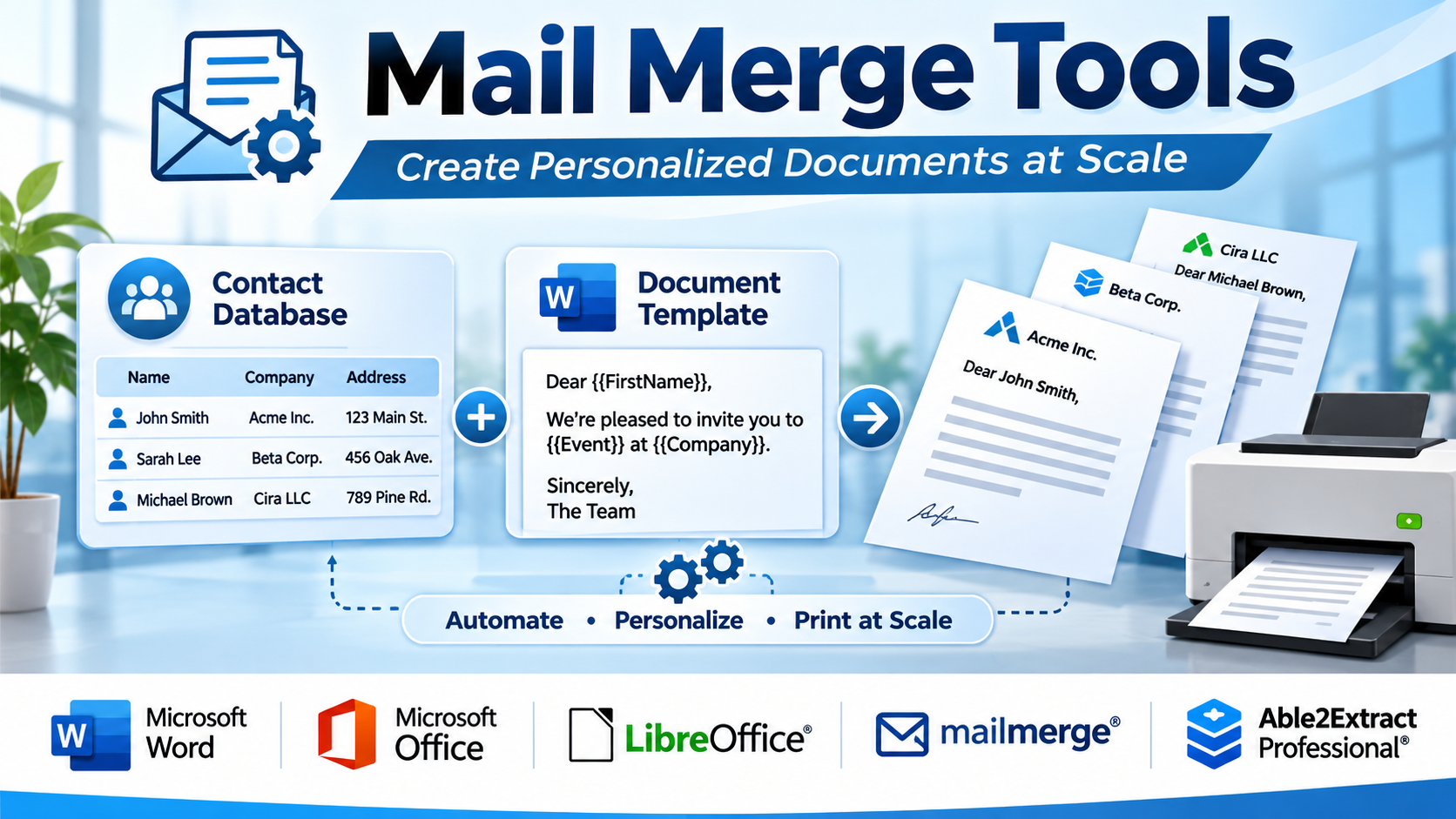
Mail merge tools are software applications that combine a reusable template with structured recipient or business data to create personalized communications or documents.
A typical mail merge process uses two main components: a template containing fixed content and variable fields, and a data source containing the values that replace those fields.
For example, a template might contain the text, “Dear {{FirstName}}, your appointment is scheduled for {{AppointmentDate}}.”
The software reads each row of the data source and replaces the placeholders with the appropriate values. This produces a personalized output for every record.
Mail merge can be used for emails, letters, labels, envelopes, certificates, invoices, reports, and other business documents.
How Mail Merge Software Works
- Prepare the Data Source: Organize recipient information in a spreadsheet, CRM, database, or supported application.
- Create a Template: Write the message or document that will be reused.
- Insert Merge Fields: Add placeholders for names, dates, addresses, amounts, or other information.
- Connect the Data: Link the template to the appropriate data source.
- Map Fields: Match template placeholders with corresponding data columns.
- Apply Conditions: Configure optional rules for different recipient groups.
- Preview Outputs: Verify that personalized information appears correctly.
- Generate Documents: Produce individual emails, PDFs, letters, or other supported outputs.
- Distribute Content: Send messages or store generated documents through approved channels.
- Review Results: Check processing status, delivery information, and any exceptions.
Common Applications
- Personalized sales emails.
- Customer onboarding communications.
- Marketing follow-up messages.
- Employee offer letters.
- HR onboarding documents.
- School admission letters.
- Student certificates.
- Event invitations.
- Membership renewal notices.
- Personalized invoices.
- Customer account statements.
- Mailing labels and envelopes.
- Nonprofit donor communications.
- Appointment reminders.
- Contract generation.
- Business reports.
Benefits of Mail Merge Tools
Time Savings: A single template can produce many personalized outputs.
Improved Consistency: Standardized templates reduce differences between documents.
Personalization: Recipient-specific fields make communication more relevant.
Reduced Manual Entry: Data is inserted automatically from structured records.
Scalability: Organizations can prepare larger batches without proportional increases in manual work.
Workflow Automation: Integrations can trigger document creation or message delivery.
Better Data Reuse: Existing spreadsheets and business systems become useful communication sources.
Improved Accuracy: Properly configured workflows reduce repetitive typing, although inaccurate source data can still produce incorrect results.
Top 10 Mail Merge Tools
1. Microsoft Word Mail Merge
Short Description
Microsoft Word Mail Merge is a document personalization feature built into Microsoft Word. It enables users to combine Word templates with data from Excel, Outlook contacts, and other supported sources.
The feature is particularly useful for creating personalized letters, labels, envelopes, and email messages through supported Microsoft Office workflows.
For example, an HR department may need to generate employment confirmation letters for hundreds of employees. Staff can prepare one Word template and merge employee details from a spreadsheet.
Microsoft Word Mail Merge is familiar to many business users and does not necessarily require a separate specialized mail merge platform.
Its strength lies in traditional document preparation and integration with established Microsoft Office tools.
However, complex automation, centralized template governance, and advanced analytics may require additional software.
Key Features
- Document Templates: Creates reusable Word documents with variable fields.
- Excel Integration: Uses spreadsheet records as a data source.
- Personalized Letters: Produces individual letters from one template.
- Labels and Envelopes: Supports bulk address label and envelope generation.
- Email Merge: Supports compatible email merge workflows.
- Conditional Fields: Provides rules for selected content variations.
- Preview Results: Allows users to inspect personalized outputs.
- Recipient Filtering: Supports selection and sorting of data records.
- Document Formatting: Retains Word’s rich formatting capabilities.
Benefits
- Reduces repetitive document creation.
- Uses familiar Microsoft applications.
- Supports multiple output formats.
- Simplifies personalized letters.
- Works with Excel data.
- Reduces manual data entry.
- Supports administrative correspondence.
Pros
- Built into Microsoft Word.
- Familiar interface.
- Strong document formatting.
- Excel compatibility.
- Letter and label generation.
- Useful for offline document preparation.
Cons
- Limited advanced workflow automation.
- Email sending depends on supported configurations.
- Collaboration and approval controls are limited.
- Large or complex merges can require troubleshooting.
- No comprehensive campaign analytics.
Use Cases
Human Resources: Generate employment letters.
Schools: Create admission letters and certificates.
Administrative Teams: Produce personalized correspondence.
Event Organizers: Prepare invitation letters and labels.
Best For
Organizations already using Microsoft Office that need straightforward document mail merge.
2. GMass
Short Description
GMass is an email mail merge and outreach platform that operates within Gmail.
It is designed for users who want to send personalized email campaigns using Gmail and spreadsheet-based recipient information.
For example, a small sales team may maintain prospect records in Google Sheets and want to send personalized follow-up messages without manually composing each email.
GMass can connect recipient data with email templates and support campaign scheduling and follow-up workflows.
The platform also provides email campaign reporting and relevant automation capabilities.
Its Gmail-centered approach is useful for teams that prefer working within an existing email interface.
However, users must evaluate Gmail and Google Workspace sending limits, deliverability requirements, recipient consent, and appropriate outreach practices.
Key Features
- Gmail Integration: Operates within the Gmail environment.
- Google Sheets Mail Merge: Uses spreadsheet data for personalization.
- Personalized Emails: Inserts recipient-specific information.
- Automated Follow-Ups: Supports configured follow-up sequences.
- Email Scheduling: Allows campaigns to be scheduled.
- Campaign Reporting: Provides relevant email activity metrics.
- Recipient Segmentation: Supports targeted recipient groups.
- Email Templates: Enables reusable outreach content.
- Campaign Management: Organizes bulk email workflows.
Benefits
- Simplifies Gmail-based mail merge.
- Supports personalized outreach.
- Reduces manual follow-up work.
- Integrates with Google Sheets.
- Provides campaign visibility.
- Supports repeatable email workflows.
- Reduces repetitive email preparation.
Pros
- Gmail-native experience.
- Google Sheets integration.
- Automated follow-ups.
- Email scheduling.
- Personalization.
- Campaign reporting.
Cons
- Primarily focused on Gmail.
- Sending limits apply.
- Not designed for complex PDF generation.
- Deliverability depends on sender practices.
- Advanced features require paid plans.
Use Cases
Sales Outreach: Send personalized prospect emails.
Recruitment: Contact candidates individually.
Customer Follow-Ups: Automate relevant communications.
Small Business Marketing: Manage Gmail campaigns.
Best For
Gmail users seeking personalized email campaigns and automated follow-ups.
3. Yet Another Mail Merge (YAMM)
Short Description
Yet Another Mail Merge, commonly called YAMM, is a mail merge tool for Gmail and Google Sheets.
It allows users to prepare recipient lists in spreadsheets and send personalized emails through supported Google Workspace workflows.
For example, a university department may need to send individualized event invitations to faculty members and students.
Staff can prepare a Google Sheets recipient list, create a Gmail draft, and use YAMM to populate the message with relevant information.
Its familiar spreadsheet-oriented approach makes it accessible to users who do not need complex marketing automation.
The platform also provides relevant tracking and scheduling features.
However, organizations should evaluate sending limits, data access permissions, and the requirements of their Google accounts.
Key Features
- Google Sheets Integration: Uses spreadsheet rows as recipient records.
- Gmail Draft Templates: Uses Gmail content for email merge.
- Personalized Fields: Inserts recipient-specific information.
- Bulk Email Sending: Processes multiple recipients.
- Email Tracking: Provides available campaign activity information.
- Scheduling: Supports applicable scheduled sending.
- Recipient Filtering: Helps select relevant contacts.
- Attachment Support: Provides applicable attachment workflows.
- Campaign Status: Displays mailing progress and results.
Benefits
- Simplifies spreadsheet-based email personalization.
- Works with familiar Google tools.
- Reduces repetitive sending.
- Supports event communication.
- Provides useful reporting.
- Helps small teams manage mailing lists.
- Requires limited technical expertise.
Pros
- Google Sheets-centered workflow.
- Gmail integration.
- Straightforward setup.
- Personalization.
- Email tracking.
- Useful for smaller campaigns.
Cons
- Sending quotas apply.
- Limited complex document generation.
- Advanced features vary by plan.
- Spreadsheet quality affects results.
- Not a complete enterprise marketing platform.
Use Cases
Education: Send student and faculty announcements.
Events: Deliver personalized invitations.
Nonprofits: Contact supporters.
Small Businesses: Send customer updates.
Best For
Google Workspace users seeking simple spreadsheet-driven email mail merge.
4. Mailmeteor
Short Description
Mailmeteor is an email mail merge and outreach tool designed to simplify personalized email campaigns.
It supports workflows involving Gmail and Google Sheets and offers relevant email automation features.
For example, a recruiting agency may need to contact hundreds of candidates with personalized information about available opportunities.
Mailmeteor can help generate individualized messages from structured recipient data.
The platform emphasizes accessible email personalization and campaign administration.
It can also support follow-up workflows and email performance tracking, depending on the available plan.
Organizations should evaluate integration requirements, email sending limits, and compliance with applicable communication regulations.
Key Features
- Email Mail Merge: Generates personalized messages.
- Google Sheets Integration: Uses spreadsheet data.
- Gmail Connectivity: Supports Gmail-based workflows.
- Email Scheduling: Sends campaigns at configured times.
- Follow-Up Automation: Supports relevant outreach sequences.
- Personalization Fields: Inserts recipient-specific values.
- Campaign Tracking: Provides email activity information.
- Templates: Supports reusable messages.
- Recipient Management: Helps organize campaign audiences.
Benefits
- Reduces repetitive email preparation.
- Supports personalized communication.
- Integrates with Google tools.
- Helps coordinate follow-ups.
- Provides campaign reporting.
- Supports recruiting and outreach.
- Improves workflow consistency.
Pros
- Accessible interface.
- Email personalization.
- Google integration.
- Scheduling.
- Follow-up automation.
- Campaign reporting.
Cons
- Email sending limits remain relevant.
- Not designed primarily for complex document generation.
- Deliverability requires careful management.
- Advanced capabilities vary by plan.
- Large-scale marketing needs may require specialized platforms.
Use Cases
Recruitment: Send candidate outreach.
Sales: Personalize follow-up emails.
Education: Deliver individualized announcements.
Professional Services: Send client communications.
Best For
Individuals and teams seeking accessible Gmail-oriented mail merge and email automation.
5. Mail Merge with Attachments
Short Description
Mail Merge with Attachments is a Google Workspace-oriented mail merge solution associated with Digital Inspiration.
It is designed to send personalized emails using spreadsheet data and can support individualized file attachments.
For example, an accounting firm may need to email each client a different PDF statement.
A conventional mail merge tool may personalize the message but attach the same document to every recipient.
Mail Merge with Attachments is relevant when the workflow requires recipient-specific attachments as well as personalized message content.
It can support administrative and document distribution processes using familiar Google applications.
Organizations should carefully verify file mapping, sharing permissions, sending limits, and attachment handling before using it with sensitive documents.
Key Features
- Personalized Emails: Inserts spreadsheet fields into messages.
- Google Sheets Integration: Uses structured recipient data.
- Individual Attachments: Supports recipient-specific files.
- Gmail Sending: Uses compatible Gmail workflows.
- Email Templates: Supports reusable message content.
- Bulk Distribution: Processes multiple recipients.
- Attachment Mapping: Associates files with recipient records.
- Scheduling Options: Supports applicable sending workflows.
- Campaign Tracking: Provides relevant processing information.
Benefits
- Simplifies individualized document distribution.
- Reduces manual attachment selection.
- Supports personalized email content.
- Uses familiar Google applications.
- Helps automate administrative communication.
- Reduces repetitive sending.
- Supports recurring document delivery.
Pros
- Recipient-specific attachments.
- Spreadsheet integration.
- Gmail compatibility.
- Personalized messages.
- Administrative workflow relevance.
- Useful for PDF distribution.
Cons
- Incorrect file mapping can expose sensitive information.
- Sending quotas apply.
- Advanced enterprise governance may be limited.
- Requires careful spreadsheet preparation.
- Not a complete document generation platform.
Use Cases
Accounting: Distribute individual statements.
Education: Send personalized certificates.
HR: Deliver employee-specific documents.
Professional Services: Email individualized reports.
Best For
Google Workspace users who need personalized emails with different attachments for each recipient.
6. Autocrat
Short Description
Autocrat is a document merge automation tool commonly used with Google Sheets and Google Docs.
It helps users generate personalized documents from spreadsheet records and reusable templates.
For example, a school may collect student information through a Google Form and need to generate completion certificates.
Autocrat can combine submitted information with a Google Docs template to produce individual documents.
Its strengths lie in document generation rather than promotional email campaigns.
The tool can be useful for education, administration, and lightweight business automation.
Organizations should evaluate current add-on availability, permissions, trigger behavior, and maintenance considerations before relying on it for critical workflows.
Key Features
- Google Sheets Integration: Uses spreadsheet records.
- Google Docs Templates: Supports document merge fields.
- PDF Generation: Produces relevant PDF outputs.
- Document Personalization: Inserts record-specific values.
- Automated Triggers: Supports applicable event-based generation.
- Google Drive Storage: Saves generated files.
- Email Distribution: Supports relevant document delivery.
- Batch Processing: Generates documents for multiple rows.
- Workflow Configuration: Provides merge setup options.
Benefits
- Automates repetitive document creation.
- Supports certificates and letters.
- Uses familiar Google applications.
- Reduces manual copying.
- Supports PDF generation.
- Connects with form-driven workflows.
- Helps small teams manage document output.
Pros
- Document generation focus.
- Google Workspace compatibility.
- PDF creation.
- Template personalization.
- Automation options.
- Useful for education.
Cons
- Current support and compatibility require verification.
- Complex templates may need troubleshooting.
- Limited enterprise governance.
- Not primarily an email campaign platform.
- Google permissions require careful management.
Use Cases
Schools: Generate certificates.
HR: Produce standardized letters.
Event Management: Create participation documents.
Administration: Generate form-based reports.
Best For
Google Workspace users seeking lightweight document merge automation.
7. Form Publisher
Short Description
Form Publisher is a document generation tool that transforms information collected through Google Forms and related workflows into personalized documents.
It is relevant to organizations that need standardized outputs based on submitted information.
For example, an HR team may collect onboarding details through a form and generate an employee information document automatically.
Form Publisher can connect form responses with templates and produce supported document formats.
Its form-driven approach makes it useful for approvals, certificates, reports, and administrative documentation.
The platform is less focused on large-scale personalized marketing email campaigns.
Organizations should evaluate supported templates, workflow permissions, document storage, and automation requirements.
Key Features
- Google Forms Integration: Uses submitted form data.
- Document Templates: Generates standardized outputs.
- Google Docs Support: Uses compatible document templates.
- PDF Generation: Produces supported PDF documents.
- Automated Creation: Generates documents from submissions.
- Personalization: Inserts form response values.
- Email Notifications: Supports relevant delivery workflows.
- Google Drive Integration: Stores generated files.
- Workflow Administration: Supports configured document processes.
Benefits
- Reduces manual form processing.
- Standardizes document output.
- Supports automated generation.
- Improves administrative efficiency.
- Reduces repetitive data entry.
- Supports Google Workspace workflows.
- Simplifies document distribution.
Pros
- Form-driven automation.
- Google integration.
- Document generation.
- PDF support.
- Template-based output.
- Useful for administrative workflows.
Cons
- Primarily form-driven.
- Not a dedicated bulk email marketing platform.
- Complex workflows may require configuration.
- Subscription limits may apply.
- Enterprise document governance needs evaluation.
Use Cases
HR: Generate onboarding documents.
Education: Create student certificates.
Administration: Produce standardized reports.
Events: Generate registration confirmations.
Best For
Organizations generating personalized documents from Google Forms submissions.
8. Docupilot
Short Description
Docupilot is a document generation platform that automates the creation of personalized documents from templates and structured data.
It is relevant to businesses seeking document merge capabilities beyond conventional spreadsheet-based letters.
For example, a consulting firm may need to generate client proposals containing different company names, service descriptions, prices, and contractual details.
Docupilot can use templates and incoming data to create customized documents.
Its automation and integration capabilities support workflows connected to forms, business applications, and APIs.
The platform is particularly useful when organizations need repeatable document production.
However, buyers should evaluate template complexity, supported formats, integration requirements, and document security.
Key Features
- Document Templates: Creates reusable document layouts.
- Data Merge: Inserts structured information.
- PDF Generation: Produces personalized PDFs.
- Document Automation: Supports automated creation.
- API Integration: Connects with custom applications.
- Workflow Integrations: Supports compatible automation tools.
- Conditional Content: Supports relevant document variations.
- Batch Generation: Produces multiple documents.
- Delivery Options: Supports applicable document distribution.
Benefits
- Automates personalized document creation.
- Reduces repetitive template editing.
- Supports business application integration.
- Improves document consistency.
- Enables PDF workflows.
- Supports scalable generation.
- Reduces administrative workload.
Pros
- Dedicated document generation.
- API support.
- PDF output.
- Reusable templates.
- Workflow automation.
- Suitable for business documents.
Cons
- Not primarily an email campaign platform.
- Complex templates require testing.
- Integration setup may need technical resources.
- Pricing depends on usage.
- Security requirements need evaluation.
Use Cases
Consulting: Generate proposals.
Sales Operations: Produce quotations.
HR: Create personalized letters.
Finance: Generate customer documents.
Best For
Businesses seeking automated document generation from structured data.
9. Plumsail Documents
Short Description
Plumsail Documents is a document automation platform that helps organizations generate files from templates and business data.
It is relevant to teams using Microsoft 365, Power Automate, and other supported workflow technologies.
For example, an operations department may need to generate customer agreements whenever a record reaches a particular stage in a business process.
Plumsail Documents can connect document templates with data and automation workflows.
Its capabilities support business document generation rather than traditional marketing email mail merge.
The platform is especially relevant to organizations seeking repeatable document creation across connected applications.
Buyers should assess integration availability, template requirements, output formats, and usage-based pricing.
Key Features
- Document Templates: Supports reusable layouts.
- Data Merging: Inserts business information into templates.
- PDF Generation: Creates supported PDF outputs.
- Microsoft 365 Integration: Connects with relevant Microsoft workflows.
- Power Automate Support: Enables applicable automation.
- Document Conversion: Supports relevant format transformations.
- Conditional Content: Provides applicable content logic.
- Batch Processing: Generates multiple files.
- Workflow Integration: Connects document generation with business systems.
Benefits
- Automates business documents.
- Reduces repetitive editing.
- Integrates with workflow platforms.
- Supports Microsoft-oriented environments.
- Improves document consistency.
- Supports scalable output.
- Reduces manual processing.
Pros
- Business document automation.
- Microsoft ecosystem relevance.
- PDF generation.
- Workflow integration.
- Template capabilities.
- Suitable for recurring documents.
Cons
- Not primarily for email marketing.
- Integration configuration may be required.
- Usage costs require evaluation.
- Complex templates need testing.
- Advanced governance depends on implementation.
Use Cases
Operations: Generate agreements.
Finance: Produce statements.
Sales: Create quotations.
Administration: Automate recurring reports.
Best For
Organizations seeking document merge automation integrated with Microsoft and business workflows.
10. Formstack Documents
Short Description
Formstack Documents is a document generation platform designed to automate the creation of personalized business documents.
It combines templates with data from supported forms, applications, and integrations.
For example, an insurance company may need to generate customized policy documents from customer information collected during an application process.
Formstack Documents can support automated generation and relevant document delivery workflows.
Its capabilities are suitable for organizations seeking more structured document automation than basic Word or Gmail mail merge.
The platform is relevant to HR, sales, operations, finance, and other departments that produce recurring documents.
Organizations should evaluate template flexibility, integrations, workflow controls, security, and subscription requirements.
Key Features
- Document Generation: Creates personalized business files.
- Reusable Templates: Maintains standardized layouts.
- Data Integration: Connects with supported data sources.
- PDF Output: Generates relevant PDF documents.
- Workflow Automation: Supports event-driven creation.
- Conditional Content: Supports applicable document variations.
- Business Integrations: Connects with supported applications.
- Document Delivery: Supports relevant distribution workflows.
- Batch Generation: Produces multiple personalized outputs.
Benefits
- Reduces repetitive document preparation.
- Supports standardized business forms.
- Improves workflow efficiency.
- Connects data with document creation.
- Supports automated delivery.
- Reduces manual errors.
- Helps scale recurring document processes.
Pros
- Dedicated document automation.
- Business integrations.
- Reusable templates.
- PDF generation.
- Workflow capabilities.
- Suitable for complex business processes.
Cons
- More complex than basic mail merge.
- Subscription costs.
- Integration planning may be required.
- Not primarily an email outreach platform.
- Template maintenance requires governance.
Use Cases
Insurance: Generate policy documents.
Sales: Produce customer agreements.
HR: Create employment paperwork.
Finance: Automate recurring documents.
Best For
Businesses seeking structured document generation and workflow automation.
Comparison Table: Top 10 Mail Merge Tools
| Tool | Primary Strength | Best For | Main Limitation |
|---|---|---|---|
| Microsoft Word Mail Merge | Traditional document merge | Office users | Limited automation |
| GMass | Gmail outreach automation | Sales teams | Gmail dependency |
| YAMM | Google Sheets email merge | Small teams | Sending quotas |
| Mailmeteor | Personalized email campaigns | Recruiters and marketers | Email-focused |
| Mail Merge with Attachments | Individualized attachments | Administrative teams | Attachment mapping risk |
| Autocrat | Google document generation | Education | Limited enterprise governance |
| Form Publisher | Form-based documents | Administrative workflows | Form-driven focus |
| Docupilot | API document generation | Business automation | Template setup |
| Plumsail Documents | Workflow document automation | Microsoft-oriented teams | Integration complexity |
| Formstack Documents | Enterprise document generation | Business operations | Subscription and configuration |
How to Choose the Best Mail Merge Tool
1. Determine the Required Output
Start by identifying whether the organization needs emails, letters, PDFs, labels, certificates, invoices, or contracts.
This decision immediately narrows the available options.
2. Identify the Data Source
Determine where recipient information resides.
Common sources include Excel, Google Sheets, CRM systems, databases, and form submissions.
3. Evaluate Template Complexity
Simple letters may require only basic merge fields.
Complex agreements may need conditional sections, calculations, repeating tables, and multiple output formats.
4. Review Personalization Capabilities
Check support for names, dates, amounts, recipient-specific attachments, and conditional content.
5. Assess Automation Requirements
Determine whether documents should be generated manually, on a schedule, or in response to business events.
6. Examine Email Sending Limits
Email mail merge tools operate within applicable provider restrictions.
Sending capacity and deliverability should be assessed separately.
7. Evaluate Integrations
Review compatibility with existing productivity, CRM, HR, and workflow systems.
8. Assess Data Security
Mail merge processes can expose sensitive information if recipient data or attachment mappings are incorrect.
9. Review Reporting
Email tools may provide campaign activity metrics, while document tools may provide processing logs.
10. Test Error Handling
Determine how the platform handles missing fields, invalid addresses, failed generation, and incomplete data.
11. Calculate Total Cost
Consider subscriptions, usage allowances, integration work, document volume, and support.
12. Evaluate Ease of Use
Nontechnical teams may prefer tools embedded in familiar applications.
13. Run a Controlled Pilot
Generate a small sample and verify every field before processing a larger batch.
Best Mail Merge Tools by User Type
Microsoft Office Users
Microsoft Word Mail Merge is suitable for teams preparing personalized letters, labels, and routine documents.
Gmail Sales Teams
GMass is relevant to sales professionals who need personalized outreach and follow-up automation.
Google Sheets Users
YAMM provides a familiar spreadsheet-driven email merge workflow.
Recruiters
Mailmeteor can support personalized candidate communication.
Teams Sending Individual Attachments
Mail Merge with Attachments is relevant when each recipient needs a different file.
Educational Institutions
Autocrat supports certificates and document generation from spreadsheet data.
Form-Based Administrative Teams
Form Publisher can create documents from form submissions.
Business Automation Teams
Docupilot supports API-driven document generation.
Microsoft Workflow Teams
Plumsail Documents is relevant to Power Automate and related business workflows.
Enterprise Document Teams
Formstack Documents supports structured document generation.
| User Type | Relevant Tool | Primary Reason |
|---|---|---|
| Microsoft Office user | Word Mail Merge | Document templates |
| Gmail sales team | GMass | Outreach automation |
| Google Sheets user | YAMM | Spreadsheet email merge |
| Recruiter | Mailmeteor | Personalized outreach |
| Administrative document sender | Mail Merge with Attachments | Individual attachments |
| School administrator | Autocrat | Certificate generation |
| Form-based team | Form Publisher | Form-to-document automation |
| Developer or operations team | Docupilot | API document generation |
| Microsoft automation team | Plumsail Documents | Workflow integration |
| Enterprise document team | Formstack Documents | Structured document generation |
Practical Example: Automating Personalized Admission Letters
Consider a private educational institution processing 2,500 student applications.
The admissions department must prepare personalized acceptance letters containing student names, programs, admission dates, and enrollment instructions.
Previously, staff created letters manually using individual Word files.
The institution decides to implement a mail merge workflow.
Step 1: Define the Required Documents
The admissions team identifies the letter types and required fields.
Step 2: Prepare the Student Data
Staff organize approved student information in a structured spreadsheet.
Step 3: Validate Records
The team checks names, programs, dates, and contact details.
Step 4: Select the Tool
The institution evaluates Microsoft Word Mail Merge, Autocrat, and Docupilot.
Step 5: Create a Standard Template
Staff prepare an approved admission letter.
Step 6: Insert Merge Fields
The template includes student names, program details, and enrollment deadlines.
Step 7: Map Data Columns
Each template field is connected to the correct spreadsheet column.
Step 8: Generate Test Letters
The team creates sample documents using representative student records.
Step 9: Review Formatting
Staff verify page breaks, names, dates, and long text values.
Step 10: Verify Recipient Matching
The institution confirms that every generated letter corresponds to the correct student.
Step 11: Configure Distribution
Documents are prepared for approved email or postal delivery workflows.
Step 12: Run a Small Pilot
A limited batch is generated and reviewed.
Step 13: Generate the Full Batch
The system processes the approved student list.
Step 14: Review Exceptions
Missing data and generation failures are corrected.
Step 15: Archive Records
The institution stores final documents according to its records management policies.
Common Mistakes to Avoid
1. Using Inaccurate Source Data
Mail merge reproduces errors from the underlying spreadsheet or database.
2. Skipping Preview Checks
Incorrect field mappings can produce embarrassing or harmful personalization mistakes.
3. Sending the Wrong Attachment
Recipient-specific documents require careful verification.
4. Ignoring Email Sending Limits
Bulk sending can trigger provider restrictions.
5. Using Mail Merge for Unsolicited Spam
Organizations must respect consent requirements and applicable communication rules.
6. Overcomplicating Simple Workflows
A basic Word merge may be sufficient for occasional letters.
7. Choosing Email Software for Complex Document Generation
Email outreach tools and document automation platforms solve different problems.
8. Neglecting Template Version Control
Outdated templates can distribute incorrect information.
9. Failing to Handle Missing Values
Empty fields can create incomplete or confusing documents.
10. Ignoring Privacy
Recipient data and generated documents must be protected through appropriate access controls.
Frequently Asked Questions
1. What is mail merge software?
Mail merge software combines templates with structured data to create personalized messages or documents.
2. How does mail merge work?
It replaces template placeholders with values from a data source.
3. What is Microsoft Word Mail Merge?
It is a Microsoft Word feature for creating personalized letters, labels, envelopes, and supported email messages.
4. What is GMass?
GMass is a Gmail-based email mail merge and outreach platform.
5. What is Yet Another Mail Merge?
YAMM is a Google Sheets and Gmail mail merge tool.
6. What is Mailmeteor?
Mailmeteor is an email personalization and outreach tool.
7. What is Mail Merge with Attachments?
It is a Google-oriented mail merge solution supporting recipient-specific file attachments.
8. What is Autocrat?
Autocrat is a document merge tool used with Google Sheets and Google Docs.
9. What is Form Publisher?
Form Publisher generates personalized documents from supported form workflows.
10. What is Docupilot?
Docupilot is a document generation and automation platform.
11. What is Plumsail Documents?
Plumsail Documents automates document creation using templates and business data.
12. What is Formstack Documents?
Formstack Documents is a platform for generating personalized business documents.
13. Can mail merge send personalized emails?
Yes. Many tools support personalized email sending.
14. Can mail merge generate PDFs?
Yes. Document generation tools commonly support PDF output.
15. Can mail merge use Excel?
Microsoft Word Mail Merge and other compatible tools can use Excel data.
16. Can mail merge use Google Sheets?
Many Google Workspace-oriented tools support Google Sheets.
17. Can mail merge generate certificates?
Yes. Document merge tools can create personalized certificates.
18. Can mail merge attach different files to each email?
Some specialized tools support recipient-specific attachments.
19. Can mail merge automate follow-up emails?
Certain email mail merge platforms provide follow-up automation.
20. Can mail merge generate invoices?
Yes. Document automation platforms can generate personalized invoices from structured data.
21. Can mail merge integrate with CRM systems?
Some tools provide native integrations or API-based connectivity.
22. What are merge fields?
Merge fields are placeholders replaced with values from the data source.
23. What is conditional mail merge?
Conditional mail merge changes selected content based on data values or configured rules.
24. Is mail merge suitable for large organizations?
Yes, but enterprise requirements may justify dedicated document automation software.
25. Can mail merge improve productivity?
Yes. It reduces repetitive preparation of similar documents and messages.
26. Is mail merge secure?
Security depends on the software, permissions, data handling, and workflow configuration.
27. Can mail merge send bulk marketing emails?
Some tools support email campaigns, subject to sending limits and applicable laws.
28. How much do mail merge tools cost?
Costs vary from features included in existing productivity software to paid subscriptions and usage-based enterprise services.
29. What should users test before a large mail merge?
They should verify field mappings, data accuracy, formatting, attachments, recipient matching, and delivery settings.
30. Which mail merge tool is best?
The best choice depends on output format, data source, automation requirements, integration needs, and budget.
Final Thoughts
Mail merge tools help organizations produce personalized communications and documents without repeating the same manual tasks.
Microsoft Word Mail Merge is useful for traditional document preparation.
GMass, YAMM, and Mailmeteor support personalized email workflows.
Mail Merge with Attachments addresses recipient-specific file distribution.
Autocrat and Form Publisher are relevant to Google Workspace document generation.
Docupilot, Plumsail Documents, and Formstack Documents support more structured document automation.
Organizations should select software based on whether they need email outreach, administrative letters, PDF generation, or complex business workflows.
Data accuracy, template testing, privacy, and appropriate distribution controls are essential to successful implementation.
With reliable source data and well-designed templates, mail merge software can improve consistency, reduce repetitive work, and make personalized communication easier to manage.
