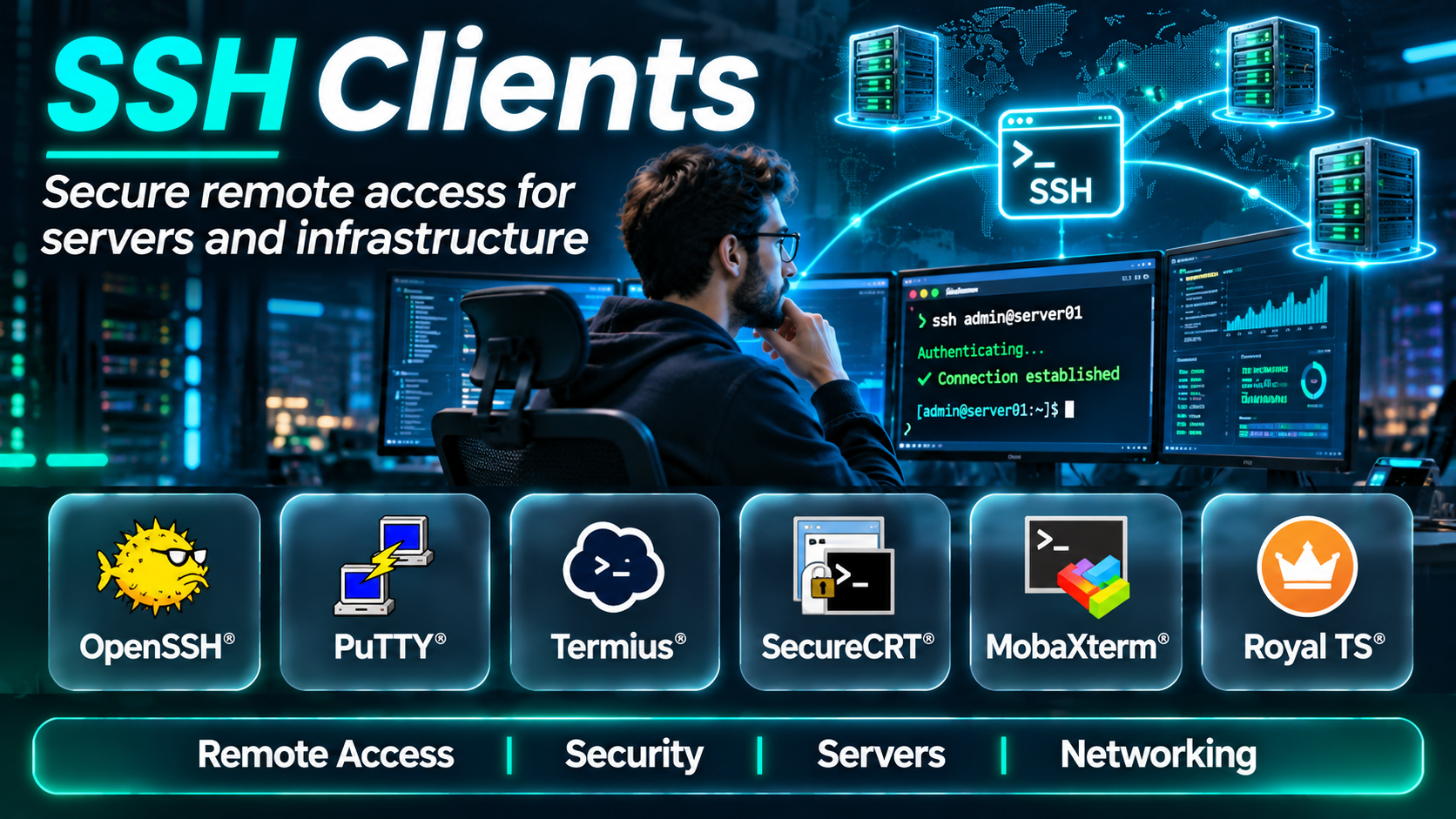
Introduction
Secure remote access is an essential requirement for modern IT infrastructure.
System administrators regularly connect to Linux servers, developers access remote development environments, and DevOps engineers manage cloud infrastructure through command-line sessions.
These connections often cross public networks, making security particularly important.
SSH, or Secure Shell, provides an encrypted protocol for remote access and related operations.
SSH clients allow users to establish connections with SSH servers, authenticate securely, execute commands, transfer files through supported mechanisms, and create encrypted tunnels.
However, SSH clients differ significantly in their capabilities.
Some provide simple command-line interfaces. Others include graphical session managers, integrated terminals, file transfer tools, credential organization, and collaboration features.
A developer managing two servers may prefer a lightweight command-line client.
An infrastructure administrator responsible for hundreds of systems may need organized connection profiles, jump-host support, authentication policies, and reliable session management.
Security requirements also vary.
Organizations must consider private key protection, host key verification, authentication methods, connection logging, and integration with enterprise identity controls.
This guide compares ten SSH clients and related remote-access applications for Windows, macOS, and Linux.
It explains how each tool works, its major capabilities, practical advantages, limitations, and appropriate use cases.
What Are SSH Clients?
An SSH client is software that establishes secure connections to systems running compatible SSH server software.
SSH encrypts communication between the client and server and supports authentication mechanisms designed to protect remote access.
A typical SSH connection involves a client initiating communication with a remote server, verifying the server’s identity, authenticating the user, and establishing an encrypted session.
How SSH Authentication Works
SSH commonly supports password-based authentication and public-key authentication.
With public-key authentication, the user possesses a private key while the server is configured to recognize the corresponding public key.
The private key should remain protected.
SSH authentication may also integrate with hardware security keys, certificates, or other mechanisms depending on the implementation.
Important SSH Client Capabilities
Common capabilities include:
- Encrypted remote terminal access.
- Public-key authentication.
- Server host key verification.
- Connection profiles.
- SSH configuration files.
- Port forwarding.
- Proxy and jump-host support.
- Remote command execution.
- File transfer through compatible tools.
- Session logging.
- Automation and scripting.
- Multi-server administration.
SSH Clients vs. Remote Desktop Tools
SSH primarily provides secure command-line access and tunneling.
Remote desktop tools provide graphical access to remote systems.
Some applications combine multiple protocols, but SSH itself is not equivalent to a graphical remote desktop protocol.
SSH Clients vs. VPN Clients
A VPN typically establishes a protected network connection or tunnel between endpoints or networks.
SSH generally secures particular remote sessions and can provide selected forwarding capabilities.
The two technologies can complement each other but serve different purposes.
Top 10 SSH Clients
1. OpenSSH
Short Description
OpenSSH is an open-source implementation of the SSH protocol and related utilities.
It is one of the most established technologies for secure remote administration.
OpenSSH includes a command-line SSH client and associated tools for authentication, configuration, key management, and secure file transfer.
It is widely available across Unix-like operating systems and supported Windows environments.
For example, a DevOps engineer may use OpenSSH to connect to a cloud-hosted Linux server, execute diagnostic commands, or establish a secure tunnel to an internal service.
OpenSSH is particularly valuable because it integrates naturally with shell scripts and automation systems.
Its configuration files allow users to define reusable host aliases, usernames, identity files, and connection options.
This reduces repetitive command entry and helps standardize access procedures.
OpenSSH also supports jump-host configurations for accessing systems through approved intermediate hosts.
However, OpenSSH is primarily command-line oriented.
Users who prefer graphical connection managers may find its configuration less approachable.
Security also depends on appropriate key management, host verification, and server configuration.
Key Features
- Secure remote shell: Establishes encrypted terminal sessions with compatible SSH servers.
- Public-key authentication: Supports authentication using cryptographic key pairs.
- SSH configuration files: Defines reusable connection settings and host aliases.
- Port forwarding: Supports local, remote, and dynamic forwarding.
- Jump-host support: Enables connections through configured intermediate SSH hosts.
- Secure file transfer: Includes compatible file transfer utilities such as SFTP and SCP.
- Automation: Supports scripted remote command execution.
- Host key verification: Helps authenticate remote servers.
- Cross-platform availability: Supports major Unix-like systems and Windows environments.
Benefits
OpenSSH provides a flexible and widely supported foundation for secure remote administration.
Its command-line interface is particularly valuable for automation and infrastructure management.
Pros
- Free and open-source.
- Widely supported.
- Strong protocol compatibility.
- Flexible configuration.
- Suitable for automation.
- Supports tunneling.
- Mature security ecosystem.
Cons
- Command-line learning curve.
- Limited built-in graphical management.
- Key management requires discipline.
- Configuration mistakes can weaken security.
- Session organization requires additional tooling.
- No native centralized enterprise access governance.
Use Cases
Linux administration, cloud server access, DevOps automation, secure tunneling, and remote development.
Best For: Developers and administrators requiring a dependable, scriptable SSH client.
2. PuTTY
Short Description
PuTTY is a free and open-source terminal and remote connection application commonly associated with Windows.
It supports SSH and several other connection types.
PuTTY has been widely used for remote server administration, particularly in environments where administrators prefer a graphical connection interface.
For example, a Windows administrator may use PuTTY to connect to a Linux server, configure network equipment, or maintain remote infrastructure.
Its session configuration interface allows users to save connection settings.
This can simplify repeated access to frequently managed systems.
PuTTY also belongs to a broader collection of related utilities, including tools for key generation, authentication agent functionality, and secure file transfer.
These tools can support more complete remote administration workflows.
However, PuTTY’s interface is relatively traditional compared with newer terminal applications.
Managing large numbers of connections may require additional organization.
Users should also understand PuTTY’s key formats and compatibility considerations when working with other SSH tools.
Key Features
- SSH connectivity: Provides secure remote terminal access.
- Saved sessions: Stores reusable connection settings.
- Graphical configuration: Allows users to configure connections through a desktop interface.
- Public-key authentication: Supports compatible SSH key workflows.
- PuTTYgen: Provides key generation and conversion functionality.
- Pageant: Supports SSH authentication agent workflows.
- Port forwarding: Enables supported SSH tunnel configurations.
- Terminal customization: Provides settings for fonts, colors, and terminal behavior.
- Additional protocols: Supports selected non-SSH terminal connection methods.
Benefits
PuTTY offers a straightforward graphical SSH workflow for administrators who prefer not to configure every connection through command-line options.
Pros
- Free and open-source.
- Mature SSH implementation.
- Familiar Windows interface.
- Saved sessions.
- Key management utilities.
- Supports port forwarding.
- Lightweight application.
Cons
- Traditional interface.
- Limited built-in tab management.
- Session organization can become difficult at scale.
- Separate utilities for some tasks.
- Less modern visual design.
- Enterprise governance requires other systems.
Use Cases
Windows-to-Linux administration, network equipment management, server troubleshooting, and secure remote terminal access.
Best For: Windows administrators seeking a familiar graphical SSH client.
3. MobaXterm
Short Description
MobaXterm is a Windows-oriented remote computing application that combines terminal functionality with several remote access and administration capabilities.
It supports SSH connections alongside other protocols and utilities.
MobaXterm is especially useful for administrators who manage different types of remote systems from Windows workstations.
For example, an infrastructure engineer may connect to Linux servers through SSH while also accessing other remote services through supported protocols.
Its tabbed interface helps organize multiple sessions.
MobaXterm also provides an integrated environment containing useful Unix-style command-line utilities.
One of its practical advantages is the ability to combine terminal access with convenient file transfer workflows.
This can reduce the need to switch between several applications.
However, MobaXterm includes many features that may be unnecessary for users who only require basic SSH access.
Its licensing model also distinguishes between free and professional capabilities.
Organizations should evaluate the appropriate edition and review supported security configurations.
Key Features
- SSH client: Provides secure remote terminal sessions.
- Tabbed sessions: Organizes multiple connections.
- Integrated SFTP browsing: Supports convenient file management during compatible SSH sessions.
- Remote protocol support: Includes additional remote administration connection types.
- Session management: Stores reusable remote connection profiles.
- Unix-style utilities: Provides command-line tools within its Windows environment.
- SSH tunneling: Supports selected port forwarding workflows.
- Terminal customization: Offers appearance and behavior settings.
- Professional features: Provides additional capabilities through commercial editions.
Benefits
MobaXterm consolidates several remote administration tasks into one interface.
It is particularly useful for Windows-based infrastructure teams managing mixed environments.
Pros
- Integrated remote access.
- Tabbed sessions.
- Convenient file transfers.
- Multiple protocol support.
- Useful Windows administration environment.
- Saved connection profiles.
- Broad feature set.
Cons
- Windows-focused.
- Some capabilities require paid licensing.
- Interface can feel crowded.
- More resource usage than minimal SSH clients.
- Advanced configuration requires learning.
- Not a complete privileged access management system.
Use Cases
Windows-based DevOps, remote Linux administration, infrastructure troubleshooting, and mixed-protocol remote access.
Best For: Windows engineers wanting an all-in-one remote administration application.
4. Termius
Short Description
Termius is a modern SSH client and connection management application available across multiple platforms.
It focuses on simplifying remote server access through organized host information and a polished interface.
Termius is particularly relevant to developers and administrators who connect to many remote systems.
For example, a cloud engineer may manage development servers, production hosts, and network devices from different computers.
Termius can help organize these connections into reusable profiles.
Its cross-device capabilities are useful for professionals who work from desktop and mobile environments.
The application also provides features associated with SSH key management and connection organization.
However, some advanced functionality is tied to commercial plans.
Organizations should carefully evaluate synchronization, credential storage, account requirements, and data protection policies.
A convenient interface should not replace proper host verification or secure authentication practices.
Key Features
- Cross-platform SSH: Supports remote connections from multiple operating systems.
- Host organization: Stores and groups remote connection profiles.
- SSH key management: Supports relevant key-based authentication workflows.
- Connection synchronization: Provides supported cross-device management capabilities.
- Tabbed terminal workflows: Helps manage multiple sessions.
- Port forwarding: Supports compatible SSH tunneling.
- Modern interface: Provides accessible connection management.
- Mobile availability: Supports remote access from compatible mobile devices.
- Team-oriented features: Offers selected collaboration and organizational capabilities.
Benefits
Termius can simplify remote access for professionals managing many servers across multiple devices.
Its interface reduces the need to remember long connection commands.
Pros
- Modern design.
- Cross-platform.
- Organized host management.
- Mobile support.
- SSH key workflows.
- Convenient connection profiles.
- Useful for frequent remote access.
Cons
- Subscription requirements for some features.
- Account and synchronization considerations.
- Commercial platform dependence.
- Credential governance requires review.
- Not a complete enterprise PAM solution.
- Some users may prefer command-line tools.
Use Cases
Cloud server administration, cross-device remote access, development environments, and multi-host SSH management.
Best For: Developers and administrators who prioritize convenient connection organization.
5. SecureCRT
Short Description
SecureCRT is a commercial terminal emulation and remote access application designed for professional administration workflows.
It supports SSH and other terminal connection methods.
SecureCRT is particularly relevant to network administrators, infrastructure engineers, and enterprises requiring extensive session management.
For example, a network operations team may manage routers, switches, Linux servers, and other systems through organized terminal sessions.
SecureCRT provides features for grouping connections, configuring terminal behavior, and automating repetitive tasks.
Its scripting capabilities can help administrators perform recurring operations.
Session logging and customization can also support operational documentation and troubleshooting.
However, SecureCRT is a commercial product.
Organizations must evaluate licensing costs and whether its advanced capabilities justify the investment.
It also remains a terminal access application rather than a complete enterprise identity governance or privileged access management platform.
Key Features
- SSH support: Provides encrypted remote terminal connections.
- Session management: Organizes reusable connection profiles.
- Tabbed sessions: Supports multiple concurrent connections.
- Scripting: Automates supported terminal operations.
- Session logging: Records terminal activity where configured.
- Terminal emulation: Supports multiple terminal behavior options.
- Authentication options: Works with supported SSH authentication mechanisms.
- Customization: Provides extensive terminal and session settings.
- Cross-platform editions: Supports several major desktop operating systems.
Benefits
SecureCRT provides advanced terminal session management for administrators responsible for complex infrastructure.
Its scripting and logging capabilities can improve repeatability and troubleshooting.
Pros
- Professional feature set.
- Advanced session organization.
- Strong scripting capabilities.
- Terminal customization.
- Logging support.
- Suitable for network administration.
- Commercial support.
Cons
- Paid licensing.
- More features than basic users need.
- Learning curve.
- Administrative configuration effort.
- Not a full PAM platform.
- Automation scripts require maintenance.
Use Cases
Network operations, enterprise server administration, infrastructure automation, and remote terminal management.
Best For: Professional administrators requiring advanced session management and scripting.
6. Bitvise SSH Client
Short Description
Bitvise SSH Client is a Windows SSH application that combines secure terminal access with file transfer and tunneling capabilities.
It is designed for users who want detailed control over SSH connections through a graphical interface.
For example, a Windows administrator may use Bitvise to connect to a Linux server, transfer configuration files, and establish a tunnel to an internal service.
Its integrated functionality makes these related tasks accessible within one application.
Bitvise supports several SSH authentication methods and connection configuration options.
It is particularly useful when SSH tunneling and secure file transfer are frequent requirements.
However, its detailed configuration interface may require time to understand.
The client is Windows-focused, so organizations operating several desktop platforms may need additional tools.
Key Features
- SSH terminal access: Connects securely to compatible SSH servers.
- SFTP integration: Provides graphical secure file transfer.
- Port forwarding: Supports local and remote tunneling configurations.
- Authentication options: Supports compatible SSH authentication methods.
- Connection profiles: Saves reusable settings.
- Graphical configuration: Exposes detailed connection controls.
- Terminal functionality: Provides remote command-line sessions.
- Proxy support: Supports selected network connection arrangements.
- Automation interfaces: Offers capabilities for scripted or managed workflows.
Benefits
Bitvise combines SSH access, secure file transfer, and tunneling within a Windows application.
It can reduce the need to operate separate tools for common remote administration tasks.
Pros
- Integrated SFTP.
- Strong tunneling capabilities.
- Detailed connection settings.
- Windows integration.
- Useful authentication options.
- Convenient remote administration.
- Free client availability.
Cons
- Windows-focused.
- Interface can appear technical.
- Not designed for macOS or Linux desktops.
- Enterprise access governance requires additional systems.
- Advanced settings need careful configuration.
- Less suitable for minimalist workflows.
Use Cases
Windows SSH access, secure file transfers, port forwarding, and remote server administration.
Best For: Windows administrators requiring integrated SSH and SFTP functionality.
7. Royal TS
Short Description
Royal TS is a remote connection management application designed to organize access to multiple systems and protocols.
It is relevant to administrators who work across SSH, remote desktop, and other infrastructure connection types.
For example, an enterprise IT engineer may need to connect to Linux servers through SSH and Windows servers through remote desktop sessions.
Royal TS provides a common environment for organizing these connections.
Its connection management features can help reduce the complexity of maintaining large collections of remote systems.
The application is particularly useful for teams with heterogeneous infrastructure.
However, Royal TS is broader than a dedicated SSH client.
Some functionality depends on the operating system edition, supported plugins, and licensing arrangements.
Organizations should evaluate the exact SSH capabilities available in their chosen configuration.
Key Features
- SSH connection support: Provides remote terminal access through compatible components.
- Connection organization: Groups remote systems into structured collections.
- Multiple protocols: Supports different remote administration workflows.
- Credential management: Provides supported credential-related functionality.
- Shared configuration workflows: Helps teams organize connection information.
- Remote session management: Centralizes access to multiple systems.
- Customizable interface: Supports different administrative layouts.
- Cross-platform product family: Provides editions for supported desktop environments.
- Enterprise administration relevance: Fits mixed infrastructure operations.
Benefits
Royal TS helps administrators organize multiple remote access technologies within one management environment.
Pros
- Centralized connection organization.
- Multiple protocol support.
- Useful for mixed infrastructure.
- Credential-related features.
- Team administration relevance.
- Structured connection collections.
- Professional workflows.
Cons
- Commercial licensing.
- Broader than basic SSH requirements.
- Feature availability varies by edition.
- Configuration complexity.
- Additional security governance may be required.
- Not a replacement for enterprise PAM.
Use Cases
Enterprise infrastructure administration, mixed Windows and Linux environments, remote connection organization, and IT operations.
Best For: Administrators managing many systems through different remote access protocols.
8. Tabby
Short Description
Tabby is an open-source terminal application that includes SSH connection functionality.
It combines local shell sessions with remote access features.
Tabby is relevant to developers and administrators who want one application for local command-line work and remote server connections.
For example, a developer may use Tabby to run local Git commands, connect to a staging server, and inspect application logs.
Its tabbed interface helps keep these sessions organized.
Tabby also supports connection profiles and customization.
Its plugin architecture allows users to extend supported functionality.
However, Tabby is not a specialized enterprise SSH access governance platform.
Organizations must manage authentication, host verification, and plugin trust separately.
Key Features
- Integrated SSH: Supports secure remote terminal connections.
- Local shell access: Runs compatible local command-line environments.
- Tabbed interface: Organizes multiple sessions.
- Connection profiles: Stores reusable remote host settings.
- Cross-platform support: Works on major desktop operating systems.
- Customization: Supports appearance and workflow preferences.
- Plugin ecosystem: Extends functionality.
- Keyboard shortcuts: Improves terminal navigation.
- Session organization: Combines local and remote workspaces.
Benefits
Tabby provides a flexible terminal environment for developers who regularly switch between local and remote systems.
Pros
- Open-source.
- Cross-platform.
- Integrated SSH.
- Local terminal support.
- Customizable.
- Tabbed sessions.
- Plugin support.
Cons
- Plugin security requires review.
- Not a complete enterprise SSH manager.
- More resource usage than minimal clients.
- Configuration can become complex.
- Credential policies require attention.
- Some users may prefer dedicated SSH tools.
Use Cases
Developer SSH access, remote debugging, local and remote terminal workflows, and server administration.
Best For: Developers wanting an integrated terminal and SSH client.
9. WindTerm
Short Description
WindTerm is a terminal application that supports SSH and other remote terminal workflows.
It is designed to provide an efficient interface for users managing command-line sessions.
WindTerm includes session organization and terminal productivity features relevant to administrators and developers.
For example, a network engineer may use it to maintain several SSH sessions while monitoring remote systems.
Its interface can help organize connections and reduce repetitive setup.
WindTerm is particularly relevant to users looking for a terminal application with remote access features.
However, organizations should review its current release activity, licensing, supported operating systems, and security maintenance before adoption.
This is especially important for software used to access sensitive infrastructure.
Key Features
- SSH connectivity: Supports encrypted remote terminal sessions.
- Session management: Organizes reusable connections.
- Tabbed terminal interface: Supports multiple sessions.
- Terminal customization: Provides appearance and behavior settings.
- Remote administration workflows: Supports server and network access.
- Connection profiles: Stores frequently used host information.
- Keyboard productivity: Supports terminal navigation.
- Cross-platform availability: Provides support for selected desktop systems.
- Multiple connection types: Supports additional terminal-related workflows.
Benefits
WindTerm can provide a convenient interface for users who regularly manage remote terminal connections.
Pros
- SSH functionality.
- Session organization.
- Tabbed interface.
- Terminal customization.
- Remote administration focus.
- Useful for technical users.
- Multiple connection workflows.
Cons
- Current maintenance should be verified.
- Security update practices require review.
- Not a complete PAM solution.
- Feature documentation may vary.
- Enterprise support may be limited.
- Compatibility requires testing.
Use Cases
Server administration, network operations, SSH session management, and remote troubleshooting.
Best For: Technical users evaluating alternative terminal-based SSH applications.
10. JuiceSSH
Short Description
JuiceSSH is an SSH client designed for Android devices.
It provides mobile access to remote command-line environments.
JuiceSSH is relevant to administrators who occasionally need to inspect or troubleshoot infrastructure while away from a desktop computer.
For example, an engineer responding to an urgent incident may use an Android phone to connect to a server and inspect a service status.
Mobile SSH access can be useful for emergency diagnostics and limited administrative tasks.
However, mobile devices introduce additional operational considerations.
Small screens, touchscreen keyboards, device security, and network conditions can make complex administration difficult.
Organizations should also review the application’s current maintenance, security updates, and compatibility before relying on it for sensitive systems.
Mobile SSH should complement established administrative workflows rather than replace properly managed workstations.
Key Features
- Android SSH access: Provides remote terminal connectivity on supported devices.
- Connection profiles: Stores remote host configurations.
- SSH authentication: Supports relevant authentication methods.
- Mobile terminal interface: Adapts command-line access to touchscreen devices.
- Session management: Helps organize remote connections.
- Keyboard controls: Provides functionality for terminal-specific input.
- Remote command execution: Enables supported server administration tasks.
- Portable access: Supports troubleshooting away from desktop environments.
- Connection customization: Provides settings for remote sessions.
Benefits
JuiceSSH enables selected remote administration tasks from Android devices.
It can be useful for urgent diagnostics when a desktop workstation is unavailable.
Pros
- Mobile SSH access.
- Android-focused interface.
- Portable administration.
- Connection profiles.
- Useful emergency access.
- Remote command execution.
- Convenient for limited tasks.
Cons
- Android-specific.
- Small-screen limitations.
- Complex administration is difficult.
- Device security is critical.
- Current maintenance should be verified.
- Not suitable for all enterprise environments.
Use Cases
Mobile server diagnostics, emergency SSH access, remote status checks, and lightweight administration.
Best For: Android users requiring occasional secure terminal access.
SSH Clients Comparison Table
| SSH Client | Main Platforms | Primary Strength | Best For | Key Limitation |
|---|---|---|---|---|
| OpenSSH | Windows, macOS, Linux | Scriptable secure access | DevOps and administrators | Command-line focus |
| PuTTY | Windows and supported ports | Simple graphical SSH | Windows administrators | Traditional interface |
| MobaXterm | Windows | Integrated remote tools | Infrastructure engineers | Windows-focused |
| Termius | Desktop and mobile | Organized host management | Multi-device users | Paid features |
| SecureCRT | Major desktop platforms | Advanced sessions and scripting | Enterprise administrators | Commercial licensing |
| Bitvise SSH Client | Windows | SSH, SFTP, and tunneling | Windows power users | Windows-specific |
| Royal TS | Supported desktop platforms | Multi-protocol connection management | Enterprise IT teams | Broad product complexity |
| Tabby | Windows, macOS, Linux | Integrated terminal and SSH | Developers | Limited enterprise governance |
| WindTerm | Supported desktop platforms | Terminal session organization | Technical users | Maintenance verification |
| JuiceSSH | Android | Mobile SSH access | Mobile administrators | Mobile limitations |
How to Choose the Best SSH Client
1. Identify the Operating System
Start with platform compatibility.
OpenSSH is a strong cross-platform foundation.
PuTTY, MobaXterm, and Bitvise are especially relevant to Windows workflows.
Termius supports a broader range of devices, while JuiceSSH focuses on Android.
2. Determine the Number of Managed Hosts
Users connecting to one or two servers may need only OpenSSH or PuTTY.
Administrators responsible for many systems may benefit from Termius, SecureCRT, Royal TS, or another structured connection manager.
3. Evaluate Authentication Security
Prefer secure authentication methods supported by organizational policy.
Review private key protection, hardware-backed authentication, SSH certificates, and authentication agent behavior where applicable.
Avoid storing unprotected credentials.
4. Verify Host Identity Handling
SSH clients should support appropriate host key verification.
Users should not routinely bypass host key warnings.
Unexpected host key changes may indicate legitimate server replacement or a potential security problem.
5. Review SSH Tunneling
Port forwarding can support secure access to selected internal services.
However, organizations should restrict tunneling according to security requirements.
6. Assess Automation Requirements
OpenSSH is particularly suitable for scripted operations.
SecureCRT and other applications may provide additional scripting capabilities.
7. Evaluate File Transfer
Some administrators need integrated SFTP browsing.
Others prefer separate command-line tools.
8. Consider Session Logging
Logging can help with troubleshooting and auditing.
However, session logs may contain sensitive information and require appropriate retention and access controls.
9. Review Enterprise Governance
A standalone SSH client does not automatically provide privileged access approval, credential rotation, or centralized session recording.
Organizations with these requirements may need dedicated access management infrastructure.
10. Test Operational Reliability
Evaluate connection stability, reconnection behavior, proxy support, terminal compatibility, and performance under realistic conditions.
Best SSH Clients by User Type
| User Type | Recommended SSH Client | Reason |
|---|---|---|
| Linux system administrator | OpenSSH | Native command-line workflows |
| Windows beginner | PuTTY | Familiar graphical interface |
| Windows DevOps engineer | MobaXterm | Integrated remote tools |
| Cross-device administrator | Termius | Organized connections |
| Enterprise network engineer | SecureCRT | Advanced sessions and scripting |
| Windows SSH power user | Bitvise SSH Client | Tunneling and SFTP |
| Mixed infrastructure administrator | Royal TS | Multi-protocol management |
| Software developer | Tabby | Local and remote terminal workflows |
| Alternative terminal user | WindTerm | Session organization |
| Android administrator | JuiceSSH | Mobile remote access |
| CI/CD engineer | OpenSSH | Automation compatibility |
| Cloud infrastructure engineer | OpenSSH or Termius | Scriptable or organized server access |
Practical Example: Building a Secure SSH Access Workflow for a DevOps Team
Consider a company managing production Linux servers across several cloud environments.
The team wants consistent SSH access while reducing credential risks.
Step 1: Inventory Remote Systems
Document the servers, operating systems, environments, and responsible teams.
Separate production systems from development and testing infrastructure.
Step 2: Choose Approved SSH Clients
Use OpenSSH as the standard command-line client.
Allow approved graphical clients where they meet security requirements.
Step 3: Establish Authentication Policies
Require appropriate public-key authentication or another approved strong authentication approach.
Use hardware-backed keys or SSH certificates where suitable.
Step 4: Protect Private Keys
Store private keys securely.
Avoid copying the same unprotected private key across multiple devices.
Step 5: Configure Host Verification
Maintain trusted host identities.
Investigate unexpected host key changes rather than automatically accepting them.
Step 6: Use Jump Hosts Where Required
Route access to sensitive infrastructure through approved intermediate systems.
Step 7: Restrict Privileges
Apply least-privilege access.
Avoid giving every administrator unrestricted access to every production server.
Step 8: Configure Connection Profiles
Use consistent host aliases, usernames, and approved connection settings.
Step 9: Establish Logging
Collect appropriate access and authentication records.
Avoid unnecessary exposure of sensitive command output.
Step 10: Test Access Revocation
Verify that access can be promptly removed when an employee changes roles or leaves the organization.
Step 11: Review Tunneling Policies
Restrict unauthorized forwarding and access to internal services.
Step 12: Document Emergency Procedures
Define how authorized personnel can regain access during incidents without bypassing security controls.
Step 13: Conduct Periodic Reviews
Audit authorized users, credentials, host configurations, and connection policies.
Common SSH Client Challenges
Weak Credential Management
Poorly protected private keys can compromise remote systems.
Host Key Warning Fatigue
Users who ignore host identity warnings may become vulnerable to interception attacks.
Excessive Administrative Privileges
SSH access should not automatically imply unrestricted system permissions.
Uncontrolled Port Forwarding
Tunnels can bypass intended network restrictions if not governed.
Lost Connections
Long-running tasks may be interrupted when network sessions disconnect.
Terminal multiplexers and appropriate job management can help.
Configuration Drift
Different client settings across users can create inconsistent security behavior.
Session Logging Risks
Logs may capture sensitive commands or data.
Legacy Cryptography
Older servers and clients may rely on outdated algorithms.
Organizations should maintain compatible, supported cryptographic configurations.
Credential Sharing
Shared private keys reduce accountability and complicate revocation.
Unmanaged Mobile Access
Mobile SSH clients require appropriate device security and access policies.
Frequently Asked Questions
1. What is an SSH client?
An SSH client is software used to establish encrypted connections to compatible SSH servers.
2. What does SSH stand for?
SSH stands for Secure Shell.
3. What is the best SSH client?
The best choice depends on operating system, authentication requirements, session management, and automation needs.
4. Is OpenSSH free?
Yes. OpenSSH is open-source.
5. What is PuTTY used for?
PuTTY is commonly used for SSH and other terminal connections, particularly on Windows.
6. What is MobaXterm?
MobaXterm is a Windows remote computing application with SSH, terminal, file transfer, and other administration capabilities.
7. What is Termius?
Termius is a cross-platform SSH client and connection management application.
8. What is SecureCRT?
SecureCRT is a commercial terminal emulation and remote access application with advanced session management features.
9. What is Bitvise SSH Client?
It is a Windows SSH client that includes terminal, SFTP, and tunneling functionality.
10. What is an SSH key?
An SSH key is a cryptographic key used in supported SSH authentication workflows.
11. Is SSH more secure than Telnet?
Properly configured SSH provides encrypted communication and authentication protections that traditional Telnet lacks.
12. What is SSH port forwarding?
It is a mechanism for forwarding selected network connections through an SSH session.
13. What is an SSH jump host?
It is an intermediate SSH server used to reach another destination.
14. What is SFTP?
SFTP is a file transfer protocol that operates over SSH.
15. Is SCP the same as SFTP?
No. They are distinct file transfer mechanisms, although modern implementations may use SFTP for certain SCP command workflows.
16. Can SSH clients manage multiple servers?
Yes. Many support connection profiles or can be combined with configuration and automation tools.
17. Can SSH clients be used on mobile devices?
Yes. Compatible SSH clients are available for mobile operating systems.
18. Does SSH require a VPN?
Not necessarily. SSH can operate independently, although organizations may require VPN access for additional network controls.
19. Can SSH connections be automated?
Yes. OpenSSH and other tools support scripted operations.
20. What is SSH host key verification?
It is the process of checking the remote server’s cryptographic identity.
21. Should private SSH keys be shared?
No. Private keys should remain protected and should not be casually shared between users.
22. Can SSH use hardware security keys?
Supported SSH implementations can use compatible hardware-backed authentication mechanisms.
23. What is SSH agent forwarding?
It allows a remote environment to request authentication operations through a forwarded local agent. It should be used cautiously because it introduces security considerations.
24. Can SSH clients record sessions?
Some clients support logging, while organizations may use separate infrastructure for centralized session recording.
25. Is an SSH client enough for enterprise privileged access management?
No. Enterprise PAM may require approval workflows, centralized identity controls, credential rotation, and auditing beyond basic SSH functionality.
26. Which SSH client is best for Windows?
PuTTY, MobaXterm, Bitvise, Termius, SecureCRT, and OpenSSH address different Windows requirements.
27. Which SSH client is best for macOS?
OpenSSH, Termius, SecureCRT, and compatible terminal applications are relevant choices.
28. Which SSH client is best for Linux?
OpenSSH is a widely supported option.
29. Can SSH be used for cloud servers?
Yes. SSH is commonly used for supported cloud-hosted Linux infrastructure.
30. What is the most important SSH security practice?
Use strong authentication, verify server identities, protect private keys, and restrict access according to least-privilege principles.
Final Thoughts
SSH clients remain fundamental tools for secure remote administration.
OpenSSH provides a widely supported foundation for command-line access and automation.
PuTTY offers a familiar graphical approach, while MobaXterm combines SSH with additional remote administration utilities.
Termius emphasizes connection organization across devices.
SecureCRT provides advanced professional session management, and Bitvise combines SSH access with SFTP and tunneling.
Royal TS supports administrators managing multiple remote access protocols.
Tabby and WindTerm provide alternative terminal-based connection experiences, while JuiceSSH addresses mobile access requirements.
The best SSH client depends on the organization’s operating systems, infrastructure complexity, authentication policies, and daily workflows.
However, selecting a client is only one part of securing remote access.
Organizations should also protect credentials, verify host identities, enforce least privilege, maintain supported cryptographic configurations, and monitor administrative activity.
A well-designed SSH workflow balances convenience with strong access controls and operational accountability.
