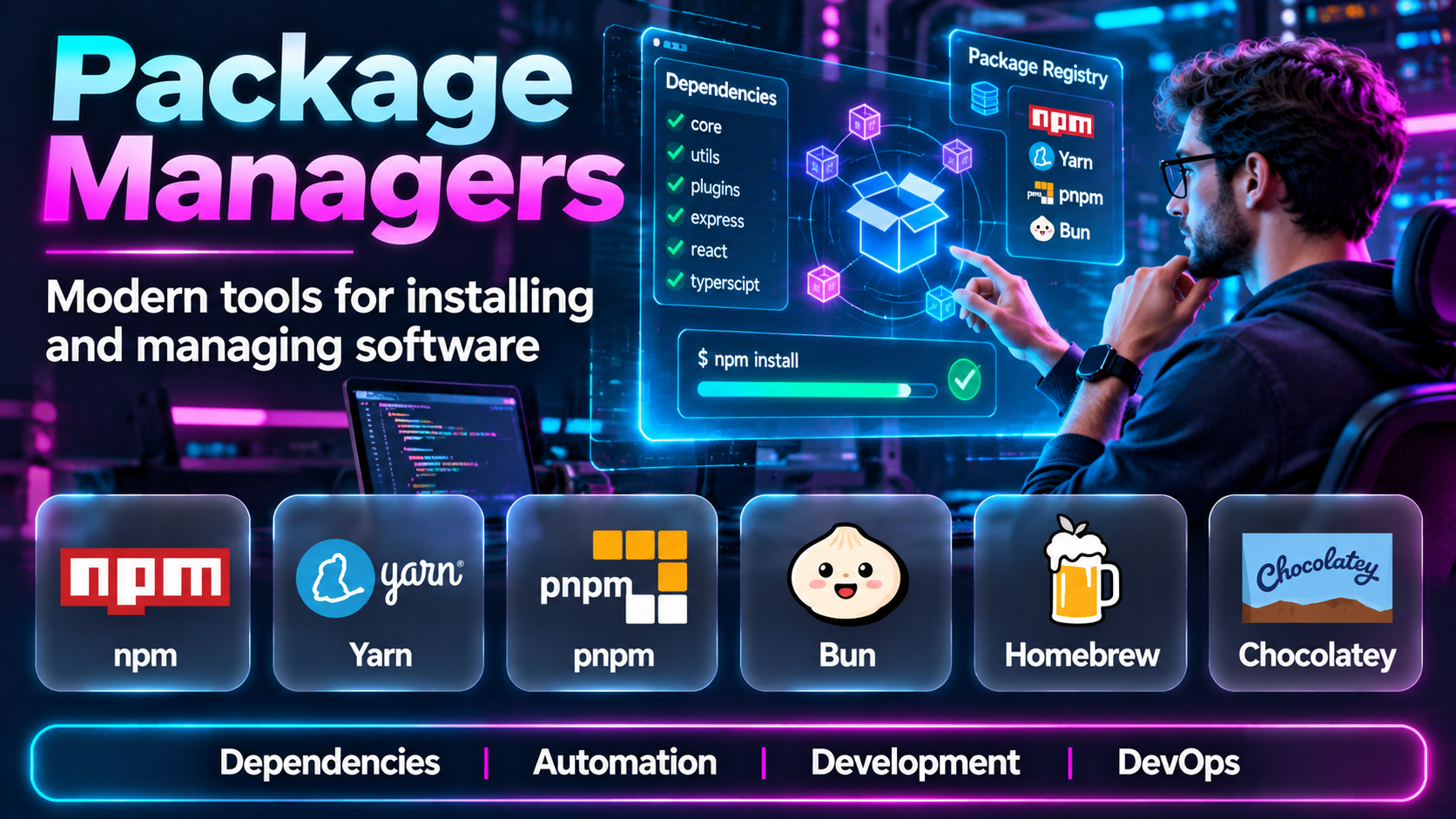
Introduction
Installing software is only one part of managing a modern development environment.
Applications depend on libraries, frameworks, command-line utilities, runtime environments, and other software components. These dependencies must be installed, updated, configured, and sometimes removed without disrupting existing applications.
Managing these activities manually becomes difficult as projects grow.
A development team may maintain hundreds of dependencies across several applications. A system administrator may manage thousands of installed packages across servers. A platform engineer may need to reproduce the same environment across development, testing, and production systems.
Package managers simplify these tasks.
They provide standardized commands and workflows for installing software, resolving dependencies, tracking versions, and managing updates.
However, package managers differ significantly in their scope.
Some manage operating system software. Others focus on programming language ecosystems. Some emphasize reproducible dependency installation, while others prioritize developer convenience or enterprise administration.
A package manager that works well for a JavaScript application may not be suitable for managing Linux servers.
Likewise, a tool designed for Windows application installation may not provide the dependency isolation needed for Python development.
This guide compares ten widely used package managers across different platforms and development environments.
It examines their capabilities, advantages, limitations, ideal users, and practical applications.
What Are Package Managers?
A package manager is software that automates the installation, updating, configuration, and removal of software packages.
A package typically contains an application, library, tool, or related software component.
Depending on the ecosystem, a package may also include metadata describing its version, dependencies, supported platforms, and installation requirements.
How Package Managers Work
Most package managers interact with a package repository or another configured software source.
When a user requests a package, the manager identifies the appropriate version, checks its dependencies, retrieves the necessary files, and performs the installation.
For example, installing a web development framework may require several supporting libraries.
Rather than downloading every library manually, a package manager can resolve and install the required dependencies according to the ecosystem’s rules.
Main Functions of Package Managers
Package managers commonly support:
- Installing software packages.
- Updating installed packages.
- Removing software.
- Resolving dependencies.
- Selecting package versions.
- Managing package repositories.
- Verifying package integrity.
- Tracking installed components.
- Supporting automated installation.
- Reproducing development environments.
Not every package manager supports these functions in the same way.
System Package Managers vs. Language Package Managers
System package managers manage software associated with an operating system.
Examples include APT, DNF, Homebrew, and Windows Package Manager.
Language package managers focus on software dependencies within programming ecosystems.
Examples include npm, pnpm, Yarn, and pip.
Some tools operate across multiple categories, but their installation models and responsibilities still differ.
Why Package Management Matters
Reliable package management improves consistency and reduces manual administration.
It also helps organizations control software versions and maintain visibility into dependencies.
However, package managers are part of the software supply chain.
Using one does not automatically make dependencies secure.
Organizations still need trusted repositories, vulnerability management, integrity checks, access controls, and appropriate update policies.
Top 10 Package Managers
1. npm
Short Description
npm is a package manager and registry ecosystem widely used for JavaScript and Node.js development.
It enables developers to install, update, publish, and manage JavaScript packages.
npm is commonly included with Node.js installations, making it accessible to developers beginning work with JavaScript applications.
Its ecosystem contains libraries for web development, backend services, command-line applications, testing, and build automation.
For example, a developer creating a React application may use npm to install React, testing libraries, development tools, and supporting packages.
The project manifest records relevant dependency requirements, while the lockfile helps preserve the resolved dependency tree.
This is important because applications often depend on many indirect packages.
A developer may explicitly install only a few libraries while the project ultimately relies on hundreds of transitive dependencies.
npm supports scripts that automate common development tasks, including testing, building, and application startup.
These capabilities make it more than a simple package downloader.
However, large dependency trees can increase installation time and storage requirements.
Organizations must also manage package security, dependency updates, and the risks associated with third-party installation scripts.
Key Features
- JavaScript package registry: Provides access to a large ecosystem of published packages.
- Dependency installation: Resolves and installs packages required by applications.
- Package manifests: Uses
package.jsonto define project metadata and dependencies. - Lockfile support: Records resolved dependency information to improve reproducibility.
- Development dependencies: Separates development tooling from application dependencies.
- Package scripts: Automates testing, building, and other project tasks.
- Workspace support: Helps manage related packages within a repository.
- Package publishing: Enables developers to distribute reusable libraries.
- Security auditing: Provides supported mechanisms for identifying known dependency vulnerabilities.
Benefits
npm simplifies JavaScript development by combining package installation, dependency management, scripting, and publishing.
Its broad adoption also makes it easy to find documentation and integration examples.
Pros
- Large JavaScript ecosystem.
- Included with Node.js.
- Familiar development workflow.
- Lockfile support.
- Package publishing.
- Broad tooling compatibility.
- Workspace capabilities.
Cons
- Large dependency trees.
- Installation performance varies.
- Disk usage can be substantial.
- Third-party package risks.
- Dependency conflicts.
- Requires careful security practices.
Use Cases
Frontend development, Node.js backend applications, JavaScript libraries, development automation, and package publishing.
Best For: JavaScript and Node.js developers seeking broad ecosystem compatibility.
2. pnpm
Short Description
pnpm is a JavaScript package manager designed to improve installation efficiency and dependency management.
It is commonly used as an alternative to npm and Yarn.
One of its defining characteristics is its approach to package storage.
Instead of repeatedly storing identical package contents across projects, pnpm uses a content-addressable store and links packages into project environments.
This can reduce disk usage and improve installation efficiency, especially when developers work across many JavaScript projects.
For example, a development team maintaining several applications may use pnpm to share package content efficiently while preserving project-specific dependency structures.
pnpm also uses a dependency layout designed to reduce access to packages that have not been properly declared.
This can expose dependency problems that remain hidden under more permissive installation arrangements.
Its workspace capabilities make it attractive for monorepositories containing multiple applications and libraries.
However, teams migrating from another package manager should test their build tools and scripts.
Some applications assume a particular node_modules structure or rely on undeclared dependencies.
These assumptions may require changes before pnpm can be adopted successfully.
Key Features
- Content-addressable storage: Reuses package content across installations.
- Efficient disk usage: Reduces unnecessary duplication of dependency files.
- Dependency isolation: Helps expose undeclared dependency access.
- Lockfile support: Preserves resolved package versions.
- Workspace management: Supports multi-package repositories.
- Installation optimization: Improves efficiency in many development workflows.
- JavaScript ecosystem compatibility: Works with packages from the npm ecosystem.
- Command-line tooling: Supports installation, updates, and package execution.
- CI/CD integration: Enables reproducible automated dependency installation.
Benefits
pnpm can reduce storage consumption and improve dependency consistency.
Its strict dependency handling can also help teams identify incorrectly declared package relationships.
Pros
- Efficient storage.
- Strong workspace support.
- Reproducible installation.
- Useful dependency isolation.
- Suitable for monorepositories.
- Broad JavaScript package compatibility.
- Open-source.
Cons
- Some tooling assumes traditional dependency layouts.
- Migration may require adjustments.
- Developers must understand workspace configuration.
- Strict dependency handling can expose existing project problems.
- Troubleshooting linked dependencies may require familiarity.
- Performance benefits vary by environment.
Use Cases
JavaScript monorepositories, large frontend projects, CI/CD pipelines, multi-project development, and dependency optimization.
Best For: JavaScript teams prioritizing efficient installations and monorepository management.
3. Yarn
Short Description
Yarn is a JavaScript package manager developed to provide reliable dependency management and modern project workflows.
It operates within the broader JavaScript package ecosystem and offers features for dependency installation, workspace management, and project configuration.
Yarn is particularly relevant to teams managing complex frontend applications or multiple related JavaScript packages.
For example, a company may maintain a shared component library, web application, and internal tooling within one repository.
Yarn workspaces can help organize these packages and manage their dependencies.
Modern Yarn versions also support advanced installation approaches, including Plug’n’Play.
Plug’n’Play changes how package resolution works by reducing reliance on conventional node_modules directories in supported configurations.
This can improve dependency correctness and installation behavior.
However, Plug’n’Play is not compatible with every development tool without configuration.
Yarn also has meaningful differences between its older and newer major versions.
Organizations should evaluate the specific Yarn version they intend to deploy rather than assuming every historical feature behaves identically.
Key Features
- Dependency management: Installs and resolves JavaScript packages.
- Lockfiles: Supports consistent dependency resolution.
- Workspaces: Manages multiple related packages.
- Plug’n’Play: Offers an alternative dependency resolution model.
- Project configuration: Supports detailed package management settings.
- Package constraints: Helps enforce selected dependency requirements.
- Script execution: Runs development and build commands.
- Caching: Supports efficient package retrieval and installation.
- CI/CD workflows: Integrates with automated development pipelines.
Benefits
Yarn provides flexible dependency management for JavaScript teams, particularly those operating larger repositories.
Its advanced configuration capabilities can support standardized development practices.
Pros
- Strong workspace functionality.
- Advanced configuration.
- Lockfile support.
- Modern dependency resolution options.
- Suitable for large repositories.
- Open-source.
- JavaScript ecosystem integration.
Cons
- Differences between major versions.
- Plug’n’Play compatibility considerations.
- More configuration options can increase complexity.
- Migration requires testing.
- Learning curve for advanced features.
- Not intended for operating system package management.
Use Cases
JavaScript monorepositories, frontend development, shared component libraries, and enterprise development workflows.
Best For: JavaScript teams needing flexible workspace and dependency management.
4. pip
Short Description
pip is a widely used package installer for Python.
It allows developers to install and manage Python packages from configured package indexes and other supported sources.
pip is closely associated with the Python Package Index ecosystem, making it a standard tool in many Python development environments.
For example, a data analyst may use pip to install pandas, NumPy, and visualization libraries.
A backend developer may use it to install a web framework and supporting application dependencies.
pip supports dependency resolution and package version constraints.
It also works with Python virtual environments, which help isolate dependencies between projects.
This isolation is important because different Python applications may require different versions of the same library.
However, pip is not a complete project environment management system.
Developers often combine it with venv, requirements files, build tools, or other Python dependency management utilities.
Organizations should also distinguish between installing packages and achieving fully reproducible, verified software environments.
A requirements file without appropriate version controls may still allow dependency changes over time.
Key Features
- Python package installation: Installs compatible Python distributions.
- PyPI integration: Accesses the Python package ecosystem.
- Dependency resolution: Identifies required package dependencies.
- Version constraints: Supports selecting compatible package versions.
- Virtual environment compatibility: Works with isolated Python environments.
- Requirements files: Supports repeatable installation instructions.
- Package upgrades: Updates installed dependencies.
- Alternative package sources: Supports configured indexes and local distributions.
- Automation: Integrates with scripts and CI/CD workflows.
Benefits
pip provides a familiar foundation for installing Python packages.
Its compatibility with virtual environments and Python development tools makes it useful across many project types.
Pros
- Widely used.
- Python ecosystem compatibility.
- Straightforward commands.
- Works with virtual environments.
- Large package ecosystem.
- Suitable for automation.
- Open-source.
Cons
- Environment management requires additional tooling.
- Dependency conflicts can occur.
- Reproducibility requires careful configuration.
- Third-party package security risks.
- Native dependencies may complicate installation.
- Not a system-wide software management replacement.
Use Cases
Python application development, data science, machine learning, automation, testing, and backend services.
Best For: Python developers needing standard package installation workflows.
5. Homebrew
Short Description
Homebrew is an open-source package manager commonly used on macOS and also available for supported Linux environments.
It simplifies installing command-line tools, development utilities, libraries, and selected applications.
Homebrew is especially popular among developers who need to configure workstations quickly.
For example, a new software engineer may use Homebrew to install Git, programming runtimes, database clients, and other development tools.
Instead of manually downloading each utility and configuring installation paths, the developer can use standardized commands.
Homebrew maintains package definitions that describe how supported software should be installed and managed.
Its formula system is commonly used for command-line software, while casks support selected application installation workflows.
Homebrew is particularly valuable for creating consistent developer workstation setup scripts.
However, it is not a substitute for every operating system update or enterprise endpoint management requirement.
Organizations should also consider repository trust, update timing, and the implications of installing software outside centrally managed corporate deployment systems.
Key Features
- Command-line package installation: Installs development tools and utilities.
- macOS support: Provides a widely used package management workflow for macOS.
- Linux support: Works in supported Linux environments.
- Formula system: Defines package installation and management instructions.
- Cask support: Manages selected application installation workflows.
- Package upgrades: Updates installed software.
- Dependency handling: Installs required supporting packages.
- Automation: Supports scripted workstation setup.
- Community ecosystem: Provides a large collection of maintained package definitions.
Benefits
Homebrew reduces the effort required to configure and maintain development workstations.
It is particularly useful for teams standardizing command-line development tools.
Pros
- Easy to use.
- Strong macOS ecosystem.
- Extensive package catalog.
- Useful for developer onboarding.
- Scriptable installation.
- Open-source.
- Supports many common development tools.
Cons
- Not a complete enterprise endpoint management solution.
- Some applications require separate installation approaches.
- Package updates can introduce compatibility changes.
- Repository trust matters.
- Multiple installation methods may create conflicts.
- Not intended to replace operating system security updates.
Use Cases
Developer workstation setup, macOS software installation, command-line tool management, and automated onboarding.
Best For: macOS developers and teams standardizing workstation environments.
6. APT
Short Description
APT, or Advanced Package Tool, is a package management system used by Debian and Debian-derived Linux distributions.
It provides commands for installing, updating, upgrading, and removing software packages.
APT works with configured repositories and the Debian package ecosystem.
For example, a system administrator managing Ubuntu servers may use APT to install web servers, security utilities, and system libraries.
APT resolves dependencies and coordinates package installation through the underlying Debian packaging infrastructure.
Its repository-based approach makes it useful for operating system maintenance.
Organizations can configure approved software sources and use automation to manage package updates.
However, package availability and version freshness depend on the distribution and configured repositories.
A stable Linux distribution may intentionally provide older software versions with maintained security updates.
This can be desirable for production stability but may not satisfy developers who require the latest upstream releases.
APT also requires appropriate administrative permissions for system package operations.
Key Features
- Debian package management: Installs and manages compatible packages.
- Repository integration: Retrieves software from configured sources.
- Dependency resolution: Installs required package dependencies.
- System updates: Supports package index refresh and upgrades.
- Package removal: Removes installed software.
- Version management: Supports selected package version operations.
- Security updates: Works with distribution-maintained update repositories.
- Automation: Supports scripted server maintenance.
- Package metadata: Provides information about available and installed packages.
Benefits
APT provides a standardized and dependable approach to managing software on Debian-based Linux systems.
It is particularly valuable for server administration and operating system maintenance.
Pros
- Mature ecosystem.
- Strong Debian and Ubuntu integration.
- Dependency management.
- Repository-based updates.
- Suitable for automation.
- Extensive package availability.
- Open-source.
Cons
- Distribution-specific.
- Package versions may lag upstream releases.
- Repository configuration requires care.
- Dependency conflicts can occur.
- Administrative privileges are needed for system changes.
- Not intended for JavaScript or Python project dependency isolation.
Use Cases
Ubuntu server management, Debian administration, operating system updates, and Linux infrastructure automation.
Best For: Administrators managing Debian-based Linux environments.
7. DNF
Short Description
DNF is a package manager used in Fedora and other RPM-based Linux environments.
It provides software installation, updates, dependency resolution, and repository management.
DNF is relevant to organizations operating Fedora, Red Hat Enterprise Linux-related environments, and compatible distributions.
For example, a Linux administrator may use DNF to install system services, update security packages, or inspect package dependencies.
DNF integrates with RPM packaging infrastructure while providing higher-level dependency management.
It supports repository-based software distribution and automated administration.
This makes it useful for managing server and workstation software in supported Linux ecosystems.
However, package availability depends on the distribution and enabled repositories.
Administrators must also understand differences between distribution releases and package manager versions.
DNF should not be treated as interchangeable with APT because the underlying packaging formats and repository ecosystems differ.
Key Features
- RPM package management: Manages compatible RPM-based software.
- Dependency resolution: Handles required package relationships.
- Repository management: Uses configured software sources.
- Package installation: Installs system applications and libraries.
- Package upgrades: Supports operating system package maintenance.
- Package queries: Provides information about installed and available software.
- Transaction handling: Coordinates package operations.
- Automation support: Works with scripts and infrastructure management tools.
- Security maintenance: Supports updates through appropriate distribution repositories.
Benefits
DNF provides a standardized package management workflow for supported RPM-based Linux environments.
Its dependency handling and repository integration support repeatable system administration.
Pros
- Mature RPM ecosystem.
- Fedora integration.
- Strong dependency resolution.
- Suitable for server management.
- Repository controls.
- Automation-friendly.
- Open-source.
Cons
- RPM ecosystem focus.
- Distribution differences.
- Package availability varies.
- Repository configuration complexity.
- Version differences may affect commands.
- Not a language-specific project dependency manager.
Use Cases
Fedora administration, RPM-based server maintenance, package updates, and Linux infrastructure automation.
Best For: Administrators operating Fedora and compatible RPM-based systems.
8. Windows Package Manager (winget)
Short Description
Windows Package Manager, commonly accessed through the winget command, is a Microsoft-supported package management tool for Windows.
It provides command-line workflows for discovering, installing, upgrading, and removing supported applications.
winget is particularly relevant to developers and IT administrators who want to automate Windows workstation setup.
For example, an organization may prepare new employee laptops by installing approved development tools, browsers, and productivity applications through scripts.
This can reduce repetitive manual installation work.
winget also supports workflows for identifying available application updates.
However, the installation experience depends on package manifests, software installers, and configured sources.
Not every Windows application is available through the same repository or supports identical unattended installation behavior.
Organizations should test package manifests and installation options before using them in large-scale automation.
winget is also not a replacement for enterprise device management platforms or operating system patch management.
Key Features
- Windows application installation: Installs supported software packages.
- Package search: Finds available applications.
- Application upgrades: Checks for and installs supported updates.
- Package removal: Uninstalls supported applications.
- Command-line automation: Supports scripted deployment.
- Package manifests: Uses structured package metadata.
- Source configuration: Works with supported package sources.
- Export and import workflows: Helps reproduce selected application sets.
- Windows integration: Fits modern Windows administration workflows.
Benefits
winget simplifies installing and updating Windows applications.
It is useful for standardizing developer workstations and reducing repetitive software setup tasks.
Pros
- Microsoft-supported.
- Windows integration.
- Simple command-line interface.
- Useful for automation.
- Broad application coverage.
- Supports upgrades.
- Helpful for workstation onboarding.
Cons
- Windows-specific.
- Installer behavior varies.
- Not every application is available.
- Some packages require interactive handling.
- Enterprise policy requirements need separate controls.
- Package metadata quality matters.
Use Cases
Windows workstation provisioning, developer onboarding, application updates, and software installation automation.
Best For: Windows users and IT teams seeking command-line application management.
9. Chocolatey
Short Description
Chocolatey is a Windows package manager designed to automate software installation and management.
It provides command-line workflows for installing, upgrading, and removing applications.
Chocolatey is used by developers, administrators, and organizations managing Windows environments.
For example, an IT team may use Chocolatey packages to standardize application installations across employee workstations.
The platform supports package definitions and automation workflows that can integrate with broader configuration management systems.
Commercial offerings also provide additional capabilities relevant to organizational software management.
Chocolatey is particularly useful in environments that already rely on PowerShell and Windows automation.
However, organizations must evaluate package sources, installation scripts, licensing, and enterprise governance requirements.
Third-party packages may invoke installers or scripts that require careful security review.
Chocolatey should therefore be implemented with trusted repositories and appropriate administrative controls.
Key Features
- Windows package installation: Automates supported software deployment.
- Package upgrades: Updates installed applications.
- Package removal: Supports uninstall workflows.
- PowerShell integration: Fits Windows automation practices.
- Package definitions: Uses structured installation instructions.
- Repository support: Works with configured package sources.
- Enterprise capabilities: Offers commercial management features.
- Configuration management integration: Supports automated infrastructure workflows.
- Scriptable deployment: Helps standardize workstation provisioning.
Benefits
Chocolatey can reduce manual Windows software administration.
Its automation capabilities are useful for organizations managing consistent workstation configurations.
Pros
- Strong Windows automation focus.
- Mature ecosystem.
- PowerShell integration.
- Enterprise options.
- Scriptable deployment.
- Suitable for standardized workstation setup.
- Broad software coverage.
Cons
- Some capabilities require paid editions.
- Third-party scripts require scrutiny.
- Repository governance is important.
- Installer behavior varies.
- Administrative permissions may be necessary.
- Overlaps with other Windows management tools.
Use Cases
Windows software automation, enterprise workstation provisioning, configuration management, and development environment setup.
Best For: Windows administrators needing flexible software deployment automation.
10. Conda
Short Description
Conda is a cross-platform package and environment manager commonly used in data science, scientific computing, and machine learning.
Unlike package managers focused exclusively on one programming language, Conda can manage packages and dependencies that include native libraries and software components.
This makes it useful for projects with complex scientific dependencies.
For example, a machine learning researcher may need a specific Python version, numerical computing libraries, and compatible native packages.
Conda can create an isolated environment containing the required components.
Different projects can use separate environments, reducing conflicts between incompatible dependencies.
Conda also supports package installation from configured channels.
This flexibility makes it useful for scientific applications that rely on more than pure Python packages.
However, dependency resolution can become complex when environments contain many packages or multiple channels.
Organizations must also manage channel trust, package compatibility, and reproducibility.
Conda should not be confused with pip, although the two can be used together with appropriate care.
Key Features
- Environment management: Creates isolated software environments.
- Cross-platform support: Works on supported Windows, macOS, and Linux systems.
- Package management: Installs compatible packages and dependencies.
- Python version management: Supports environments with different Python versions.
- Native library support: Handles packages with compiled dependencies.
- Channel configuration: Retrieves packages from configured repositories.
- Environment specifications: Supports sharing environment requirements.
- Scientific computing ecosystem: Works with many data science packages.
- Dependency resolution: Coordinates compatible package versions.
Benefits
Conda simplifies managing complex scientific software environments.
It can reduce dependency conflicts when projects require different runtime and library versions.
Pros
- Environment isolation.
- Cross-platform.
- Useful for scientific computing.
- Native dependency management.
- Supports multiple Python versions.
- Suitable for research workflows.
- Broad package ecosystem.
Cons
- Dependency resolution can be slow.
- Environments may consume significant storage.
- Channel mixing can create conflicts.
- Reproducibility requires care.
- Different distributions have different licensing considerations.
- Not a general operating system package manager.
Use Cases
Data science, machine learning, scientific research, Python environment management, and native dependency coordination.
Best For: Researchers and developers managing complex scientific computing environments.
Package Managers Comparison Table
| Package Manager | Main Ecosystem | Primary Strength | Best For | Key Limitation |
|---|---|---|---|---|
| npm | JavaScript / Node.js | Broad package compatibility | JavaScript developers | Large dependency trees |
| pnpm | JavaScript / Node.js | Efficient dependency storage | Monorepositories | Tooling compatibility |
| Yarn | JavaScript / Node.js | Advanced workspace management | Large JavaScript projects | Configuration complexity |
| pip | Python | Standard Python installation | Python developers | Separate environment tooling |
| Homebrew | macOS / Linux | Developer tool installation | macOS developers | Not enterprise endpoint management |
| APT | Debian / Ubuntu | System package management | Linux administrators | Distribution-specific |
| DNF | Fedora / RPM Linux | RPM dependency management | RPM-based Linux teams | Distribution-specific |
| winget | Windows | Application installation automation | Windows users | Installer variability |
| Chocolatey | Windows | Scriptable software deployment | Windows IT teams | Package governance |
| Conda | Cross-platform scientific computing | Environment and native dependencies | Data scientists | Environment complexity |
How to Choose the Best Package Manager
Choosing a package manager requires understanding the operating environment, dependency requirements, and maintenance responsibilities.
1. Identify the Software Ecosystem
The first question is what type of software needs to be managed.
JavaScript developers commonly choose between npm, pnpm, and Yarn.
Python developers often use pip, while scientific computing teams may prefer Conda for complex environments.
Linux administrators generally use the package manager associated with their distribution.
Windows and macOS users have separate workstation management options.
Selecting a tool outside its intended ecosystem can create unnecessary complexity.
2. Evaluate Dependency Resolution
Dependency resolution determines which package versions are installed together.
Consider whether the package manager handles transitive dependencies, version conflicts, and compatibility requirements effectively.
Projects with large dependency graphs need particularly careful testing.
3. Review Reproducibility
A reproducible installation should produce the expected dependency set across environments.
Lockfiles, version constraints, repository controls, and immutable artifacts can contribute to this objective.
However, reproducibility also depends on package availability and the wider build environment.
4. Consider Environment Isolation
Isolation helps prevent one project from interfering with another.
Conda environments and Python virtual environments are useful examples.
JavaScript package managers use different project-level dependency arrangements.
Operating system package managers generally work at a different scope.
5. Assess Installation Performance
Measure installation time and storage consumption.
Large development teams may benefit from caching, efficient package stores, and optimized CI/CD installation workflows.
6. Evaluate Security Controls
Package managers retrieve software from repositories and other sources.
Organizations should evaluate package integrity, source trust, vulnerability reporting, and installation script behavior.
7. Review Automation Support
A suitable package manager should support unattended installation and consistent scripting where required.
This is especially important for CI/CD pipelines and enterprise workstation provisioning.
8. Consider Enterprise Governance
Organizations may need approved repositories, package restrictions, auditability, and centralized policy enforcement.
A convenient developer tool may not provide all these controls independently.
9. Evaluate Platform Compatibility
Check operating system, architecture, runtime, and repository support.
Cross-platform tools may behave differently across environments.
10. Plan Updates and Maintenance
Package management continues after installation.
Teams need policies for updating dependencies, testing compatibility, and responding to security vulnerabilities.
Best Package Managers by User Type
| User Type | Recommended Package Manager | Reason |
|---|---|---|
| Beginner JavaScript developer | npm | Familiar ecosystem and broad compatibility |
| JavaScript monorepository team | pnpm | Efficient storage and workspace management |
| Enterprise frontend team | Yarn | Advanced dependency configuration |
| Python application developer | pip | Standard Python package installation |
| macOS developer | Homebrew | Easy workstation tool management |
| Ubuntu server administrator | APT | Native Debian-based package management |
| Fedora administrator | DNF | Native RPM-based package management |
| Windows developer | winget | Convenient application installation |
| Windows IT administrator | Chocolatey | Scriptable deployment and enterprise options |
| Data scientist | Conda | Isolated scientific environments |
| CI/CD engineer | npm, pnpm, pip, or Conda | Depends on the application ecosystem |
| DevOps engineer | APT, DNF, Homebrew, or winget | Depends on managed operating systems |
Practical Example: Standardizing Package Management for a Development Team
Consider a software company with frontend developers, Python backend engineers, and employees using Windows, macOS, and Linux.
The company experiences inconsistent development environments.
Some developers use different dependency versions, while others install tools manually.
The organization wants a repeatable package management strategy.
Step 1: Inventory Existing Tools
Document the programming languages, operating systems, package managers, and package repositories used by each team.
Identify applications that depend on specific software versions.
Step 2: Assign Package Managers by Responsibility
Select pnpm for the JavaScript monorepository.
Use pip with isolated Python environments for backend applications.
Use Homebrew for supported macOS workstation tools and winget for Windows application installation.
Continue using APT or DNF according to each Linux distribution.
Step 3: Standardize Runtime Versions
Document approved Node.js and Python versions.
Ensure that local development and CI/CD environments use compatible runtimes.
Step 4: Commit Dependency Definitions
Store the appropriate package manifests and lockfiles in version control.
For JavaScript projects, use the selected package manager’s lockfile.
For Python applications, establish a documented dependency specification and reproducible installation approach.
Step 5: Configure Trusted Package Sources
Use approved registries and repositories.
Where appropriate, introduce internal package mirrors or registries.
Step 6: Create Workstation Setup Scripts
Automate installation of common development tools.
Avoid requiring each employee to follow a long series of manual installation steps.
Step 7: Update CI/CD Pipelines
Configure automated builds to use the same package manager and dependency definitions as the development environment.
Use appropriate commands for reproducible installation.
Step 8: Introduce Dependency Security Checks
Scan dependencies for known vulnerabilities.
Review high-risk packages and establish update responsibilities.
Step 9: Test New Developer Onboarding
Ask a new team member to configure a workstation using the documented process.
Record installation failures and unclear instructions.
Step 10: Measure Improvements
Track setup time, dependency-related build failures, and inconsistent environment incidents.
Step 11: Establish Update Policies
Define how teams approve major dependency upgrades and security patches.
Step 12: Review the Strategy Regularly
Reassess package manager versions, repository trust, and compatibility requirements as the development environment evolves.
Common Package Management Challenges
Dependency Conflicts
Applications may require incompatible versions of the same library.
Package managers can help resolve dependencies, but they cannot guarantee that every combination is compatible.
Supply Chain Attacks
Malicious packages, compromised maintainer accounts, and dependency confusion attacks can affect package ecosystems.
Trusted repositories and security controls remain essential.
Uncontrolled Updates
Automatically installing new versions can introduce breaking changes.
Teams should test updates before production deployment.
Inconsistent Development Environments
Different package versions and runtime configurations can cause applications to behave differently across machines.
Repository Availability
Builds may fail when package repositories are unavailable or packages are removed.
Organizations should consider caching and artifact retention.
Installation Script Risks
Some package ecosystems allow installation scripts to execute commands.
These scripts should be treated as part of the software supply chain risk model.
Excessive Disk Usage
Large dependency trees and multiple environments can consume significant storage.
Licensing and Compliance
Organizations must understand the licenses and distribution requirements associated with installed packages.
Platform Differences
Packages may behave differently across operating systems and processor architectures.
Poor Dependency Visibility
Indirect dependencies can make it difficult to understand the complete software component inventory.
Frequently Asked Questions
1. What is a package manager?
A package manager is software that automates installing, updating, configuring, and removing software packages.
2. Why are package managers important?
They simplify dependency management, improve consistency, and reduce manual software administration.
3. What is the best package manager?
The best choice depends on the operating system, programming language, and intended workflow.
4. What is npm used for?
npm manages JavaScript and Node.js packages.
5. What is the difference between npm and pnpm?
Both manage JavaScript packages, but pnpm uses a different storage and dependency layout designed for efficiency and stricter dependency handling.
6. What is Yarn used for?
Yarn manages JavaScript dependencies and supports advanced workspace configurations.
7. Is pnpm faster than npm?
It can be faster in some workflows, but performance depends on caching, project structure, hardware, and installation conditions.
8. What is pip?
pip is a package installer for Python.
9. Does pip manage Python environments?
pip installs packages. Developers commonly use separate tools such as venv for environment isolation.
10. What is Conda?
Conda is a cross-platform package and environment manager often used in scientific computing.
11. What is the difference between pip and Conda?
pip focuses on Python package installation, while Conda also manages environments and compatible non-Python dependencies.
12. What is Homebrew?
Homebrew is a package manager commonly used to install development tools and applications on macOS.
13. What is APT?
APT is a package management system used by Debian-based Linux distributions.
14. What is DNF?
DNF is a package manager used in Fedora and compatible RPM-based Linux environments.
15. What is winget?
winget is the command-line interface for Windows Package Manager.
16. What is Chocolatey?
Chocolatey is a Windows package manager focused on software installation and automation.
17. What is a dependency?
A dependency is a software component required by another application or package.
18. What is a transitive dependency?
It is a dependency required indirectly through another package.
19. What is a lockfile?
A lockfile records resolved dependency information to help reproduce installations.
20. Are package managers secure?
They provide useful management mechanisms, but security depends on repositories, package integrity, software maintenance, and organizational controls.
21. Can package managers install malware?
A malicious or compromised package can be distributed through a package ecosystem. Organizations should use trusted sources and appropriate security checks.
22. Can multiple package managers be used together?
Yes, when their responsibilities are clearly separated.
23. Should developers commit lockfiles?
For many application projects, committing lockfiles helps improve reproducibility. The appropriate practice depends on the ecosystem and project type.
24. What is dependency pinning?
Dependency pinning restricts a package to a particular version or controlled version range.
25. Do package managers replace vulnerability scanners?
No. Package management and vulnerability assessment serve different purposes.
26. Can package managers be used in CI/CD?
Yes. They are commonly used to install dependencies during automated builds and tests.
27. What is an internal package registry?
It is a repository managed by an organization to distribute or control software packages.
28. What is dependency confusion?
It is a supply chain attack in which package resolution causes an unintended package to be retrieved from a source controlled by an attacker.
29. Which package manager is best for Linux servers?
APT and DNF are common choices, depending on the Linux distribution.
30. Which package manager is best for beginners?
npm, pip, Homebrew, and winget provide approachable starting points within their respective ecosystems.
Final Thoughts
Package managers are essential tools for modern software development and system administration.
They simplify software installation, dependency resolution, updates, and environment maintenance.
npm, pnpm, and Yarn serve JavaScript development with different approaches to dependency management.
pip provides a standard foundation for Python package installation, while Conda supports more complex scientific environments.
Homebrew simplifies developer workstation setup on macOS.
APT and DNF manage software in major Linux distribution ecosystems.
winget and Chocolatey support Windows application installation and automation.
The right package manager depends on the software ecosystem, security requirements, deployment environment, and operational responsibilities.
Organizations should prioritize reproducible installations, trusted package sources, controlled updates, and clear ownership of dependencies.
A well-designed package management strategy does more than make installation easier. It helps teams build, maintain, and deliver software consistently and securely.
