Introduction
Digital photographs accumulate quickly. Smartphones, cameras, shared albums, cloud backups, and downloaded images can create thousands of files across multiple devices.
Without an organization system, finding a particular photograph becomes difficult. Duplicate files waste storage, important memories become buried, and professional photography projects can become harder to manage.
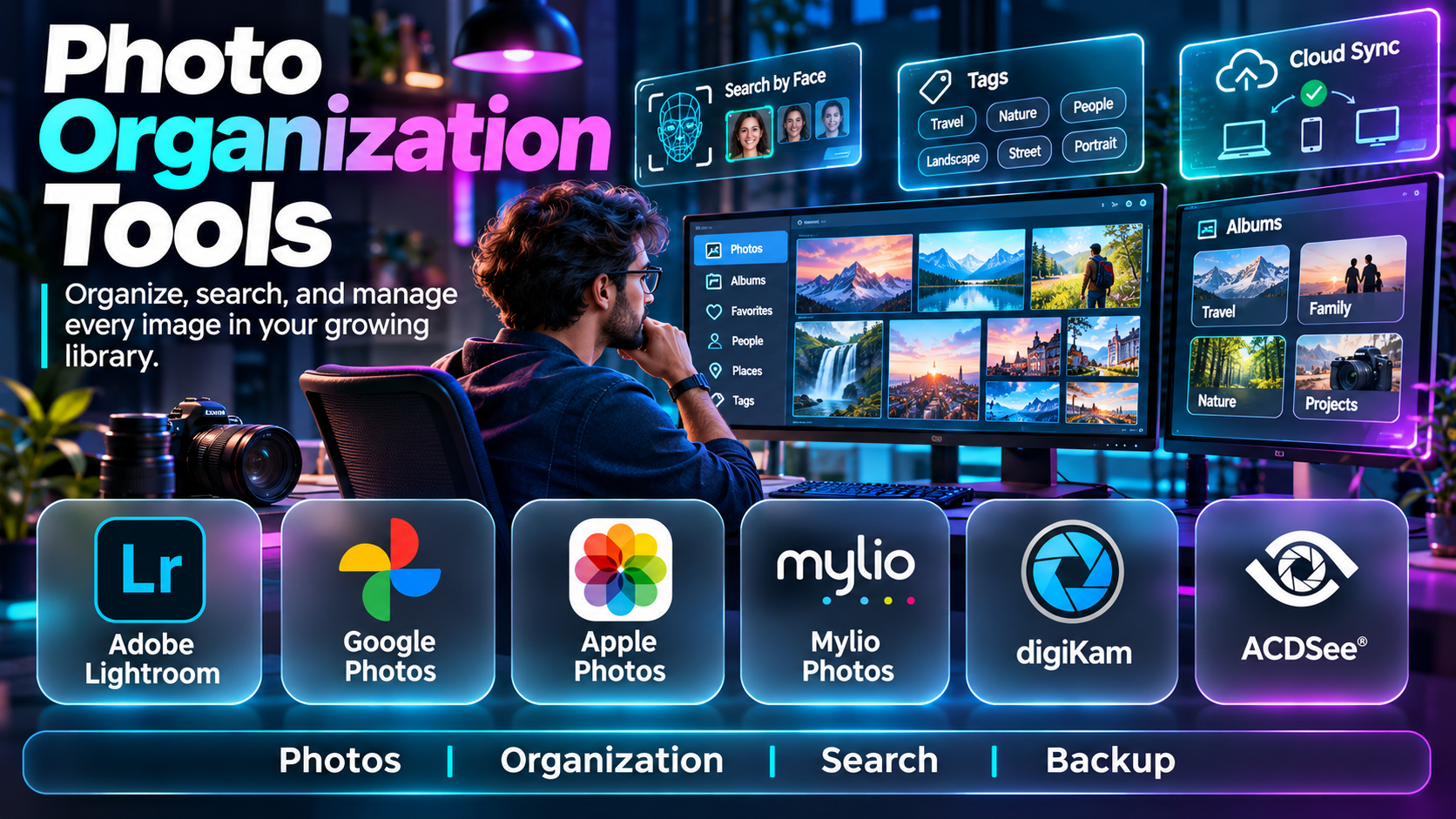
Photo organization tools help users import, categorize, search, tag, rate, and preserve image collections.
Some platforms emphasize automatic recognition and cloud synchronization. Others provide professional metadata management, local libraries, or self-hosted photo archives.
The right choice depends on collection size, privacy preferences, editing needs, and long-term storage requirements.
This guide compares ten photo organization tools and explains their capabilities, strengths, limitations, and ideal users.
What Are Photo Organization Tools?
Photo organization tools are applications designed to manage digital image libraries.
They help users collect images from multiple sources, apply organizational information, search collections, and maintain access across devices.
Common capabilities include albums, folders, tags, metadata, face recognition, duplicate detection, image ratings, and cloud synchronization.
Professional systems may also support RAW files, color labels, keyword hierarchies, and batch metadata editing.
Photo organization should not be confused with photo backup. An organized library can still be lost if it lacks independent, recoverable backups.
Top 10 Photo Organization Tools
1. Google Photos
Short Description
Google Photos is a cloud-oriented photo storage and organization service designed to make personal image collections accessible across supported devices.
Its primary advantage is automatic organization and search. Users can browse photographs by date, create albums, and search for recognizable subjects or locations where supported.
A family may use Google Photos to consolidate smartphone photographs and create shared albums for events or vacations.
Its mobile integration makes it convenient for users who take most of their pictures on smartphones.
However, cloud storage requirements, privacy preferences, and account limits should be considered. Users should also understand the distinction between synchronization and maintaining an independent backup.
Key Features
- Automatic Photo Backup: Uploads supported photos according to configured settings.
- Search: Helps locate photographs using recognizable content and metadata.
- Albums: Groups related images.
- Shared Albums: Supports collaborative collections.
- Face Grouping: Organizes recognized faces where available.
- Timeline Browsing: Displays images chronologically.
- Editing Tools: Supports everyday image adjustments.
- Cross-Device Access: Provides access through supported applications.
- Storage Management: Helps users review cloud storage usage.
Benefits
Google Photos simplifies everyday photo collection and retrieval.
Pros
- Convenient smartphone integration.
- Strong search.
- Shared albums.
- Automatic organization.
- Cross-device access.
Cons
- Cloud storage costs.
- Privacy considerations.
- Internet dependence for some workflows.
- Not a complete professional digital asset manager.
Use Cases
Family photographs, smartphone backups, travel albums, and everyday photo search.
Best For: Smartphone users seeking convenient cloud photo organization.
2. Apple Photos
Short Description
Apple Photos is a photo library application integrated with Apple devices and the broader Apple ecosystem.
It helps users organize photographs and videos through albums, search, library views, and supported recognition features.
An iPhone and Mac user may maintain one photo library across devices through iCloud Photos.
The application’s strength is its integration with Apple hardware and operating systems.
Users can organize photographs without adopting a separate professional photography platform.
However, cross-platform flexibility is more limited than services designed equally for multiple operating systems. iCloud storage costs and synchronization behavior should also be reviewed.
Key Features
- Photo library management.
- Albums.
- iCloud Photos synchronization.
- Search.
- People and pet recognition where supported.
- Editing tools.
- Shared photo features.
- Location-based browsing.
- Apple ecosystem integration.
Benefits
Apple Photos offers convenient photo management for users already invested in Apple devices.
Pros
- Strong Apple integration.
- Simple interface.
- Search and albums.
- Built-in editing.
- Device synchronization.
Cons
- Apple ecosystem orientation.
- iCloud storage costs.
- Limited advanced metadata workflows.
- Syncing is not a substitute for independent backup.
Use Cases
iPhone photography, family albums, and Mac photo libraries.
Best For: Apple ecosystem users.
3. Adobe Lightroom
Short Description
Adobe Lightroom is a photography application combining image organization, editing, and professional workflow management.
It is especially relevant to photographers who need to organize images while developing and editing them.
A wedding photographer may import thousands of photographs, review them, apply ratings, edit selected images, and export final deliverables.
Lightroom’s organization features are closely connected to its editing environment.
Different Lightroom products use different storage and catalog approaches, so users should distinguish Lightroom from Lightroom Classic before selecting a workflow.
The platform is powerful but may be unnecessarily complex for people who only want to organize casual smartphone pictures.
Key Features
- Photo importing.
- Albums and collections.
- Ratings and flags.
- Keywords and metadata.
- RAW photo support.
- Non-destructive editing.
- Search and filtering.
- Batch editing.
- Export workflows.
Benefits
Lightroom combines professional photo organization with editing.
Pros
- Strong photographer workflow.
- RAW support.
- Professional editing.
- Ratings and metadata.
- Batch processing.
Cons
- Subscription costs.
- Learning curve.
- Storage model varies by product.
- Excessive for simple personal albums.
Use Cases
Professional photography, portfolio management, and image editing.
Best For: Photographers who organize and edit large image collections.
4. digiKam
Short Description
digiKam is an open-source digital photo management application designed for organizing extensive image libraries.
It is especially useful for users who prefer local file management and detailed metadata controls.
A photography enthusiast may use digiKam to organize images by albums, tags, ratings, and other information.
The application supports a broad range of image management tasks and can accommodate complex collections.
Its open-source nature appeals to users who want a capable desktop solution without depending entirely on a commercial cloud service.
However, the interface and configuration options can be demanding for beginners.
Key Features
- Local photo library management.
- Albums.
- Hierarchical tags.
- Ratings.
- Metadata editing.
- Face recognition.
- Duplicate-related tools.
- RAW image support.
- Batch operations.
Benefits
digiKam provides detailed control over locally managed photo collections.
Pros
- Open-source.
- Extensive metadata support.
- Large-library organization.
- Local file control.
- Professional-oriented features.
Cons
- Learning curve.
- Interface complexity.
- Manual backup responsibility.
- Less seamless mobile synchronization.
Use Cases
Large personal archives, photography collections, and metadata management.
Best For: Users wanting powerful local photo organization.
5. Adobe Bridge
Short Description
Adobe Bridge is a digital asset browser and file management application used to organize creative files.
Unlike Lightroom, Bridge does not require the same catalog-oriented workflow. It allows users to browse files and folders directly.
A graphic designer may use Bridge to review photographs, illustrations, and other project assets stored within an established folder structure.
Its metadata, rating, and batch-management capabilities are valuable for creative professionals.
However, Bridge is not a cloud photo backup service or a complete replacement for professional image editing software.
Key Features
- File browsing.
- Metadata inspection.
- Keywords.
- Ratings and labels.
- Batch renaming.
- Preview generation.
- Creative file organization.
- Filtering.
- Adobe workflow integration.
Benefits
Adobe Bridge supports organized creative asset management without requiring a dedicated photo catalog.
Pros
- Direct folder browsing.
- Metadata tools.
- Batch renaming.
- Creative workflow integration.
- Supports varied file types.
Cons
- No automatic cloud photo backup.
- Less consumer-friendly.
- Limited standalone editing.
- Requires disciplined folder organization.
Use Cases
Creative project assets, photography workflows, and metadata management.
Best For: Designers and photographers organizing files directly.
6. Mylio Photos
Short Description
Mylio Photos is a photo management application focused on bringing together photographs stored across devices and storage locations.
It is relevant to users who have collections spread across computers, external drives, and mobile devices.
A family may use Mylio Photos to organize years of images while retaining control over where originals are stored.
Its approach can be attractive to people who do not want every photograph stored exclusively in a conventional cloud library.
However, synchronization and storage arrangements require planning. Users must understand which devices hold originals and how backups are maintained.
Key Features
- Unified photo library.
- Device synchronization.
- Albums.
- Search.
- Metadata management.
- Face recognition.
- Local storage options.
- Photo editing.
- Multi-device organization.
Benefits
Mylio Photos helps consolidate collections without requiring a single cloud-only storage model.
Pros
- Multi-device focus.
- Storage flexibility.
- Useful library organization.
- Face recognition.
- Personal archive orientation.
Cons
- Setup complexity.
- Subscription considerations.
- Storage management responsibility.
- Synchronization requires understanding.
Use Cases
Family archives, multi-device collections, and locally controlled libraries.
Best For: Users managing photographs across several storage locations.
7. ACDSee Photo Studio
Short Description
ACDSee Photo Studio is a photo management and editing software family that combines digital asset organization with image processing.
It is relevant to photographers who want file management, metadata tools, and editing within one environment.
A photographer may import images, categorize them, assign ratings, and process selected photographs.
Its organization features can support large collections and repeatable workflows.
However, specific capabilities vary between ACDSee editions, and buyers should compare the versions carefully.
Key Features
- Photo library management.
- Keywords.
- Categories.
- Ratings.
- Metadata tools.
- RAW processing in supported editions.
- Batch operations.
- Search and filtering.
- Editing functionality.
Benefits
ACDSee combines photo organization with editing-oriented workflows.
Pros
- Detailed asset management.
- Professional features.
- Batch processing.
- Editing integration.
- Flexible categorization.
Cons
- Edition differences.
- Learning curve.
- Licensing considerations.
- More complex than consumer photo apps.
Use Cases
Photography archives, editing projects, and professional image organization.
Best For: Photographers seeking a desktop asset management suite.
8. PhotoPrism
Short Description
PhotoPrism is a photo management application that supports self-hosted image libraries.
It is particularly relevant to technically experienced users who want to maintain control over their photo infrastructure.
A home server enthusiast may deploy PhotoPrism to organize family photographs stored on private infrastructure.
The platform provides browsing, indexing, and search-related capabilities.
Its self-hosted model offers flexibility, but also introduces operational responsibilities.
Users must maintain backups, software updates, access security, and storage reliability.
Key Features
- Self-hosted photo library.
- Photo indexing.
- Search.
- Albums.
- Metadata-based organization.
- Image classification features.
- Web interface.
- Private infrastructure deployment.
- Library browsing.
Benefits
PhotoPrism offers photo organization with greater hosting control.
Pros
- Self-hosted.
- Flexible infrastructure.
- Search and indexing.
- Private library options.
- Suitable for technical users.
Cons
- Technical setup.
- Maintenance requirements.
- Backup responsibility.
- Some features depend on edition or configuration.
Use Cases
Home servers, private photo archives, and self-managed image libraries.
Best For: Technical users seeking self-hosted photo management.
9. Immich
Short Description
Immich is an open-source, self-hosted photo and video management platform designed to provide a modern personal media library experience.
It is especially relevant to users who want smartphone photo backup and browsing while operating their own server.
A technically experienced household may use Immich to maintain a shared photo library on private infrastructure.
Its mobile applications and web interface support workflows familiar to users of consumer cloud photo services.
However, self-hosting requires careful administration. Users should review backup guidance, software stability, and upgrade requirements before treating it as the only copy of important photographs.
Key Features
- Self-hosted photo management.
- Mobile backup.
- Timeline browsing.
- Albums.
- Search.
- Face recognition features.
- Photo and video support.
- Sharing capabilities.
- Open-source deployment.
Benefits
Immich offers a modern photo library experience with self-managed hosting.
Pros
- Open-source.
- Mobile-oriented.
- Self-hosted control.
- Familiar photo browsing.
- Active ecosystem.
Cons
- Requires server administration.
- Backup responsibility.
- Upgrades need attention.
- Not ideal for nontechnical users.
Use Cases
Private family photo clouds, home servers, and smartphone media backups.
Best For: Self-hosting enthusiasts seeking a cloud-photo alternative.
10. Synology Photos
Short Description
Synology Photos is a photo management application designed for compatible Synology NAS environments.
It allows users to organize and browse photo collections stored on supported network-attached storage devices.
A household with a Synology NAS may use the application to centralize photographs from several devices.
Its integration with the NAS ecosystem makes it useful for users already managing local network storage.
However, it depends on compatible Synology hardware and appropriate storage configuration.
A NAS also requires backups; redundancy within a storage device is not sufficient protection against every form of data loss.
Key Features
- NAS-based photo library.
- Albums.
- Timeline browsing.
- Mobile photo backup.
- Sharing.
- Search.
- Metadata organization.
- Multi-user access.
- Synology ecosystem integration.
Benefits
Synology Photos provides organized photo access within a compatible NAS environment.
Pros
- Integrated with Synology NAS.
- Centralized household library.
- Mobile backup.
- Sharing.
- Local storage control.
Cons
- Hardware dependency.
- Storage administration.
- Backup responsibility.
- Fewer advanced professional editing features.
Use Cases
Household NAS libraries, private photo storage, and family sharing.
Best For: Existing Synology NAS owners.
Photo Organization Tools Comparison Table
| Tool | Primary Strength | Best For | Main Limitation |
|---|---|---|---|
| Google Photos | Cloud search and organization | Smartphone users | Storage costs |
| Apple Photos | Apple integration | Apple users | Ecosystem focus |
| Adobe Lightroom | Editing and cataloging | Photographers | Subscription |
| digiKam | Local metadata management | Archive enthusiasts | Learning curve |
| Adobe Bridge | Direct file browsing | Creatives | No cloud backup |
| Mylio Photos | Multi-device libraries | Families | Setup |
| ACDSee Photo Studio | Asset management and editing | Photographers | Edition differences |
| PhotoPrism | Self-hosted indexing | Technical users | Maintenance |
| Immich | Self-hosted mobile backup | Home server users | Administration |
| Synology Photos | NAS integration | Synology owners | Hardware dependency |
How to Choose the Right Photo Organization Tool
1. Assess Collection Size
A few thousand smartphone images require a different workflow from a professional archive containing hundreds of thousands of files.
2. Choose a Storage Model
Compare cloud, local, hybrid, and self-hosted options.
3. Evaluate Search
Test searching by date, subject, location, tags, and metadata.
4. Consider Recognition Features
Automatic face and subject recognition can help, but accuracy and privacy considerations matter.
5. Review Metadata Support
Professional users may need IPTC, EXIF, ratings, keywords, and batch editing.
6. Check RAW Compatibility
Photographers should verify support for their camera formats.
7. Examine Sharing
Family and team workflows may require shared albums or controlled access.
8. Plan Independent Backups
Maintain recoverable copies outside the primary library.
9. Consider Data Portability
Review export options and preservation of original files and metadata.
10. Test With a Sample Collection
Import a representative set before moving an entire archive.
Best Photo Organization Tool by User Type
| User Type | Recommended Tool | Reason |
|---|---|---|
| Android smartphone user | Google Photos | Cloud convenience |
| Apple household | Apple Photos | Ecosystem integration |
| Professional photographer | Adobe Lightroom | Editing workflow |
| Open-source desktop user | digiKam | Metadata management |
| Creative designer | Adobe Bridge | File browsing |
| Multi-device family | Mylio Photos | Unified library |
| Desktop photography enthusiast | ACDSee Photo Studio | Asset management |
| Self-hosted archive user | PhotoPrism | Private indexing |
| Self-hosted mobile user | Immich | Smartphone backup |
| NAS owner | Synology Photos | Hardware integration |
Practical Example: Organizing a Ten-Year Family Photo Archive
Step 1: Identify all devices and drives containing photographs.
Step 2: Create a verified backup before reorganizing files.
Step 3: Choose a photo management application.
Step 4: Import a small test collection.
Step 5: Review metadata and capture dates.
Step 6: Establish consistent album categories.
Step 7: Identify duplicate files carefully.
Step 8: Apply tags or recognition features where appropriate.
Step 9: Create shared family albums.
Step 10: Verify original image quality and metadata preservation.
Step 11: Configure ongoing smartphone imports.
Step 12: Maintain regular independent backups.
Frequently Asked Questions
1. What is photo organization software?
Software for managing and finding digital photographs.
2. What is a photo library?
An organized collection of image files.
3. Can photo tools detect duplicates?
Some offer duplicate detection.
4. Can they recognize faces?
Many support face recognition.
5. Is face recognition always accurate?
No.
6. What is EXIF metadata?
Technical information stored with image files.
7. What is IPTC metadata?
A standard for descriptive and administrative image information.
8. Can photos be organized by date?
Yes.
9. Can photos be organized by location?
Many applications support location-based browsing.
10. What is a photo album?
A collection grouping related photographs.
11. What is RAW photography?
A format retaining extensive camera image data.
12. Do all photo apps support RAW files?
No.
13. What is a digital asset manager?
Software for organizing and managing digital files and metadata.
14. Is cloud photo storage the same as backup?
Not necessarily.
15. Why do I need independent backups?
To protect against deletion, corruption, and service failures.
16. Can photo libraries be shared?
Many support sharing.
17. What is self-hosted photo software?
Photo software running on infrastructure you control.
18. Does self-hosting require technical skills?
Usually.
19. Can a NAS store photographs?
Yes.
20. Is NAS redundancy a complete backup?
No.
21. Can I organize smartphone photographs?
Yes.
22. Can I import photographs from external drives?
Many desktop tools support this.
23. Can I edit photographs inside an organizer?
Some include editing tools.
24. What is non-destructive editing?
Editing that preserves the original image data.
25. Can tags improve search?
Yes.
26. Should I delete all duplicates automatically?
Review results before deleting files.
27. Can AI help organize photographs?
Some tools provide automated classification.
28. What privacy concerns matter?
Face recognition, cloud storage, sharing, and account access.
29. How do I migrate photo libraries?
Test export and import while preserving originals and metadata.
30. Which photo organization tool is best?
The best choice depends on devices, storage preferences, and editing requirements.
Final Thoughts
Photo organization tools help preserve memories and make growing image collections easier to use.
Google Photos and Apple Photos emphasize consumer convenience. Lightroom, digiKam, Adobe Bridge, and ACDSee provide more detailed photography workflows.
Mylio Photos supports multi-device collections, while PhotoPrism, Immich, and Synology Photos offer different approaches to privately managed libraries.
The best system combines convenient search, reliable organization, appropriate privacy controls, and independent backups.
