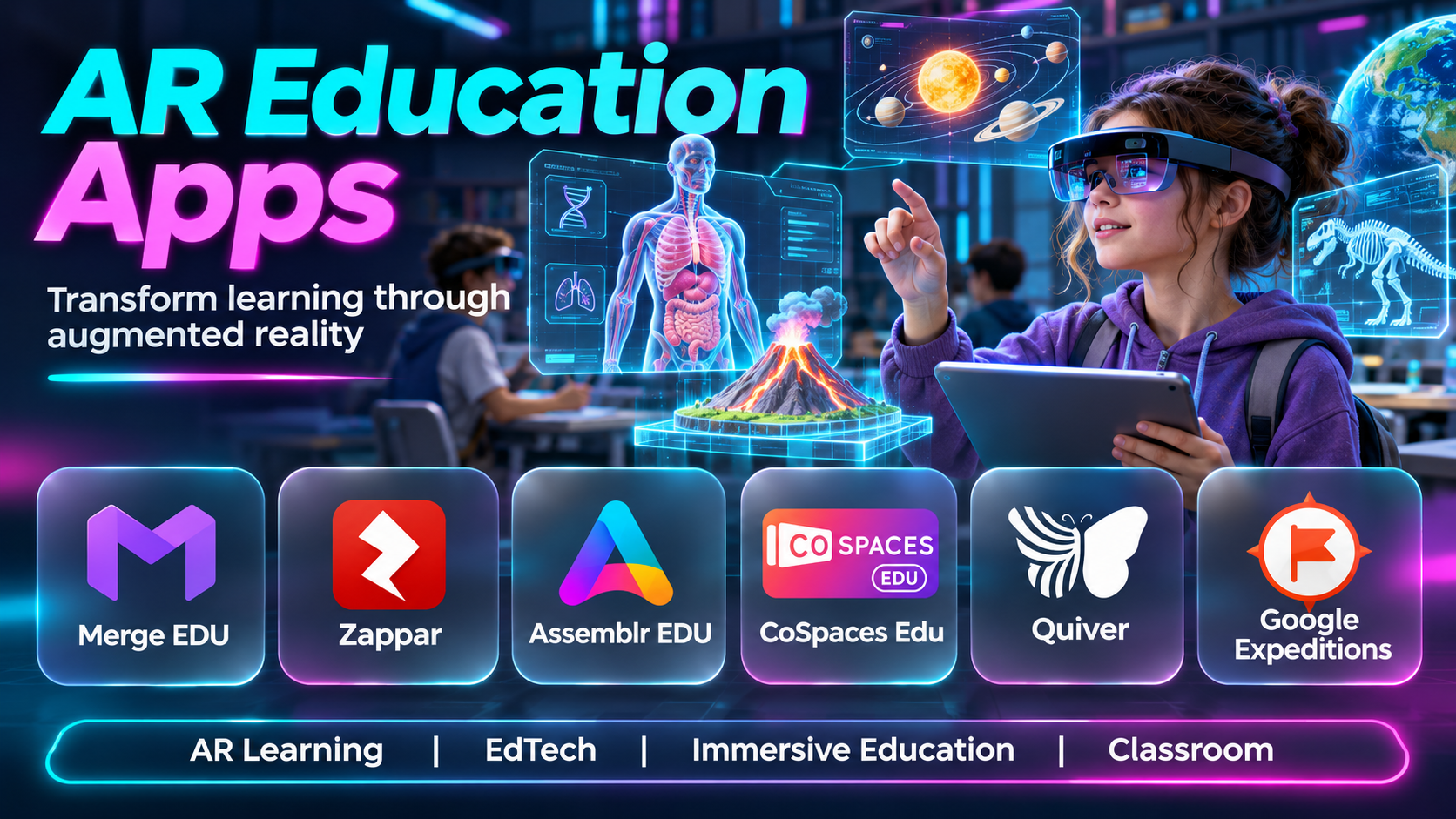
Introduction
Traditional learning materials often rely on text, diagrams, photographs, and videos to explain complex concepts.
These formats are valuable, but some subjects are easier to understand when students can explore three-dimensional objects and observe how different components relate to one another.
Augmented reality, commonly called AR, adds digital content to a view of the physical environment.
AR education apps can display anatomical models, historical artifacts, geometric shapes, scientific structures, and interactive learning experiences through compatible devices.
For example, students may examine a three-dimensional human heart from different angles or place a virtual solar system in a classroom.
However, educational value depends on lesson design, content accuracy, accessibility, and appropriate device use.
This guide compares ten AR education apps and platforms, highlighting their features, benefits, limitations, and classroom applications.
What Are AR Education Apps?
AR education apps are applications that combine digital learning content with a view of the physical environment.
They commonly use smartphones, tablets, or supported AR devices to display interactive objects and information.
Unlike virtual reality, which typically replaces the user’s surroundings with a virtual environment, augmented reality overlays or anchors digital elements within the real-world view.
Educational AR applications may support:
- Three-dimensional models.
- Interactive science lessons.
- Virtual anatomy exploration.
- Historical reconstructions.
- Object manipulation.
- Spatial learning.
- Collaborative activities.
- Student-created AR experiences.
- Interactive storytelling.
- Location-based learning.
Not every educational 3D application provides true AR functionality on every device. Teachers should verify platform compatibility before planning lessons.
Top 10 AR Education Apps
1. Merge EDU
Short Description
Merge EDU is an augmented reality education platform associated with interactive three-dimensional learning experiences.
It is particularly relevant to schools seeking hands-on exploration of science and other subjects.
Students can examine digital objects and interact with supported educational content through compatible devices.
The platform is also associated with the Merge Cube, a physical object used to manipulate virtual 3D content.
For example, students studying biology may examine a digital anatomical structure while rotating it to observe different features.
Merge EDU can support inquiry-based learning when teachers connect the experience to clear questions and assessment activities.
However, schools must consider device availability, subscription requirements, and classroom management.
Key Features
- Interactive 3D Objects: Allows students to examine digital learning models.
- Augmented Reality Experiences: Places supported content into AR environments.
- Merge Cube Integration: Supports physical manipulation of compatible virtual objects.
- Educational Content: Provides subject-related learning materials.
- Spatial Exploration: Helps students understand three-dimensional relationships.
- Classroom Activities: Supports teacher-led learning experiences.
- Student Engagement: Encourages active interaction with learning content.
- Device Compatibility: Works with supported mobile devices.
- Curriculum Applications: Can be incorporated into structured lessons.
Benefits
Merge EDU makes abstract concepts more tangible through interactive exploration.
Pros
- Hands-on learning.
- Strong 3D interaction.
- Classroom relevance.
- Useful science content.
- Physical and digital interaction.
Cons
- Device requirements.
- Subscription considerations.
- Hardware accessories may be needed.
- Requires thoughtful lesson integration.
Use Cases
Science education, anatomy, spatial learning, and classroom demonstrations.
Best For: Schools seeking structured interactive AR lessons.
2. Assemblr EDU
Short Description
Assemblr EDU is an education-oriented platform for creating and presenting interactive 3D and augmented reality learning content.
It is particularly useful for teachers who want to build visual lessons without relying exclusively on traditional presentation slides.
An educator may create a lesson containing three-dimensional objects, explanatory labels, and interactive elements.
Students can explore supported content through compatible devices.
Assemblr EDU’s creation capabilities make it relevant to project-based learning, where students may also develop their own educational presentations.
However, creating effective lessons requires time, design judgment, and attention to content accuracy.
Key Features
- AR lesson creation.
- 3D content.
- Interactive presentations.
- Educational templates.
- Content sharing.
- Classroom activities.
- Student projects.
- Visual storytelling.
- Supported device access.
Benefits
Assemblr EDU helps teachers create visual and interactive learning materials.
Pros
- Content creation.
- Interactive lessons.
- Student project potential.
- Visual presentation tools.
- Flexible subject applications.
Cons
- Content preparation time.
- Device compatibility.
- Plan-dependent features.
- Requires instructional design.
Use Cases
Interactive classroom presentations, student projects, and visual lessons.
Best For: Teachers creating their own AR learning content.
3. CoSpaces Edu
Short Description
CoSpaces Edu is a platform for creating interactive 3D environments and immersive educational experiences.
It supports student creativity and can include augmented reality experiences on compatible devices.
A teacher may ask students to build a virtual historical scene or create an interactive science model.
Students can use visual programming features to add behavior and interaction to their projects.
This makes CoSpaces Edu relevant to both content learning and digital creation skills.
However, it is broader than a simple AR viewer and requires time for students to learn the creation environment.
Key Features
- 3D scene creation.
- AR experiences.
- Virtual reality support.
- Visual programming.
- Interactive objects.
- Student projects.
- Classroom collaboration.
- Educational content creation.
- Sharing and presentation.
Benefits
CoSpaces Edu encourages students to create interactive experiences rather than only consume them.
Pros
- Creative learning.
- Coding integration.
- AR and VR possibilities.
- Project-based education.
- Cross-subject applications.
Cons
- Learning curve.
- Device requirements.
- Classroom setup.
- Advanced features may require paid plans.
Use Cases
STEM projects, coding education, interactive storytelling, and student-created AR.
Best For: Schools combining immersive learning with creativity and coding.
4. JigSpace
Short Description
JigSpace is a platform for creating and presenting interactive three-dimensional explanations.
It is useful when learners need to understand the structure or operation of complex objects.
An instructor may use a 3D explanation to demonstrate how a mechanical assembly works.
The platform’s visual storytelling approach can help break complex subjects into understandable steps.
However, JigSpace is not exclusively a school curriculum platform. Its suitability depends on the educational content available or created.
Key Features
- Interactive 3D presentations.
- AR visualization.
- Step-by-step explanations.
- Object manipulation.
- Visual annotations.
- Content creation.
- Presentation sharing.
- Spatial learning.
- Supported device integration.
Benefits
JigSpace helps explain complex structures and processes visually.
Pros
- Strong 3D explanations.
- Interactive visualization.
- Useful for technical subjects.
- Presentation-oriented.
- Engaging spatial content.
Cons
- Content creation effort.
- Device compatibility.
- Commercial product orientation.
- Not a complete learning management system.
Use Cases
Engineering education, product demonstrations, and technical training.
Best For: Educators explaining mechanical or spatial concepts.
5. Quiver
Short Description
Quiver is an augmented reality coloring application that transforms supported coloring pages into interactive digital experiences.
It is especially relevant to younger learners because it combines a familiar physical activity with digital animation.
A teacher may distribute a supported coloring sheet and allow students to view the completed image through the application.
The experience can encourage engagement and provide a memorable introduction to AR.
However, educational value depends on the selected content and accompanying learning activity.
Key Features
- AR coloring pages.
- Interactive animations.
- Physical-to-digital interaction.
- Mobile device viewing.
- Creative activities.
- Child-friendly experiences.
- Supported educational content.
- Visual engagement.
- Classroom activity integration.
Benefits
Quiver introduces augmented reality through accessible creative activities.
Pros
- Engaging for younger learners.
- Simple concept.
- Creative participation.
- Combines paper and digital media.
- Useful classroom introduction.
Cons
- Limited advanced curriculum depth.
- Content availability varies.
- Device requirements.
- Some content may require payment.
Use Cases
Early education, creative learning, and introductory AR activities.
Best For: Primary school teachers and younger students.
6. AR Makr
Short Description
AR Makr is an augmented reality creation application designed to let users place digital content into physical spaces.
It is useful for creative classroom activities and spatial storytelling.
Students may create drawings or visual objects and position them within an AR scene.
A teacher might use the application for a storytelling project where students arrange characters and objects in a physical environment.
Its educational value comes primarily from creation and exploration rather than providing a complete curriculum library.
Key Features
- AR scene creation.
- Digital object placement.
- Visual content integration.
- Spatial storytelling.
- Interactive scenes.
- Creative projects.
- Object manipulation.
- Supported device features.
- Student experimentation.
Benefits
AR Makr encourages creative expression through spatial digital content.
Pros
- Creative learning.
- Interactive scene building.
- Useful for storytelling.
- Hands-on exploration.
- Approachable concept.
Cons
- Platform availability should be verified.
- Limited curriculum structure.
- Device compatibility.
- Project guidance required.
Use Cases
Creative storytelling, art projects, and spatial learning.
Best For: Teachers exploring student-created AR projects.
7. Google Arts & Culture
Short Description
Google Arts & Culture is a digital cultural learning platform offering access to artworks, museum collections, and interactive educational experiences.
Some experiences include augmented reality or other immersive visualization capabilities.
A history teacher may use the platform to introduce students to artworks or cultural artifacts that are not available locally.
Its extensive cultural content makes it relevant to humanities education.
However, AR availability varies across experiences and devices. The platform should not be treated as a universal AR authoring tool.
Key Features
- Cultural collections.
- Artwork exploration.
- Museum-related content.
- Interactive learning experiences.
- Selected AR features.
- Virtual exhibits.
- Educational storytelling.
- Search and discovery.
- Mobile access.
Benefits
Google Arts & Culture expands access to cultural and historical learning resources.
Pros
- Broad cultural content.
- Accessible discovery.
- Museum resources.
- Engaging visual experiences.
- Useful humanities applications.
Cons
- AR support varies.
- Limited teacher-specific management.
- Internet requirements.
- Not all content is interactive.
Use Cases
Art history, cultural studies, museum education, and humanities lessons.
Best For: Teachers exploring cultural heritage and visual arts.
8. Sketchfab
Short Description
Sketchfab is a platform for publishing, discovering, and viewing three-dimensional models.
It supports immersive viewing options, including AR experiences for compatible models and devices.
A science teacher may use a suitable 3D model to demonstrate the structure of an object that is difficult to bring into the classroom.
Sketchfab’s large collection of models can support a wide variety of subjects.
However, model quality, licensing, accuracy, and AR compatibility vary.
Teachers should verify that selected models are appropriate for educational use.
Key Features
- 3D model hosting.
- Interactive model viewer.
- AR viewing options.
- Model discovery.
- Embedded presentations.
- Model annotations.
- Sharing.
- Creator uploads.
- Educational visualization.
Benefits
Sketchfab provides access to interactive 3D resources for visual learning.
Pros
- Large 3D content ecosystem.
- Interactive viewing.
- AR possibilities.
- Broad subject coverage.
- Useful visual resources.
Cons
- Model quality varies.
- Licensing must be checked.
- Not a dedicated curriculum platform.
- AR compatibility varies.
Use Cases
Science visualization, historical artifacts, and technical education.
Best For: Educators seeking existing 3D models.
9. Anatomy 4D
Short Description
Anatomy 4D is a historically notable augmented reality application associated with interactive anatomical visualization.
It demonstrated how printed markers and mobile devices could be used to display three-dimensional anatomy.
Students could explore anatomical structures through AR experiences.
However, the original application is a legacy product, and current availability and compatibility should not be assumed.
Its inclusion is useful as a historical example of anatomy-focused AR education rather than a dependable new purchase.
Schools should evaluate actively maintained anatomy platforms for current classroom deployment.
Key Features — Historical
- AR anatomy visualization.
- Marker-based interaction.
- Three-dimensional models.
- Anatomical exploration.
- Mobile viewing.
- Interactive learning.
- Human body visualization.
- Educational demonstrations.
- Spatial anatomy concepts.
Benefits
Anatomy 4D helped demonstrate the educational potential of interactive anatomical AR.
Pros
- Anatomy-focused concept.
- Engaging visualization.
- Spatial learning.
- Historical educational relevance.
- Accessible interaction model.
Cons
- Legacy application.
- Current compatibility uncertain.
- Not recommended without availability verification.
- Limited modern platform support.
Use Cases
Historical AR education analysis and anatomy visualization research.
Best For: Reference comparison rather than new classroom deployment.
10. Human Anatomy Atlas
Short Description
Human Anatomy Atlas, associated with Visible Body, is an interactive anatomy learning application featuring detailed three-dimensional anatomical models.
It is relevant to medical education, biology, and health science learning.
Students can explore body structures and understand spatial relationships that are difficult to communicate through flat diagrams.
Selected product versions and supported devices may offer augmented reality capabilities.
However, the exact feature set depends on the edition and platform.
Human Anatomy Atlas is more specialized than general-purpose classroom AR creation tools.
Key Features
- Detailed anatomy models.
- Interactive 3D viewing.
- Anatomical systems.
- Structure identification.
- Educational explanations.
- Model manipulation.
- Selected AR capabilities.
- Anatomy study tools.
- Supported mobile and desktop access.
Benefits
Human Anatomy Atlas supports detailed spatial understanding of human anatomy.
Pros
- Specialized anatomy content.
- Detailed 3D models.
- Useful for health education.
- Interactive exploration.
- Strong subject focus.
Cons
- Specialized curriculum.
- Licensing costs.
- AR support varies by version.
- May be too advanced for younger students.
Use Cases
Medical education, anatomy classes, and health science training.
Best For: Biology and medical education students.
AR Education Apps Comparison Table
| App | Primary Strength | Best For | Main Limitation |
|---|---|---|---|
| Merge EDU | Interactive classroom AR | Schools | Devices and subscriptions |
| Assemblr EDU | AR lesson creation | Teachers | Preparation time |
| CoSpaces Edu | Student-created immersive content | STEM classes | Learning curve |
| JigSpace | 3D explanations | Technical education | Content creation |
| Quiver | AR coloring | Younger learners | Limited advanced depth |
| AR Makr | Creative AR scenes | Art and storytelling | Availability verification |
| Google Arts & Culture | Cultural exploration | Humanities | Variable AR support |
| Sketchfab | 3D model discovery | Science educators | Model quality |
| Anatomy 4D | Historical anatomy AR | Legacy reference | Discontinued or uncertain availability |
| Human Anatomy Atlas | Detailed anatomy | Medical education | Specialized content |
How to Choose the Right AR Education App
1. Define Learning Objectives
Start with what students should understand, not the visual novelty of AR.
2. Match the Age Group
Younger learners may need simpler interactions than university students.
3. Verify Device Compatibility
Confirm supported operating systems, cameras, and hardware requirements.
4. Evaluate Content Accuracy
Scientific and historical models should be reviewed before classroom use.
5. Consider Accessibility
Provide alternatives for students who cannot comfortably use AR experiences.
6. Assess Teacher Preparation
Some applications provide ready-made lessons, while others require content creation.
7. Review Privacy
Student accounts, cameras, and data collection require careful consideration.
8. Test Classroom Reliability
Check lighting, connectivity, device performance, and space requirements.
9. Compare Costs
Include subscriptions, devices, accessories, and staff training.
10. Measure Learning Outcomes
Use quizzes, discussions, and assignments to determine whether AR improves understanding.
Best AR Education App by User Type
| User Type | Recommended App | Reason |
|---|---|---|
| General classroom teacher | Merge EDU | Interactive learning |
| Teacher creating AR lessons | Assemblr EDU | Content authoring |
| STEM project teacher | CoSpaces Edu | Creative coding |
| Engineering instructor | JigSpace | 3D explanations |
| Primary school teacher | Quiver | Accessible creative activities |
| Art teacher | AR Makr | Spatial storytelling |
| History teacher | Google Arts & Culture | Cultural resources |
| Science resource curator | Sketchfab | Existing 3D models |
| AR education researcher | Anatomy 4D | Historical example |
| Medical educator | Human Anatomy Atlas | Detailed anatomy |
Practical Example: Teaching the Human Heart With Augmented Reality
Step 1: Define the learning objective: identify the main chambers and blood flow pathways.
Step 2: Select a suitable anatomy AR application.
Step 3: Verify device compatibility.
Step 4: Review the anatomical model for accuracy.
Step 5: Prepare a short introduction using conventional diagrams.
Step 6: Demonstrate how students can rotate and examine the model.
Step 7: Ask students to identify the four heart chambers.
Step 8: Guide students through the direction of blood flow.
Step 9: Encourage students to compare the AR model with a textbook diagram.
Step 10: Discuss limitations of the simplified visualization.
Step 11: Assess learning through a labeling exercise.
Step 12: Collect feedback on whether AR helped students understand the topic.
Frequently Asked Questions
1. What is augmented reality?
Technology that adds digital content to a view of the physical environment.
2. What is an AR education app?
An application using augmented reality to support learning.
3. How is AR different from VR?
AR combines digital content with the real environment, while VR typically creates an immersive virtual environment.
4. Do AR apps require special headsets?
Not always. Many work on compatible phones or tablets.
5. Can AR improve learning?
It can support understanding when aligned with effective teaching methods.
6. Is AR suitable for young children?
Some applications are designed for younger learners.
7. Can AR teach science?
Yes, particularly through spatial and interactive models.
8. Can AR support anatomy education?
Yes.
9. Can students create AR projects?
Some platforms provide creation tools.
10. What is marker-based AR?
AR that uses a recognizable physical image or marker to position digital content.
11. What is markerless AR?
AR that positions content using environmental tracking rather than a printed marker.
12. What is spatial learning?
Learning about shapes, positions, relationships, and structures in space.
13. Can AR replace textbooks?
It is generally more effective as a complementary learning tool.
14. Can AR support history lessons?
Yes, through artifacts and reconstructions.
15. Can AR support art education?
Yes, through interactive artworks and creative projects.
16. What is a 3D model?
A digital representation of an object with three-dimensional structure.
17. Are all 3D viewers AR applications?
No.
18. Do AR apps work offline?
Some do, depending on the application and downloaded content.
19. Are AR education apps free?
Some offer free experiences or limited plans.
20. What hardware is needed?
Requirements vary by application.
21. Can AR cause discomfort?
Some users may experience visual discomfort or fatigue.
22. How can teachers support accessibility?
Provide equivalent non-AR learning materials and flexible participation.
23. Can AR support collaborative learning?
Yes, when lessons include shared tasks and discussion.
24. Is AR useful for engineering?
It can help explain mechanical and spatial relationships.
25. Can AR be used for medical training?
Yes, for selected visualization and learning tasks.
26. What privacy issues matter?
Student data, camera permissions, and account management.
27. How should teachers evaluate AR content?
Check accuracy, age suitability, accessibility, and learning alignment.
28. What is AR lesson authoring?
Creating interactive educational experiences for augmented reality.
29. How can AR learning outcomes be measured?
Use assessments, observation, and comparisons with learning objectives.
30. Which AR education app is best?
The best option depends on subject, age group, devices, and teaching goals.
Final Thoughts
Augmented reality can make complex educational concepts easier to explore by combining digital models with physical environments.
Merge EDU and Assemblr EDU provide classroom-oriented experiences. CoSpaces Edu supports student creativity, while JigSpace helps explain complex structures.
Quiver and AR Makr emphasize creative interaction, Google Arts & Culture supports cultural exploration, and Sketchfab provides access to varied 3D resources.
Human Anatomy Atlas is particularly relevant to anatomy education, while Anatomy 4D remains a historical reference rather than a dependable modern classroom choice.
The most effective AR education app is one that supports clear learning objectives, accurate content, accessible instruction, and meaningful student participation.
