Introduction
Interactive whiteboards have changed how teachers present lessons, explain concepts, and involve students in classroom activities.
Instead of relying only on chalkboards, printed worksheets, or static presentations, educators can use digital boards to display multimedia content, annotate learning materials, and invite students to participate directly.
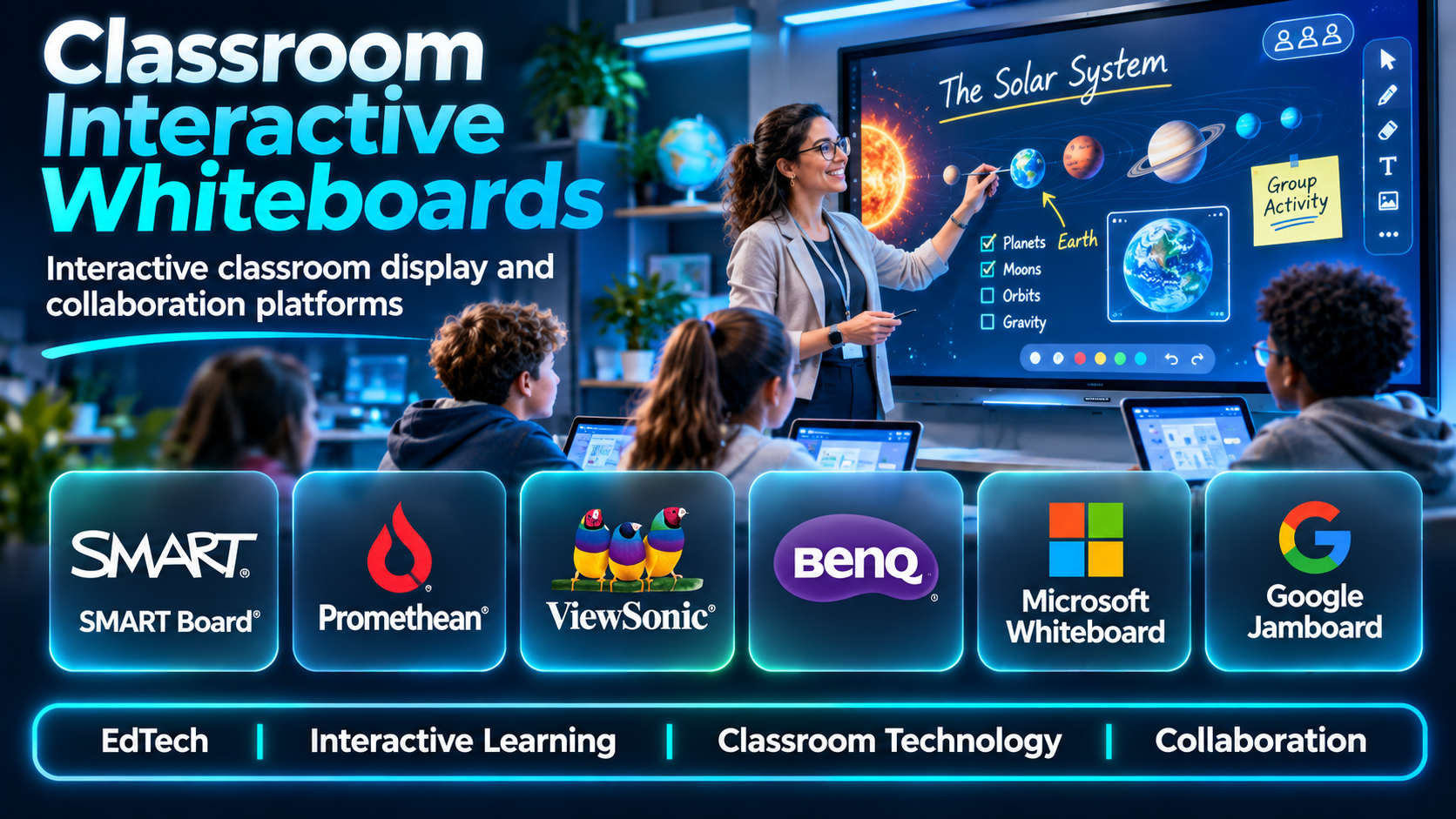
Modern classroom interactive whiteboards include both physical interactive displays and software platforms designed for touchscreen teaching environments.
Some solutions focus on hardware integration. Others provide lesson creation, collaborative activities, formative assessment, or cloud-based teaching resources.
Choosing the right solution requires more than comparing screen sizes or presentation features. Schools must consider lesson preparation, device compatibility, accessibility, maintenance, teacher training, and long-term costs.
This guide examines ten classroom interactive whiteboard solutions and explains how to select a system that supports effective teaching.
What Are Classroom Interactive Whiteboards?
Classroom interactive whiteboards are digital teaching systems that allow educators and students to interact with displayed learning content.
They may consist of touchscreen displays, interactive projection systems, or whiteboard software running on compatible devices.
Common capabilities include:
- Digital writing and drawing.
- Touchscreen interaction.
- Multimedia presentations.
- Lesson annotation.
- Collaborative activities.
- Interactive quizzes.
- Screen sharing.
- Cloud-based lesson storage.
- Student participation.
- Integration with classroom learning systems.
The best solution depends on whether a school needs new classroom hardware, software for existing displays, or a combination of both.
Top 10 Classroom Interactive Whiteboards
1. SMART Notebook
Short Description
SMART Notebook is interactive lesson software associated with SMART Technologies’ classroom display ecosystem.
It enables teachers to create and deliver lessons using digital ink, interactive objects, multimedia, and classroom activities.
A mathematics teacher might use SMART Notebook to demonstrate geometric transformations while allowing students to manipulate shapes on an interactive display.
Its greatest advantage is its established focus on classroom instruction rather than general business presentations.
Teachers can organize reusable learning resources and adapt lessons to different student groups.
However, available functionality and licensing may depend on the SMART hardware and software configuration.
Key Features
- Interactive Lesson Creation: Builds lessons containing text, images, and movable objects.
- Digital Ink: Supports handwriting, highlighting, and annotations.
- Interactive Activities: Adds participation-focused learning exercises.
- Multimedia Integration: Incorporates visual and audio materials.
- Object Manipulation: Lets users move and arrange lesson elements.
- Lesson Templates: Reduces preparation time for recurring activities.
- Classroom Display Support: Works within compatible SMART teaching environments.
- Reusable Resources: Allows teachers to revise existing lessons.
- Presentation Tools: Supports structured classroom instruction.
Benefits
SMART Notebook helps teachers turn conventional lessons into interactive classroom experiences.
Pros
- Education-focused.
- Mature lesson tools.
- Useful digital ink.
- Interactive activities.
- Strong classroom display integration.
Cons
- Licensing considerations.
- Hardware compatibility varies.
- Teacher training required.
- Some workflows depend on the SMART ecosystem.
Use Cases
Mathematics demonstrations, interactive science lessons, classroom annotation, and collaborative exercises.
Best For: Schools using SMART interactive displays.
2. Promethean ActivInspire
Short Description
ActivInspire is interactive teaching software associated with Promethean’s classroom technology ecosystem.
It provides a lesson-building environment with digital annotation, interactive objects, and presentation tools.
Teachers can prepare flipchart-style lessons and use compatible classroom displays to deliver interactive activities.
For example, a geography teacher may create a map-labeling exercise where students identify countries and geographic features.
ActivInspire is particularly relevant to schools with established Promethean installations.
However, schools considering new deployments should verify current licensing, compatibility, and the relationship between ActivInspire and Promethean’s newer software offerings.
Key Features
- Interactive flipcharts.
- Digital annotation.
- Multimedia lessons.
- Interactive objects.
- Lesson resource libraries.
- Presentation controls.
- Classroom activities.
- Display integration.
- Reusable lesson files.
Benefits
ActivInspire supports structured interactive teaching using familiar classroom presentation workflows.
Pros
- Established education platform.
- Interactive lesson design.
- Useful annotation.
- Promethean integration.
- Reusable materials.
Cons
- Legacy workflow considerations.
- Compatibility verification needed.
- Learning curve.
- Licensing requirements may vary.
Use Cases
Interactive presentations, elementary teaching, and digital classroom exercises.
Best For: Schools maintaining Promethean classroom environments.
3. Promethean ActivPanel
Short Description
Promethean ActivPanel is a family of interactive classroom displays designed for digital instruction.
Unlike software-only solutions, ActivPanel combines touchscreen hardware with supported teaching applications.
Teachers can write directly on the screen, display instructional materials, and interact with content during lessons.
A classroom may use ActivPanel for demonstrations, group problem-solving, and presentations from connected devices.
Its integrated design can simplify classroom setup when schools standardize on one display ecosystem.
However, procurement decisions must include installation, warranties, maintenance, and device management.
Key Features
- Interactive touchscreen display.
- Digital writing.
- Multi-user interaction.
- Classroom presentation.
- Device connectivity.
- Supported teaching applications.
- Screen sharing.
- Integrated display controls.
- Hardware management options.
Benefits
ActivPanel provides an integrated physical platform for interactive classroom instruction.
Pros
- Dedicated classroom hardware.
- Touchscreen interaction.
- Collaborative potential.
- Integrated teaching environment.
- Large-screen visibility.
Cons
- Hardware investment.
- Installation costs.
- Maintenance requirements.
- Model-specific capabilities.
Use Cases
Permanent classroom installations, collaborative lessons, and whole-class instruction.
Best For: Schools purchasing integrated interactive displays.
4. ViewSonic myViewBoard
Short Description
myViewBoard is a digital whiteboarding platform associated with ViewSonic’s education technology ecosystem.
It supports interactive lesson delivery, annotations, and digital collaboration.
Teachers can use the software to explain concepts through writing, drawing, and imported teaching materials.
Its compatibility with interactive display workflows makes it relevant to schools using ViewSonic classroom technology.
The platform can also support digital lesson preparation and sharing.
However, feature availability and integration options depend on the selected configuration and subscription.
Key Features
- Digital whiteboarding.
- Annotation tools.
- Interactive teaching.
- Multimedia content.
- Lesson preparation.
- Display integration.
- Collaboration options.
- Cloud-related workflows.
- Presentation tools.
Benefits
myViewBoard combines digital whiteboarding with classroom presentation functionality.
Pros
- Education-oriented.
- Interactive display support.
- Flexible annotations.
- Digital lesson workflows.
- ViewSonic ecosystem integration.
Cons
- Plan-dependent features.
- Device compatibility considerations.
- Training requirements.
- Ecosystem differences.
Use Cases
Interactive teaching, hybrid classrooms, and digital lesson delivery.
Best For: Schools using ViewSonic displays.
5. BenQ EZWrite
Short Description
BenQ EZWrite is whiteboarding software designed for compatible BenQ interactive displays.
It provides digital writing and classroom collaboration tools.
A teacher can annotate diagrams, draw explanations, and organize ideas directly on the display.
The platform is particularly useful for spontaneous instruction where teachers need a digital equivalent of a traditional classroom board.
Its strongest advantage is integration with supported BenQ hardware.
However, organizations should verify which EZWrite features are available on their display model.
Key Features
- Digital handwriting.
- Interactive annotation.
- Touchscreen input.
- Whiteboard canvas.
- Teaching diagrams.
- Display integration.
- Collaboration tools.
- Lesson presentation.
- Content saving.
Benefits
EZWrite provides straightforward interactive whiteboarding within supported BenQ classrooms.
Pros
- Integrated whiteboard experience.
- Natural writing workflow.
- Classroom-friendly.
- Useful for demonstrations.
- BenQ hardware integration.
Cons
- Hardware dependency.
- Model-specific features.
- Limited independence from ecosystem.
- Compatibility verification required.
Use Cases
Classroom brainstorming, diagram annotation, and teacher-led explanations.
Best For: Schools with BenQ interactive displays.
6. Explain Everything
Short Description
Explain Everything is a digital whiteboarding and visual explanation platform used in educational environments.
It supports creating lessons with handwriting, images, diagrams, and recorded explanations.
A teacher can demonstrate a scientific process while recording the explanation for students to review later.
This makes the platform useful for both classroom instruction and asynchronous learning.
Its strength is combining a flexible whiteboard canvas with instructional content creation.
However, teachers should assess collaboration requirements, device support, and subscription costs.
Key Features
- Infinite-style whiteboard canvas.
- Digital ink.
- Visual explanations.
- Recording capabilities.
- Multimedia content.
- Collaborative activities.
- Lesson sharing.
- Content organization.
- Classroom presentations.
Benefits
Explain Everything supports reusable visual lessons and recorded instruction.
Pros
- Flexible canvas.
- Recording tools.
- Useful for remote learning.
- Multimedia integration.
- Strong explanation workflows.
Cons
- Subscription considerations.
- Learning curve.
- Feature differences across devices.
- Requires lesson preparation.
Use Cases
Flipped classrooms, recorded lessons, interactive demonstrations, and remote instruction.
Best For: Teachers creating visual explanations and reusable lessons.
7. Microsoft Whiteboard
Short Description
Microsoft Whiteboard is a collaborative digital canvas integrated with Microsoft’s productivity ecosystem.
It allows participants to draw, add notes, organize ideas, and collaborate visually.
A teacher may use Microsoft Whiteboard during a group brainstorming exercise or project planning session.
Its integration with Microsoft Teams makes it relevant to schools already using Microsoft 365.
However, it is a general collaboration platform rather than a specialized classroom lesson-authoring system.
Key Features
- Collaborative canvas.
- Digital ink.
- Sticky notes.
- Templates.
- Microsoft Teams integration.
- Real-time collaboration.
- Content organization.
- Cloud access.
- Cross-device workflows.
Benefits
Microsoft Whiteboard provides accessible collaboration for Microsoft-based classrooms.
Pros
- Microsoft ecosystem integration.
- Collaborative editing.
- Simple brainstorming.
- Cloud-based access.
- Useful for group activities.
Cons
- Limited specialized lesson tools.
- Account requirements.
- Internet dependence for some workflows.
- Less suitable for complex interactive lessons.
Use Cases
Group brainstorming, hybrid learning, and classroom planning.
Best For: Schools using Microsoft 365 Education.
8. OpenBoard
Short Description
OpenBoard is an open-source interactive whiteboard application designed for educational use.
It provides digital writing and presentation capabilities without requiring a commercial classroom ecosystem.
A teacher can use OpenBoard to annotate lesson materials and deliver explanations from a computer connected to a projector or interactive display.
Its open-source nature makes it appealing to schools seeking software with lower licensing costs.
However, hardware integration and collaboration capabilities may be less extensive than those of commercial systems.
Key Features
- Digital whiteboarding.
- Pen and annotation tools.
- Page-based lessons.
- Document integration.
- Presentation functionality.
- Interactive display support.
- Local lesson storage.
- Open-source availability.
- Classroom-oriented interface.
Benefits
OpenBoard offers a practical digital whiteboard option for budget-conscious schools.
Pros
- Open-source.
- No conventional commercial licensing requirement.
- Education-focused.
- Useful annotation tools.
- Local workflows.
Cons
- Fewer cloud collaboration features.
- Interface limitations.
- Community maintenance considerations.
- Hardware compatibility testing required.
Use Cases
Budget classrooms, projector-based teaching, and offline lessons.
Best For: Schools seeking open-source whiteboarding software.
9. ClassFlow
Short Description
ClassFlow is an interactive lesson delivery platform historically associated with Promethean.
It has been used for classroom activities, student engagement, and digital lesson workflows.
Its approach combines teacher-led instruction with interactive participation.
A teacher might use a classroom engagement platform of this type to distribute activities and gather student responses.
However, ClassFlow’s current product status and availability must be verified before considering new adoption.
It should not be treated as a guaranteed actively supported procurement option.
Key Features — Historically Associated
- Interactive lessons.
- Classroom activities.
- Student participation.
- Digital content delivery.
- Assessment workflows.
- Lesson sharing.
- Multimedia content.
- Teacher controls.
- Classroom engagement.
Benefits
ClassFlow illustrates the integration of interactive whiteboards with student engagement workflows.
Pros
- Education-oriented concept.
- Interactive participation.
- Lesson activities.
- Assessment integration.
- Classroom workflow focus.
Cons
- Current availability uncertain.
- Support status requires verification.
- Not a preferred new procurement without validation.
- Platform compatibility concerns.
Use Cases
Legacy classroom deployments and comparative research.
Best For: Schools reviewing existing ClassFlow workflows.
10. Lumio by SMART
Short Description
Lumio by SMART is a cloud-based lesson platform designed for interactive classroom learning.
It helps teachers transform instructional materials into interactive experiences and student activities.
A teacher may upload existing lesson content and add collaborative tasks or assessments.
Lumio differs from traditional desktop whiteboard software because it emphasizes student participation across connected devices.
It is especially useful in classrooms combining teacher-led presentations with individual student interaction.
However, device availability, connectivity, and subscription features must be considered.
Key Features
- Interactive lesson creation.
- Existing lesson import.
- Student participation.
- Collaborative activities.
- Digital assessments.
- Cloud-based lessons.
- Classroom presentation.
- Multimedia integration.
- SMART ecosystem compatibility.
Benefits
Lumio helps teachers extend interactive lessons beyond the main classroom display.
Pros
- Student-centered activities.
- Cloud lesson workflows.
- Interactive assessments.
- Useful collaboration.
- SMART ecosystem relevance.
Cons
- Connectivity requirements.
- Subscription considerations.
- Student device requirements.
- Preparation time.
Use Cases
Interactive assignments, collaborative lessons, and blended learning.
Best For: Teachers seeking student participation alongside interactive displays.
Classroom Interactive Whiteboards Comparison Table
| Solution | Type | Primary Strength | Best For |
|---|---|---|---|
| SMART Notebook | Software | Interactive lesson creation | SMART classrooms |
| ActivInspire | Software | Flipchart lessons | Promethean schools |
| ActivPanel | Hardware | Integrated touchscreen | Classroom installations |
| myViewBoard | Software | Digital whiteboarding | ViewSonic schools |
| BenQ EZWrite | Software | Touchscreen annotation | BenQ classrooms |
| Explain Everything | Software | Recorded explanations | Flipped learning |
| Microsoft Whiteboard | Software | Collaboration | Microsoft 365 schools |
| OpenBoard | Software | Open-source teaching | Budget-conscious schools |
| ClassFlow | Legacy platform | Interactive activities | Existing deployments |
| Lumio | Cloud software | Student engagement | Blended classrooms |
How to Choose the Right Classroom Interactive Whiteboard
1. Determine Whether Hardware Is Required
Schools with existing displays may need only compatible software.
2. Evaluate Touchscreen Compatibility
Test handwriting, multi-touch input, and stylus support.
3. Review Lesson Creation Features
Choose tools that match teachers’ preparation workflows.
4. Consider Student Participation
Decide whether students need individual device access.
5. Assess Content Compatibility
Check support for PDFs, images, presentations, and existing lesson materials.
6. Evaluate Accessibility
Consider readable text, alternative input methods, and inclusive participation.
7. Review Classroom Connectivity
Ensure the system works reliably under typical network conditions.
8. Compare Total Costs
Include hardware, licensing, installation, maintenance, and training.
9. Test With Teachers
Run practical classroom demonstrations before purchasing.
10. Plan Long-Term Support
Review software updates, warranties, and replacement options.
Best Classroom Interactive Whiteboard by User Type
| User Type | Recommended Solution | Reason |
|---|---|---|
| SMART display teacher | SMART Notebook | Interactive lesson authoring |
| Promethean school | ActivInspire | Existing lesson compatibility |
| School purchasing displays | ActivPanel | Integrated hardware |
| ViewSonic classroom | myViewBoard | Display integration |
| BenQ classroom | EZWrite | Native whiteboarding |
| Flipped classroom teacher | Explain Everything | Recording |
| Microsoft 365 school | Microsoft Whiteboard | Collaboration |
| Budget-conscious teacher | OpenBoard | Open-source |
| Existing ClassFlow user | ClassFlow | Legacy continuity |
| Blended learning teacher | Lumio | Student participation |
Practical Example: Teaching Fractions With an Interactive Whiteboard
Step 1: Define the learning objective: compare and add simple fractions.
Step 2: Prepare fraction circles or bars.
Step 3: Display the visual models on the whiteboard.
Step 4: Demonstrate how fractions represent parts of a whole.
Step 5: Invite students to move fraction pieces.
Step 6: Compare equivalent fractions.
Step 7: Ask students to explain their reasoning.
Step 8: Introduce a short interactive quiz.
Step 9: Review incorrect answers using annotations.
Step 10: Save the completed lesson for revision.
Step 11: Provide accessible alternative materials.
Step 12: Assess understanding independently of the technology.
Frequently Asked Questions
1. What is an interactive whiteboard?
A digital teaching surface that supports interaction with displayed content.
2. Is an interactive whiteboard the same as a smart board?
The terms are often used similarly, although SMART Board is also a product brand.
3. Do interactive whiteboards require special hardware?
Some do, while software-only tools can run on existing devices.
4. Can teachers write on interactive whiteboards?
Yes, using supported touch or pen input.
5. Can interactive whiteboards display videos?
Most modern systems support multimedia presentation.
6. Are interactive whiteboards useful for mathematics?
Yes, especially for visual demonstrations.
7. Can students interact directly?
Many systems support student interaction.
8. Do interactive whiteboards support collaboration?
Some offer multi-user and connected-device collaboration.
9. What is digital ink?
Electronic handwriting and drawing.
10. What is lesson annotation?
Adding notes, highlights, or drawings to teaching materials.
11. Can lessons be saved?
Most platforms support saving lesson content.
12. Are open-source options available?
Yes, including OpenBoard.
13. Can interactive whiteboards work offline?
Some software and hardware features can operate without internet access.
14. What is screen sharing?
Displaying content from another connected device.
15. Can whiteboards integrate with Teams?
Microsoft Whiteboard supports Microsoft ecosystem workflows.
16. Do schools need teacher training?
Training improves adoption and instructional effectiveness.
17. Can interactive whiteboards support science?
Yes, through diagrams, simulations, and multimedia.
18. Are interactive whiteboards accessible?
Accessibility depends on software, hardware, and lesson design.
19. Can students use their own devices?
Some platforms support connected student participation.
20. What is formative assessment?
Checking student understanding during learning.
21. Can interactive whiteboards support formative assessment?
Yes, especially when paired with interactive quizzes.
22. Are hardware warranties important?
Yes, particularly for large classroom displays.
23. How long do interactive displays last?
Lifespan depends on usage, maintenance, and product design.
24. What is a classroom display ecosystem?
The combination of display hardware, software, management, and support services.
25. Can existing projectors be used?
Some whiteboard software works with projector-based setups.
26. Are interactive whiteboards expensive?
Costs vary significantly between software and integrated hardware systems.
27. What is a cloud-based lesson?
A lesson stored and accessed through an online service.
28. Can whiteboards support hybrid teaching?
Yes, when compatible with conferencing and collaboration tools.
29. What should schools test before buying?
Touch accuracy, lesson compatibility, reliability, and teacher usability.
30. Which interactive whiteboard is best?
The best choice depends on existing hardware, teaching needs, budget, and support requirements.
Final Thoughts
Classroom interactive whiteboards can make lessons more visual, collaborative, and engaging.
SMART Notebook, ActivInspire, myViewBoard, and EZWrite support display-centered teaching workflows. Explain Everything and Lumio provide additional content creation and student engagement capabilities.
Microsoft Whiteboard offers general collaboration, while OpenBoard provides an open-source alternative.
Schools should prioritize instructional usefulness, accessibility, and long-term support rather than selecting technology based only on visual features.
